Envato Tuts+ Tutorials |
- 8 Best Free and Open Source Drawing Libraries in JavaScript
- How to Create a Web Booking Form With the Smart Forms Script
- How to Ensure Your Employees Have Work-Life Balance in 2021
- How to Add Music & Sound to Google Slides Presentations
- 42 Best Fall Fonts to Download (Autumn Fonts for Your Fall Designs)
- 25 Best Shopify Themes for Beauty and Cosmetics Stores
- 19 Incredible Google Slides Templates With Icons for 2021 Presentations
- 25+ Tasty Grocery and Food Store Shopify Themes (Free and Premium)
- How to Identify a Font
| 8 Best Free and Open Source Drawing Libraries in JavaScript Posted: 19 Aug 2021 08:15 PM PDT Images and animations are engaging, entertaining, and great for conveying information that would be hard to process and understand with just written words. This is true for pictures that you take with a camera as well as drawings that you create using your computer. In this post, I'll show you some of the best free and open source JavaScript drawing libraries There are a lot of free libraries that use technologies like the HTML5 Let's get started. Two.jsTwo.js is a pretty popular and easy to use library when it comes to drawing 2D shapes with JavaScript. It is very well documented and you will have to spend very little time learning the basics. There are two things that you will like about the library. First, it is render agnostic. This means that you can use the same API to draw your graphics on the canvas element, with SVG, or with WebGL. This feature has come to my rescue more than a few times when I have used the library. Second, the library also comes with built-in functionality to animate whatever you draw on the screen. You can also update the size, position and color of different elements that you draw on screen by listening to different keyboard and mouse events making it easier to create simple games. The above example by Jono Brandel uses Two.js to create an animated wavy road on canvas. You can find many more interesting projects on the official website. Paper.jsThe Paper.js library is another free and open source solution for people who want to draw using JavaScript. The library uses canvas to handle its drawing animations. However, its primary focus is vector based drawings instead of raster images. There are two options for you to create graphics using the library. You can either continue using regular JavaScript or you can consider using a modified version of JavaScript that the library calls PaperScript. Using PaperScript will require you to spend a little extra time on learning how to use it. However, it comes with some advantages like easier computations for You can do a lot of interesting things with the library with features such as nested layers, simple paths and compound paths. You can also smooth the curves that you draw with the library. You can also use blend modes to make the overlap between different elements more visually appealing. The above CodePen by Alberto Jarez uses a bunch of these layer and compositing features to create interesting effects with circles that change their shape upon collision. P5.jsThe p5.js library is a great option for people who are looking for a library that doesn't have a steep learning curve, but which can create very complicated systems if necessary. The get started with P5.js page on the official website has a functional example that draws circles wherever you move your mouse in only a few lines of code. The library is inspired by the popular Java Processing platform, and it has an active community of people to help you when you are stuck. There are a lot of examples available that showcase what the library is capable of doing. They are a big help when you are looking for inspiration. You can use them to learn how to simulate physics, create particle systems, and react to different user inputs. The above example by Johan Karlsson uses p5.js to create some gnats that are moving around randomly on the canvas. Clicking anywhere inside the demo will create a new population of randomly placed gnats. KonvaThe Konva library is a little different from the libraries we have mentioned so far. You can use it to draw basic shapes on the canvas but it is entirely possible for you to do much more than that. You can add high performance animations and transitions to add visual appeal to whatever you draw on the canvas. What makes this library special is that it allows you to attach event handlers to anything that you draw on the screen. You can select and move around a previously drawn object on the canvas. It is also possible to scale and rotate the selected objects without affecting anything else that you have drawn. These features are perfect for people who want a library that can help them create simple sketching applications and well as drag-and-drop games on canvas. You can use groups to move and manipulate multiple shapes together. The simple puzzle game above was built by Jakub Beneš using Konva. The basic idea is to select the box whose color is slightly different than the others. Fabric.jsThe Fabric.js library is built upon the same philosophy as Konva and has a lot of the same features. In fact, Fabric.js actually seems to be more popular and active than Konva. The library provides an interactive object model built on top of the Try dragging the text around or adding your own shapes and images on the canvas in the CodePen by Martin Florian above. The homepage of the library showcases even more features like freehand drawing, use of patterns and gradients to fill shapes. Snap.svgThe Snap.svg library is a popular choice among people who want to create resolution-independent vector graphics using the power of SVG and JavaScript. The library is open source and completely free to use. It comes with a clean and powerful API to manipulate and animate any existing SVG content as well as generate SVG content dynamically. The library was developed with support for IE9 and above in mind. This made it easier for the developers provide features like masking, clipping and patterns, without worrying about support for old browsers. The easy to use library comes with many methods to create basic shapes and apply properties like SVG.jsAnother popular option if you want to draw and animate SVG using JavaScript is to use the SVG.js library. The goal of the developers with this library was to make it as small and as fast as possible while providing almost full coverage of the SVG spec. There are no dependencies and the library can be used independently. You can see how it performs with respect to Vanilla JS and Snap.svg on the homepage of the website. It is possible to create basic shapes and add them to the DOM using built-in functions. The library comes with all kinds of functions to manipulate the appearance of anything you draw on the screen. There is also support for event listeners so that you can implement functionality that changes or animates any SVG element based on user interaction. Try changing the values of different options in the above CodePen by George Francis to generate unique patterns using SVG.js. JS Sequence DiagramsThe last library on our list might not appeal to the masses but it does serve a unique purpose that makes its mention worthwhile. Have you ever worked on a project where you had to draw UML sequence diagrams? If you said yes, then the JS Sequence Diagrams library would probably be perfect for you. The library will quickly create a simple SVG based sequence diagram for you using JavaScript. All you need to do is provide it with a valid textual representation. One thing that you might not like is that the library depends on a bunch of other libraries to work properly. This includes Snap.svg, Web Font Loader, underscore.js and optionally jQuery. However, the library is still a great option for anyone who wants to quickly generate such diagrams without worrying about writing a lot of code. You can also apply your own CSS styling to change the color and fill of different components. Take a look in the demo above by E T, and try editing the code to see how the diagram changes. Final ThoughtsThere are a lot of free libraries that you can use to draw objects using JavaScript. Our goal in this post was to highlight some popular libraries with a decent feature set that address unique problems. Hopefully, this article helped you in choosing a library that can draw and animate elements on canvas as well as with SVG.    |
| How to Create a Web Booking Form With the Smart Forms Script Posted: 19 Aug 2021 08:09 PM PDT Booking forms can serve a lot of purposes on a website. You can use them to allow your visitors to book a hotel room or tickets to a popular event. They can also be used for other things like booking appointments with clients. They are a great way for people to simply give you all the necessary information about their stay or visit and check the availability on a particular date. This saves both you and your clients a lot of hassle.
There are a lot of plugins and scripts available for you to add booking forms to your website. The right choice for your situation depends on the features that you are looking for as well as factors like ease of use and budget. In this tutorial, I will show you how to create a booking form for your website using the Smart Forms script from CodeCanyon. Why Use Smart Forms?Before we start diving deeper into the topic, I would like to explain why I chose Smart Forms for this task. One of the first things that you will note on the description page of Smart Forms is that it offers a lot of features and allows you to create all kinds of forms. There is a good chance that the website you are creating will need at least a few other different types of forms, such as a contact form or a comment form. With Smart Forms, you will be able to create all of these in very little time. You also get lots of options when it comes to customization and features. The script is updated on a regular basis and keeps receiving new features. It also offers a large number of starter templates with different forms in three unique styles and color schemes. This way you can be certain that any form you create blends in perfectly with the rest of your webpage. What We'll Be BuildingLet's create the front-end of a booking form using Smart Forms. We will be creating a form to book hotel rooms. The same principles will be applicable for creating a booking form for an event or any other type of form. You just have to make the appropriate changes to the input fields. Here's what we'll be making:    Getting StartedIf you haven't already, the first step would be to purchase the script from CodeCanyon. You will be able to download the files after you purchase the script, and you'll also be entitled to free lifetime updates and support for six months. After you extract the downloaded .zip file, you will notice that it already contains a lot of templates for everything ranging from simple comment and contact forms to some multi-step forms. You can simply start using any of these templates in your projects and be good to go in ten to fifteen minutes. To help you understand all the basics, we will be creating our booking form from scratch. Creating the Booking FormThe markup of the booking form page should look something like this in the beginning. <!DOCTYPE html> <html lang="en"> <head> <title> Booking Form - XYZ Hotels </title> <meta charset="utf-8"> <meta name="viewport" content="width=device-width, initial-scale=1"> <link rel="stylesheet" href="path/to/css/smart-forms.css"> <link rel="stylesheet" href="path/to/css/font-awesome.min.css"> </head> <body> <!-- OUR BOOKING FORM MARKUP --> </body> </html> Smart Forms relies on Font Awesome to add all the icons to the form, so you have to load both the CSS files. Now, we will move on to the contents of our booking form. The Smart Forms framework divides the form into three sections: the form header, the form body, and the form footer. The form header section at the top is used to display the form title in a presentable manner. For a booking form, you could say something like Book a room online or Make reservations in minutes. The form body will contain a bunch of elements that visitors have filled out. You could ask for any relevant information here, like the number of adult guests and the number of children accompanying them. Similarly, you could ask for their period of stay, contact information, and other necessary details. The form footer section contains the buttons to submit or cancel the form. It is displayed prominently at the bottom of the form. Add the Smart Form BoilerplateHere is the form markup that we need to add inside the body of our webpage to display our booking form. <div class="smart-wrap"> <div class="smart-forms smart-container wrap-2"> <div class="form-header header-primary"> <h4><i class="fa fa-calendar"></i>Make Room Reservations in Minutes</h4> </div> <form method="post" action="/" id="booking-form"> <div class="form-body"> <!-- OUR FORM ELEMENTS WILL GO HERE --> </div> <div class="form-footer"> <button type="submit" class="button btn-primary">Confirm Booking</button> <button type="reset" class="button">Cancel</button> </div> </form> </div> </div> With all the markup that we have added to our page so far, you should get something similar to the image below.    Building Out the Form ComponentsLet's add our actual form elements to the booking form now. This is the markup that you need to do so. It will go inside the <div class="section"> <label for="guestname" class="field-label">Please Enter Your Name</label> <label for="guestname" class="field prepend-icon"> <input type="text" name="guestname" id="guestname" class="gui-input" required="" placeholder="John Doe/Jane Doe"> <span class="field-icon"><i class="fa fa-user"></i></span> </label> </div> <div class="frm-row"> <div class="section colm colm6"> <label for="guestemail" class="field-label">Email Address</label> <label for="guestemail" class="field prepend-icon"> <input type="email" name="guestemail" id="guestemail" class="gui-input" required="" placeholder="john@something.com"> <span class="field-icon"><i class="fa fa-envelope"></i></span> </label> </div> <div class="section colm colm6"> <label for="guestelephone" class="field-label">Telephone / Mobile</label> <label for="guestelephone" class="field prepend-icon"> <input type="text" name="guestelephone" id="guestelephone" class="gui-input" required="" placeholder="Telephone / Moble Number"> <span class="field-icon"><i class="fa fa-phone-square"></i></span> </label> </div> </div> <div class="frm-row"> <div class="section colm colm6"> <label for="adults" class="field-label">Number of Adults</label> <label for="adults" class="field prepend-icon"> <input type="number" id="adults" name="adults" class="gui-input" required="" placeholder="Number of adults"> <span class="field-icon"><i class="fa fa-users"></i></span> </label> </div> <div class="section colm colm6"> <label for="children" class="field-label">Number of Children</label> <label for="children" class="field prepend-icon"> <input type="number" id="children" name="children" class="gui-input" required="" placeholder="Number of children"> <span class="field-icon"><i class="fa fa-users"></i></span> </label> </div> </div> <div class="frm-row"> <div class="section colm colm6"> <label for="checkin" class="field-label">Check-in Date</label> <label for="checkin" class="field prepend-icon"> <input type="text" id="checkin" name="checkin" class="gui-input" required="" placeholder="mm/dd/yyyy"> <span class="field-icon"><i class="fa fa-calendar"></i></span> </label> </div> <div class="section colm colm6"> <label for="checkout" class="field-label">Check-out Date</label> <label for="checkout" class="field prepend-icon"> <input type="text" id="checkout" name="checkout" class="gui-input" required="" placeholder="mm/dd/yyyy"> <span class="field-icon"><i class="fa fa-calendar"></i></span> </label> </div> </div> <div class="spacer-t20 spacer-b30"> <div class="tagline"><span>Please answer these questions for a pleasant stay</span></div> </div> <div class="frm-row"> <div class="option-group field"> <div class="section colm colm6"> <label class="switch"> <input type="checkbox" name="switch1" id="switch1" value="switch1"> <span class="switch-label" data-on="YES" data-off="NO"></span> <span>Will you be bringing a pet?</span> </label> </div> <div class="section colm colm6"> <label class="switch"> <input type="checkbox" name="switch2" id="switch2" value="switch2"> <span class="switch-label" data-on="YES" data-off="NO"></span> <span>Do you need us to pick you up?</span> </label> </div> </div> </div> <div class="section"> <label for="comment" class="field-label">Anything else we should know about?</label> <label for="comment" class="field prepend-icon"> <textarea class="gui-textarea" id="comment" name="comment" placeholder="Let us know about any special accommodation needs"></textarea> <span class="field-icon"><i class="fa fa-comments"></i></span> <span class="input-hint"> <strong>Please:</strong> Be as descriptive as possible </span> </label> </div> With all the markup added into the form, it should now look like the image below.    It might seem like a lot of code now, but you can copy most of it from different starter templates. After that, you simply need to make little changes to the markup in order to customize it. For example, you can easily change the class of the Font Awesome icons for a more accurate representation of the input fields. It is important to remember that you should be careful when making changes to some attributes of the form elements because this will affect the overall appearance or behavior of the form. For instance, you can change the width of different elements by changing the Whenever you change the value of the Adding Validation to Our Booking FormThe Smart Forms framework relies on core jQuery and many other jQuery-related plugins to give you different features like a month and time picker or the ability to drag and drop files. There are a total of 22 different JavaScript files that you can use to enhance the functionality of the form. Make sure that you only include the files that are necessary for your particular form to work. The function of each of these files is mentioned in the documentation. In our case, we will need to include the core jQuery file, the jQuery UI file, and form validation files. You can simply add the following code to your webpage to include all the JavaScript files. You can place it either in the head of the document or just before the end of the body. <script type="text/javascript" src="js/jquery-1.9.1.min.js"></script> <script type="text/javascript" src="js/jquery.form.min.js"></script> <script type="text/javascript" src="js/jquery-ui-custom.min.js"></script> <script type="text/javascript" src="js/jquery.validate.min.js"></script> <script type="text/javascript" src="js/additional-methods.min.js"></script> Once you have added the files, you need to add some code that can begin the validation process or add other elements like a date range picker to the form UI. Here is the code that you need to add. <script type="text/javascript"> $("#booking-form").validate(); $("#checkin").datepicker({ defaultDate: "+1w", changeMonth: false, numberOfMonths: 1, prevText: '<i class="fa fa-chevron-left"></i>', nextText: '<i class="fa fa-chevron-right"></i>', onClose: function( selectedDate ) { $( "#checkout" ).datepicker( "option", "minDate", selectedDate ); } }); $("#checkout").datepicker({ defaultDate: "+1w", changeMonth: false, numberOfMonths: 1, prevText: '<i class="fa fa-chevron-left"></i>', nextText: '<i class="fa fa-chevron-right"></i>', onClose: function( selectedDate ) { $( "#checkin" ).datepicker( "option", "maxDate", selectedDate ); } }); </script> You will have to replace You can pass a couple of options when initializing the date pickers. They will determine the UI of the calendar, like the number of months to show or the date from which the calendars should be shown. For example, setting One more thing worth noticing is that after you have selected a date, the check-in calendar sets the minimum date for the checkout calendar to be the selected date. This is done by the callback function attached to the
Using a Different ThemeOne of the advantages using the Smart Forms script is that it allows you to quickly change the theme for any forms you create by simply including the relevant theme file and adding an appropriate CSS class to different elements. I will explain the process here step-by-step. 1. Include the CSS Theme FileThe theme files are located in the directory css/smart-themes. You can pick one of those files and include it inside the booking form page. We will use red.css for this example. Your HTML code where you added the original CSS files should look like the following snippet now. <link rel="stylesheet" href="css/smart-forms.css"> <link rel="stylesheet" href="css/smart-themes/red.css"> <link rel="stylesheet" href="css/font-awesome.min.css"> 2. Add Appropriate ClassesReloading the page now will not show you any visible changes in the appearance or color scheme. However, you can click on the date picker to see that the name of the month is now indeed in red. This confirms that the CSS was loaded properly. You can change the header to red by replacing <div class="form-header header-primary"> with the following HTML <div class="form-header header-red"> Similarly, the color of icons form elements and when they are active can be changed by adding the class <div class="form-body theme-red"> Finally, you can change the color of remaining elements like buttons, options (checkboxes and radio buttons) and switches by using the classes <button type="submit" class="button btn-red">Confirm Booking</button> <label class="switch switch-red"> Adding CAPTCHA and Validating Form FieldsYou can add more enhancements like form validation with custom error messages and basic CAPTCHA protection. All these features are built into smart forms scripts. You just have to figure out how to integrate them in your form. Hopefully, this section will help you understand the whole process a little better. The AJAX functionality and CAPTCHA are based on using PHP and JavaScript together so you need to make sure that the form is placed on a PHP page. The value of the action attribute in the form should point to a file called smartprocess.php. <form method="post" action="php/smartprocess.php" id="booking-form"> You can add a CAPTCHA to your form by adding the following HTML wherever you would like the CAPTHCA to appear. <div class="section"> <div class="smart-widget sm-left sml-120"> <label class="field"> <input type="text" name="captcha" id="captcha" class="gui-input sfcode" maxlength="6" placeholder="Enter CAPTCHA"> </label> <label class="button captcode"> <img src="php/captcha/captcha.php?<?php echo time();?>" id="captchax" alt="captcha"> <span class="refresh-captcha"><i class="fa fa-refresh"></i></span> </label> </div> </div> The reloaded form page should now contain a captcha similar to the image below.    You also need to update the JavaScript in your form with the following version. jQuery(document).ready(function($){ function reloadCaptcha(){ $("#captchax").attr("src","php/captcha/captcha.php?r=" + Math.random()); } $('.captcode').click(function(e){ e.preventDefault(); reloadCaptcha(); }); function swapButton(){ var txtswap = $(".form-footer button[type='submit']"); if (txtswap.text() == txtswap.data("btntext-sending")) { txtswap.text(txtswap.data("btntext-original")); } else { txtswap.data("btntext-original", txtswap.text()); txtswap.text(txtswap.data("btntext-sending")); } } /* @custom validation method (smartCaptcha) ------------------------------------------------------------------ */ $.validator.methods.smartCaptcha = function(value, element, param) { return value == param; }; $("#booking-form").validate({ errorClass: "state-error", validClass: "state-success", errorElement: "em", onkeyup: false, onclick: false, rules: { guestname: { required: true, minlength: 3 }, guestemail: { required: true, email: true }, guestphone: { required: true }, adults: { required: true, number: true }, children: { required: true, number: true }, checkin:{ required:true }, checkout:{ required:true }, captcha:{ required:true, remote:'php/captcha/process.php' } }, messages:{ guestname: { required: 'Please enter your name.', minlength: 'Name must be at least 2 characters.' }, guestemail: { required: 'Please enter your email address.', email: 'Please enter a valid email address.' }, adults: { required: 'Please enter the number of adult guests.', number: 'Please enter a valid number.' }, children: { required: 'Confirm the number of child guests.', number: 'Please enter a valid number.' }, checkin:{ required: 'Please select a checkin date.' }, checkout:{ required:'Please select a checkout date.' }, captcha:{ required: 'You must enter the captcha code', remote:'Captcha code is incorrect' } }, highlight: function(element, errorClass, validClass) { $(element).closest('.field').addClass(errorClass).removeClass(validClass); }, unhighlight: function(element, errorClass, validClass) { $(element).closest('.field').removeClass(errorClass).addClass(validClass); }, errorPlacement: function(error, element) { if (element.is(":radio") || element.is(":checkbox")) { element.closest('.option-group').after(error); } else { error.insertAfter(element.parent()); } }, submitHandler:function(form) { $(form).ajaxSubmit({ target:'.result', beforeSubmit:function(){ swapButton(); $('.form-footer').addClass('progress'); }, error:function(){ swapButton(); $('.form-footer').removeClass('progress'); }, success:function(){ swapButton(); $('.form-footer').removeClass('progress'); $('.alert-success').show().delay(7000).fadeOut(); $('.field').removeClass("state-error, state-success"); if( $('.alert-error').length == 0){ $('#booking-form').resetForm(); reloadCaptcha(); } } }); } }); $("#checkin").datepicker({ defaultDate: "+1w", changeMonth: false, numberOfMonths: 1, prevText: '<i class="fa fa-chevron-left"></i>', nextText: '<i class="fa fa-chevron-right"></i>', onClose: function( selectedDate ) { $( "#checkout" ).datepicker( "option", "minDate", selectedDate ); } }); $("#checkout").datepicker({ defaultDate: "+1w", changeMonth: false, numberOfMonths: 1, prevText: '<i class="fa fa-chevron-left"></i>', nextText: '<i class="fa fa-chevron-right"></i>', onClose: function( selectedDate ) { $( "#checkin" ).datepicker( "option", "maxDate", selectedDate ); } }); }); This will take care of showing more helpful error messages right below the improperly filled form elements. The requirements that need to be fulfilled for a form element input to be considered valid are listed under The following image shows how the error messages would appear if users try to submit a form with invalid fields.    Final ThoughtsIn this tutorial, we learned how to create a booking form with the Smart Forms script available on CodeCanyon. During the process, we covered some basics to help you get started quickly and create your own unique forms. As you can see, it is very easy to create nice-looking forms with input validation and other enhancements using Smart Forms. You can create a lot more than just booking forms with the Smart Forms framework. The process of creating the markup and adding JavaScript functionality will stay similar to what we have covered here. If you ever feel stuck, the detailed documentation will help you out. You also get access to free support for six months, so figuring out how to make a form work would be very easy. My advice would be that you begin by making small changes to the starter templates provided in the download file and then begin creating custom forms from scratch.    |
| How to Ensure Your Employees Have Work-Life Balance in 2021 Posted: 19 Aug 2021 06:55 AM PDT We all talk about achieving work-life balance, but is that really possible in your company?    For many employees, a combination of intrusive technology and pressure from bosses means work-life balance is a thing of the past. For example, according to one survey:
In this tutorial, we'll cover the importance of work-life balance for a successful company, and then we'll go into some work-life balance tips and strategies. With these techniques, you'll give your employees a much better chance of achieving work-life balance. And we'll also look at some examples of companies with the best work-life balance, so that you can learn from what they're doing right. These tips will work for anyone who owns or runs a small or medium-sized business or who works in HR for a larger company. We'll go through things you can do at the company level to help employees get the balance right. If you want to know how to balance work and life as an individual entrepreneur, then check out this article: The Importance of Work-Life BalanceBefore we look at ways of achieving work-life balance, let's see why it's important. Adult life is a juggling act. We try to balance the often competing demands of family, friends, work colleagues, and bosses. We try to stay on top of things like paying the bills and household chores while also meeting all our work deadlines. And in the middle of all this, we try to have some quality time just for ourselves, indulging in pure, unadulterated leisure. The idea of work-life balance is that employees are able to lead fulfilling lives, taking care of themselves and their families and any other responsibilities they may have. Work is an important part of their lives, but it doesn't take over and prevent them from attending to other things and people that they value. Part of that is about the number of hours worked. This index, for example, ranks countries according to the amount of time workers in various countries have available for personal care and leisure (the average is 15 hours a day, or 63% of the total). If your employees are expected to work 50 or more hours a week, chances are that'll start to affect their ability to take care of other important aspects of their lives.    But work-life balance is also about more than the number of hours. It's about many things, such as:
If people don't have good work-life balance, it can lead to workplace stress, which can have negative effects on employees' physical and mental health. That has knock-on effects on things like productivity, job satisfaction, medical costs, and absenteeism. Good balance, on the other hand, can help people to do a better job, to enjoy their work more, and to be more productive. They're also likely to be more engaged and to stay in their jobs longer, reducing costly staff turnover. Better work-life balance is something that your employees want too. According to Statista, 95% of U.S. employees view work-life balance as important. Guess what? If 95% of your employees want something and it'll help them to do a better job, it's probably a good idea to give it to them. But what does that look like in practice? We'll cover that in the next section. Work-Life Balance Tips and StrategiesNow that you know the importance of work-life balance, let's look at some examples of how you can put it into practice. These policies and benefits will help your employees manage the complexities of life better and feel more fulfilled both inside and outside the workplace. 1. Flexible Work SchedulesThis is perhaps the most important policy of all. If employees have to clock on early each morning and stay until late in the evening, they're not going to have time to take care of important things in their family lives. In some jobs, rigid working hours may be needed, but in most cases they're not. Wherever possible, allow employees to do their work in their own time. Maybe they want to arrive late some days so that they can take the kids to school, for example, or take a longer lunch break to check on an ageing parent. Allow these requests wherever possible. And if you can allow even more flexibility, such as working different days, working part-time, job sharing, and remote work, then do that too. Some companies even offer unlimited vacation these days—see the next section for an example of that. 2. Limits on EmailAlthough flexible work schedules are important, they can also lead to a blurring of the lines between work and personal life—particularly with modern technology making it so easy to do things like replying to work emails at the dinner table. The bottom line is that if people feel pressure to respond quickly to emails at any time of the day or night, then they'll keep checking their phones even when they're supposed to be enjoying some leisure time. But as a leader, you can set expectations and help shape the company culture. So make it clear that people aren't expected to respond to emails received out of hours or while they're on vacation. Encourage employees to commit to enjoying some downtime every day. Unless there's a truly urgent situation, like an important deal being concluded, staff shouldn't be on email outside of work hours and should switch off notifications. 3. Health and Well-being ProgramsAn important part of non-work life is self-care. If you can allow employees to take care of themselves both physically and mentally while they're at work, then you're contributing greatly to their sense of balance and ease. So organise health and wellbeing programs. If you're a small firm and can't afford to build a fitness centre in your office, then you can do things like providing vouchers for a local gym and arranging daily meditation classes in a spare office. Whatever your budget will allow in this area will be a very worthwhile investment. There are other things you can do to support mental health in the workplace: 4. Childcare and Other Family BenefitsWhen employees have young children, that juggling act we talked about earlier becomes all the more demanding. As an employer, you can take a lot of the pressure off by providing childcare facilities in the workplace. By providing on-site childcare, you take a lot of the stress and worry out of your employees' lives. They know their children are safe and close by, and they also don't have to deal with driving across town to drop off and pick up their kids before and after work. There are benefits for companies too: 90% of parents using on-site daycare report increased concentration and productivity on the job. Also, don't forget about generous parental leave to allow parents to spend time with their new babies. 5. Monitor and Adjust WorkloadProviding a generous vacation allowance doesn't mean much if people are so busy that they feel they can't take time off. So it's important to monitor your employees' workload regularly and to make adjustments if people are so overloaded that they constantly have to put in extra time. In some companies, working later than everyone else is valued as a sign of commitment. Try to create a healthier workplace culture, in which you trust your staff to do their jobs and are happy for them to leave at a good time to spend time with their families and friends. If you do that, they probably will be truly committed to your company, instead of just faking it by logging lots of hours. 6. Work More EfficientlyTo free up more time for your employees and save them from having to check their phones at home, try simplifying and optimising your work processes. This Harvard Business Review article pinpoints several problems, such as poor time management, uneven workload, and "excessive collaboration", in which decision-making processes are unnecessarily complicated and drag in too many people. Simplify your processes and provide your employees with better tools to manage their time, and you'll help them achieve a better balance.    Companies With the Best Work-Life BalanceSo, what does a good work-life balance look like in practice? Here are some examples of companies with the best work-life balance and the policies they've implemented to achieve that. Here are some companies with the best work-life balance policies: 1. Keller Williams Realty: Flexibility and WellnessReal estate firm Keller Williams was the top-rated workplace for work-life balance in Indeed's 2019 rankings. The company achieved this by implementing a policy of real flexibility, allowing its associates to make their own schedules. It also runs the KW Wellness program, aimed at helping associates to take care of their physical and mental health and to use stress-reduction techniques. And for the important events in life, both good and bad, employees can not only take the time they need but will get support from the firm: 89% of Keller Williams associates believe the company will assist them in a time of need. 2. HubSpot: Unlimited VacationYep, you read that right. HubSpot employees can take as much vacation as they like. On top of that, they can work from home whenever they need to. The firm's code states: "Results matter more than the hours we work." There's also the HubCare program, which offers "mental health and emotional support, work-life, and well-being resources." And the Healthy@HubSpot initiative provides access to fitness facilities, nutrition consultations, workshops on stress management, and more. 3. GEICO: Sponsored EventsInsurance firm GEICO sponsors various extra-curricular events for its employees. There are plenty of company-sponsored sporting events, such as soccer, basketball, and softball. And some GEICO offices arrange annual fishing or golf tournaments. The GEICO Corporate Community Citizens program also coordinates a range of charitable and community service events and fundraisers for employees to participate in, and there are fitness programs in most locations with everything from weight-loss programs to yoga and tai chi classes. How Will Your Company Achieve Work-Life Balance?In this tutorial, you've seen the importance of work-life balance and learned some important techniques for achieving work-life balance. You've also seen a few examples of companies with the best work-life balance. You can learn more about health and well-being at work in these articles:
Helping your employees juggle competing demands and live a more complete, fulfilling life will put them in a better position to work effectively, creating better results both for your staff and for your company. Now that we've shared some work-life balance tips and you've looked the policies of some companies with the best work-life balance, you've got a better understanding of the work-life balance importance. Why not start putting what you've learned into effect in your business today? Editorial Note: This content was originally published in 2019. We're sharing it again because our editors have determined that this information is still accurate and relevant.    |
| How to Add Music & Sound to Google Slides Presentations Posted: 19 Aug 2021 06:55 AM PDT Music can provide just the right element of interest to your Google Slides presentation. Most people relate well to music and the right track can help your presentation to be more memorable.    Whether you're working on a business presentation or need to submit a presentation for a class, you can add sound to Google Slides. You just need to know what to do. In this tutorial, we'll show you a few different methods that'll allow you to add sound to your Google Slides presentation. (You'll need access to a computer with an Internet connection during your presentation.) Find the Right SoundtrackWhen choosing music or sounds for your Google Slides presentation, keep in mind three factors:
While you may be tempted to pick a soundtrack that suits your personal taste, that choice may not work well for a professional presentation. Also, think about whether you're going to speak over the soundtrack, or whether you're going to wait for the soundtrack to finish before you speak. If you're going to use the soundtrack as background music, softer instrumental music will work better than loud vocals.    How to Add Audio to Google Slides Quickly (For 2021 Presentations)It's often useful to know how to add audio to Google Slides. This is a great way to bring new context and character to your presentation designs. Once you know how to insert audio into Google Slides, you'll have several options available to you. For example, you can add background music. Or you can record narration from yourself or other contributors. In this tutorial, we're going to work with the Boom Google Slides template while we learn how to add audio to Google Slides. It's an easy-to-use template that already has most of the design work finished for you. You can unlock it with a subscription to Envato Elements, a site that also includes audio - more on that later.    Once, Google Slides didn't have the direct ability to insert audio. But fortunately, thanks to a recent update to the interface, there's a quick and easy way to do it. Let's learn how to insert audio in Google Slides in just five quick steps: 1. Choose Audio to ShareWhen you think of how to add music to Google Slides, you first need to consider its source. Remember, most of the music and other audio you may find online is copyrighted. But don't worry. You still have some great options for audio to share in your Google Slides presentations. Your first option is to record audio yourself. This is how to add audio to Google Slides that you've made on your own. A great example is recorded narration. Using a microphone connected to your computer—or even your phone—is a good way to capture narration. When you're finished, make sure you've saved the audio file in either .mp3 or .wav formats. These are the two file formats currently supported in Google Slides.    Your second option is to turn to Envato Elements. It's an all-you-can-download resource for creatives with a huge library of music. As a member, you've got access to 90,000+ audio tracks that you can use in any Google Slides presentation project. This is a great way to find the perfect music for your slides, without fear of violating copyright laws. Join Envato Elements today to get started!    2. Import Audio to Google SlidesOnce you've got your audio file recorded or downloaded, you need to import it into Google Slides. This is how to add audio to Google Slides presentations to share with others. On your main Google Drive dashboard, click on New in the upper left corner. From the dropdown, choose File Upload. Browse to the stored audio file on your computer. Click on it, then click Choose for Upload. Google Drive will import the selected file. 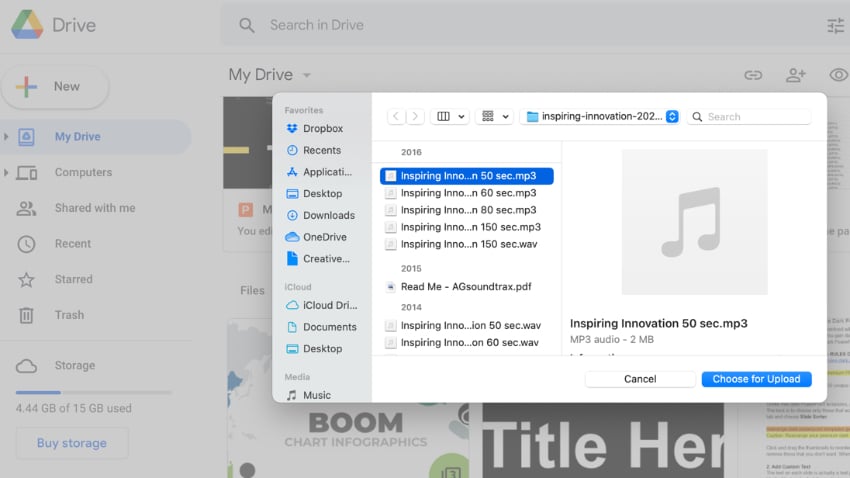   If you're only using the audio for your own use, you're all set. But if you plan to share your Google Slides audio with others, there's one extra step to take. For other users to play and hear the audio, you'll need to share the audio file with them. This is quite easy. Open the audio file in Google Drive, then click on the three dots in the upper right corner of your screen. Click on Share. Type in the email addresses of the other users, then click Done.    You're all set. When you share a Google Slides presentation with audio, the users shared in will be able to hear and enjoy it. 3. Add Audio to Your SlidesWe've seen how to find and upload music and audio to Google Drive. Now, it's time to learn how to insert audio into Google Slides presentations. Again, this is much simpler than it once was. To begin, go ahead and open up a new or existing Google Slides presentation. Navigate to the specific slide where you want to place audio. Then, go to the Insert dropdown. You'll find that on the Google Slides menu bar at the top of your screen. Here, there's an array of options. The one you want is Audio. Go ahead and click on it.    If you've already uploaded audio to Google Drive, you'll see its thumbnail in the Files section. Click on the thumbnail once to select it, then choose Select. Google Slides will import and add the music right onto your slide.    You'll now see a small speaker thumbnail that you can drag around the slide. This is the control that you'll use to play the music when you're presenting. Move it around the slide to an unobtrusive area where it won't cover up existing content. You're all set! This is how to add audio to Google Slides quickly. 4. Set Up Playback SettingsYou've just seen how to add music to Google Slides. But once you have, you still have creative control over how and when the music plays back. Notice that after you inserted the music, Google Slides opened a new sidebar on the right side. This is the Format Options menu, and it's how to add music to Google Slides that you can control as you wish.    The sidebar contains a series of playback settings. The most important section is the Start Playing section. Here's how those settings work:
You can also opt to loop the audio, which means it'll play over and over. Explore these settings and you'll see how to insert audio into Google Slides on your own terms. 5. Play the Audio!You've just learned how to add music to Google Slides. Now, all that's left is to play it back! When you're ready, click Present in the upper right corner. Find the slide with your music, and click on the speaker icon. Google Slides will begin playing the music or audio that you've imported.    Once you know how to add audio to Google Slides, you can elevate your presentation game to the next level. As you can see, it's very easy to do, thanks to stock audio from Envato Elements and Google Slides' built-in features. Alternate Option: Insert a Link to a Streaming Music ServiceSo far, we've worked to add downloaded audio files from a service like Elements or AudioJungle. But the web is already full of hosted audio tracks that you can also add to your presentation. Let's learn how to add music to a Google slide that's on a streaming service. One way to add music and soundtracks to your Google Slides presentation is to insert a hyperlink in the presentation that links to a soundtrack that you've got the rights to use on a streaming music service. There are many streaming music services available. Here are just a few examples: This method of adding sound works best on an opening slide since you can start the soundtrack as the audience is coming into the room. Also, you'll need to be present when the presentation is shown to start and stop the soundtrack. Plus, you'll need to be connected to the Internet. Here's how to use a streaming music service with your Google Slides presentation: Step 1. Open Your PresentationTo start, open the presentation you're going to add sound to on Google Drive. We're going to continue using Boom from Envato Elements. This presentation template focuses on telling stories with visuals and data. I'm going to add a link to streaming audio on the first slide as a way to kick off the presentation.    Go to the slide where you want to insert sound. I'm using the infographics slide shown above in the screenshot. Step 2. Open Your Music ServiceThe next step is to open your music service and find the track that you've got the rights to use. In this case, I'm going to use SoundCloud's streaming service, so I type in the URL: https://soundcloud.com. The main SoundCloud screen appears: .jpg) .jpg) .jpg) Log in to the service. If you own the rights to use a soundtrack, you can upload it to SoundCloud. If you're not the original author, be sure to honor any licensing arrangements you've got made. You can also set the privacy on SoundCloud to Private Sharing. This limits who has access to the soundtracks you upload. Learn more about Private Sharing on SoundCloud. For my example, I grabbed stock audio from Envato Elements to demonstrate the feature. Locate the soundtrack you wish to use in your presentation on SoundCloud. Click the title of the soundtrack. A screen opens featuring the selected track.    Click on the sharing tool beneath the track you want to use to get the link to include in your presentation. The SoundCloud Sharing screen displays:    At the bottom of the screen you'll see the URL of your sound track. We'll return to this screen in a minute, but first we want to insert a graphic to attach the link to and to help hide it. Step 3. Insert an Icon LinkFor this example, we're going to hide the link to the soundtrack with a graphic. Luckily, the Boom infographics slide actually includes slides with icons you can use in a presentation. Let's jump to slide 59 and click on a play button icon. Copy it to your clipboard with Ctrl + C (Windows) or Cmd + C (macOS.)    Now, let's jump back to the intro slide and paste it in. I'm also going to update the text below the icon to "press play to start audio" so that the presentation viewer knows that it's an option.    You're now ready to attach a link to the audio in your presentation. Step 4. Insert a LinkReturn to the Sharing screen of your streaming music service (from Step 2). Highlight the URL you want to insert into your presentation and press CTRL + C to copy it to your clipboard. Return to your presentation. With the graphic selected (the blue handles will be visible), click Insert > Link. The system prompts you to insert the link: .jpg) .jpg) .jpg) Click in the prompt and press CTRL + V to copy the link from your clipboard into the box. Click the Apply button when you're finished. Your soundtrack is now linked to the graphic.    Click Apply when you're done. If you link the audio to a text box instead of an icon, make sure the text color is set to be noticeable, so that you can readily see the text with the link applied. Step 5. Click the Link to PlayTo play the soundtrack during your presentation, click the Present option in the right of the screen to start the presentation:    The presentation takes up the entire screen. Click the icon with the link to your soundtrack. Or if you linked your soundtrack to text, click on the linked text. Another tab opens in your browser. Your streaming audio tool, in this case, SoundCloud, opens to your linked soundtrack:    Click the Play icon in the streaming audio tool. Your track begins to play. Leave the tab with your streaming audio tool open, but switch to the Windows tab showing your presentation. Your Google Slides presentation now has a musical accompaniment. To end the music, return to the tab with your streaming audio tool and click the Play icon again to turn the soundtrack off. There's a second way to add music and sound to your Google Slides presentation. Let's take a look. Method 2. Insert a Video With SoundIn this method, you'll embed a YouTube video with a soundtrack. You'll minimize the video so that it isn't obvious to your audience. When you play the video, the effect is that your Google Slides presentation has a soundtrack. The advantage to this second method of adding music and sound is that Google Slides includes an AutoPlay setting. This means that you do not need to be present when the presentation is shown. You could use this method for a presentation accessed by your audience online. You'll need an Internet connection. Here's how to use a video to add sound and music to your Google Slides presentation, step by step: Step 1. Open Your PresentationTo start, open the presentation you're going to add sound to. For this example, we'll use the same Boom infographic template.    Go to the slide where you want to insert sound. In this case, I still want to open the presentation with a soundtrack, so I leave it on the opening slide. Step 2. Insert VideoSelect Insert > Video from the main menu. Here's where to find those menu options:    The Insert video dialog box displays:    You can choose to insert a video by searching YouTube, by URL, or from Google Drive. If you already know the YouTube video link, paste it into the By URL box. You'll see a thumbnail of your selected video on the slide:    Make sure that the video is selected (you'll see eight blue handles around the edges of the video). Then, drag the video to the location where you want it to be on your slide. In this case, I want to put it in the lower right corner of the slide. Step 3. Size the VideoYour video is in place on your Google Slide, but it's still quite large. The size of this video could be quite distracting for the audience. You may want to minimize it so it's barely visible to your audience. Click one of the blue handles on the corner of your video diagonally to minimize it. Your cursor should look like a double-headed arrow:    You can make the video quite small. Once you get it to the size you want, you're ready to set up autoplay. You'll do that using Format options panel in Google Slides. Step 4. Define Format OptionsSelect the video on your slide and right-click. You'll see a toolbar option labeled Format options. Click on it or use the right-click Format options menu to open the same panel.    Below the video thumbnail, you'll see an option labeled Play (on click) by default. This means that the video would only play once you click on it. We're going to change it to Play (automatically) so that the video starts without any user action.    You can also define the length of time that your video plays by using the Start at and End at fields. The length of time you spend on the slide with the embedded video is what ultimately determines how long the video plays. The video will stop playing as soon as you advance to the next slide. When you've finished defining video options, close the panel. To close the Format Options panel, click the X in the upper right corner. You're now ready to make your presentation play. Step 5. Play Your PresentationTo play the YouTube video during your Google Slides presentation, use the Present option in the right of the screen to start the presentation:    The presentation plays. When the presentation reaches the slide with the embedded YouTube video, the music plays automatically for as long as that slide is on the screen. You Learned How to Add Audio to Google SlidesIf you've wondered how to put music on Google Slides, now you know how to do it quickly. Adding music to a Google Slides presentation can be tricky, but it's quite possible to hack a solution together. You can add music by linking to a streaming music service from within your presentation. Or you can embed a YouTube video with music into your presentation. No matter what your preferred method is, you now have everything you need to add audio to Google Slides. Adding sound or music to your Google Slides presentation helps engage your audience and attract their attention. A good sound track can also make your presentation more memorable and help you to create a more professional presentation. Discover more of Google Slides powerful presentation tools. Or learn more ways you can creatively engage your presentation audience: How do you grab your audience's attention? And keep them interested throughout your presentation? Editors Note: This tutorial was originally written and published in August 2017. It's been updated to include new information—with special help from Andrew Childress.    |
| 42 Best Fall Fonts to Download (Autumn Fonts for Your Fall Designs) Posted: 19 Aug 2021 06:00 AM PDT Cute fall fonts can be the perfect touch for your fall designs. Take a look at this collection of themed autumn fonts, inspired fall lettering, and more. They're a great addition to any font collection, whether you're looking for a seasonal aesthetic or an everyday design.    Find the Perfect Autumn Fonts for Your Fall DesignsFall fonts tend to push into an aesthetic that captures the cool, earthy vibe of the season. Of course, this means a lot of diversity and versatility too. Remember, the best font choice for your design project should put your target audience and objectives first. Think of this as a font look book, perfect for fall lettering inspiration. 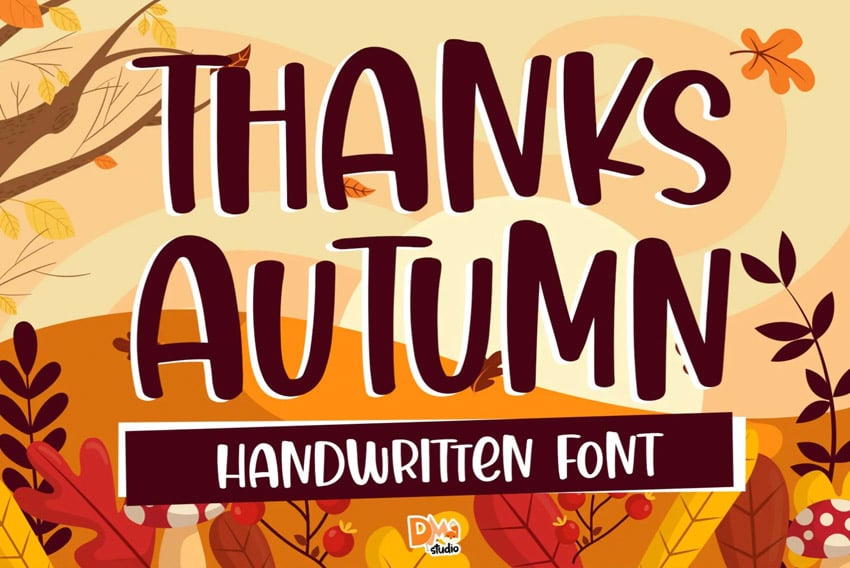   When it comes to fall fonts, a stylish fall calligraphy font is particularly on trend. You'll notice that hand lettering is particularly popular, and it's no wonder. There's something so organic and warm about a hand-drawn aesthetic. This also translates well into other types of fall fonts. 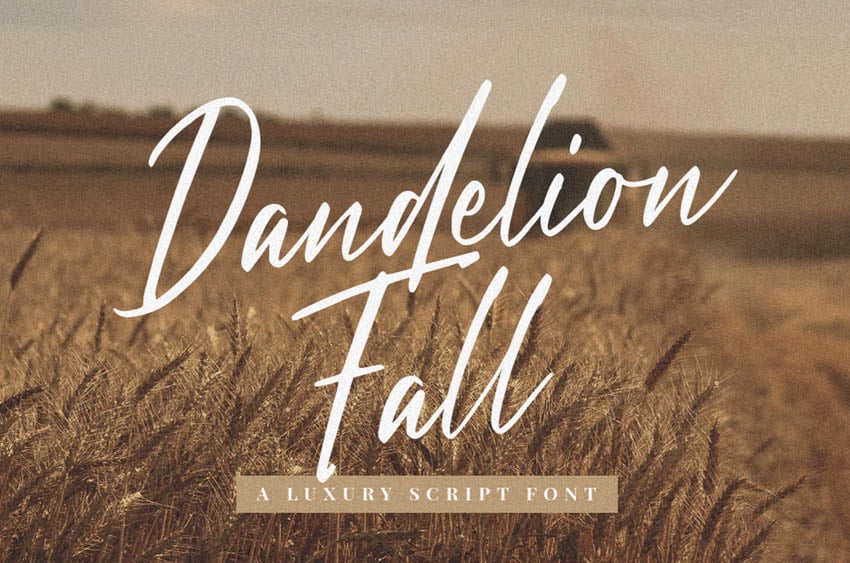 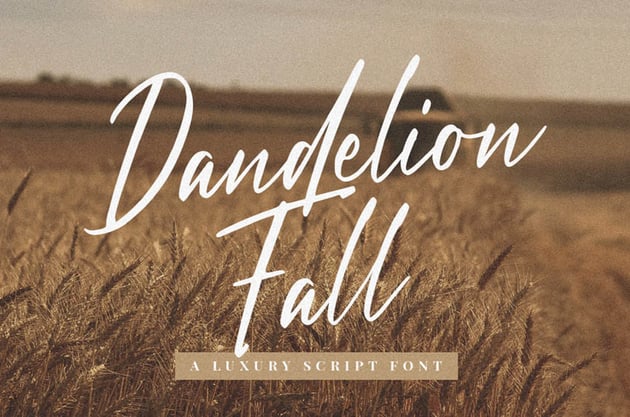  Download Unlimited Fall Fonts on Envato ElementsSince there are so many choices out there when it comes to fall fonts, why not try out an entire library of professionally designed fonts? That's exactly what you can do on Envato Elements. One low price means unlimited access to thousands of high-quality fonts. 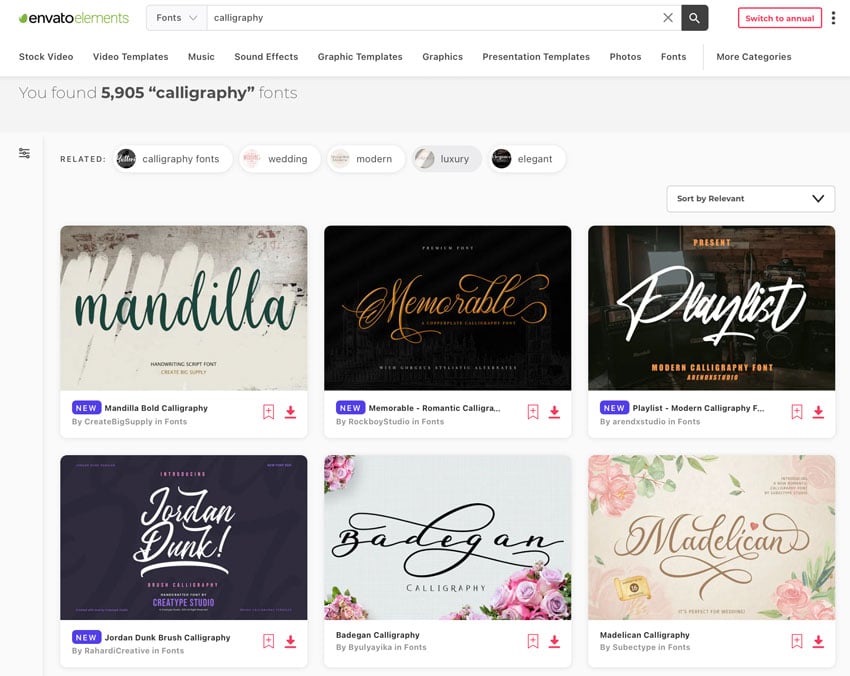   Explore the perfect aesthetic for your fall designs. There are plenty of beautifully crafted calligraphy fonts, but you can also find other choices for your fall designs. Check out this stylish serif font. It could be perfect for invitations, posters, and so much more. 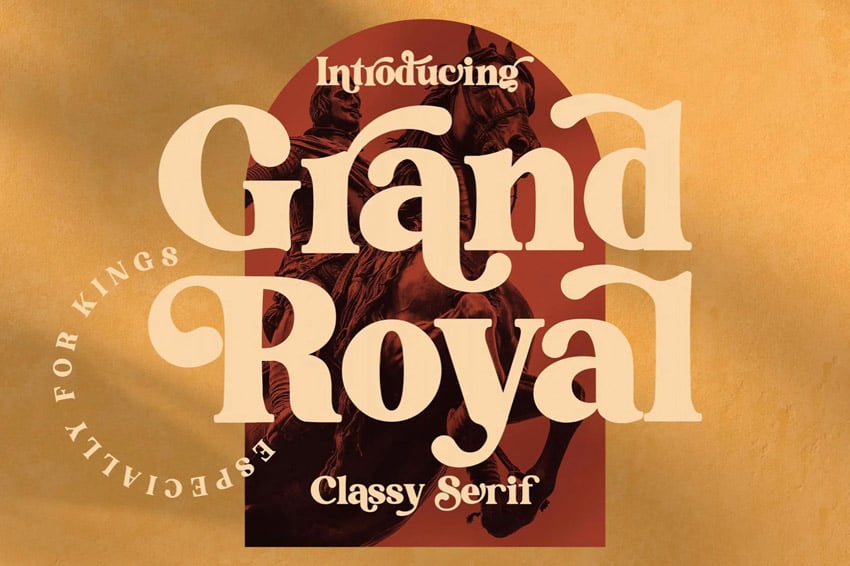 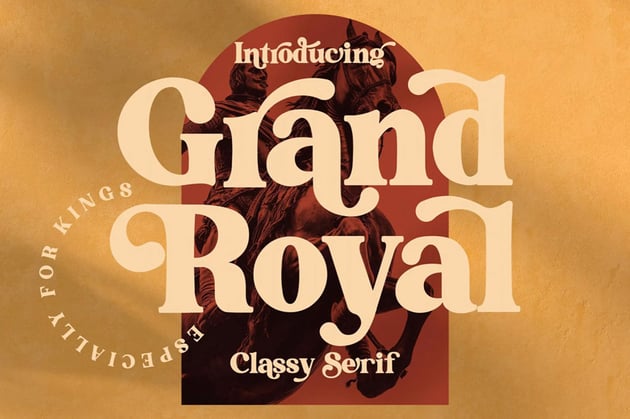  But you get more than fonts with Envato Elements. You also get unlimited access to graphics, illustrations, stock photos, design templates, and much more. You could pick up a template like this stylish set of print designs. It's perfect for fall parties and events. Download, customize, and you have a professional design in a snap. 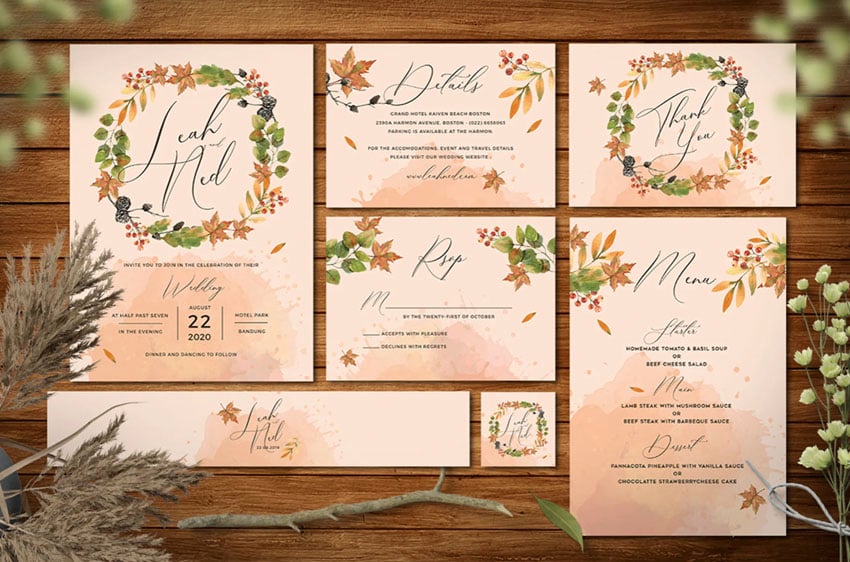 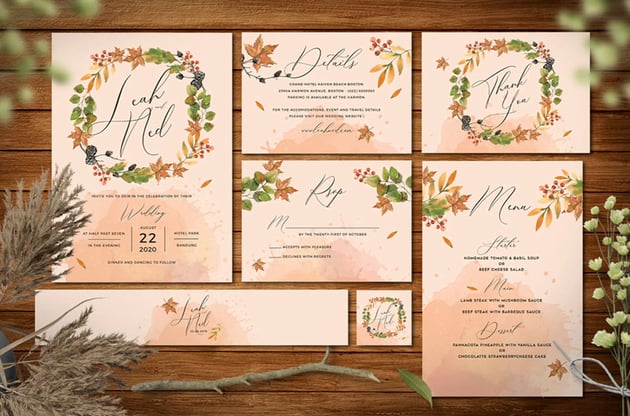  The Best Fall Fonts from Envato ElementsLet's take a look at some fall font inspiration from Envato Elements. There are playful fonts, elegant fonts, and much more! Download your favorite fall-inspired fonts or enjoy the inspiration for your fall designs. 1. Orange Leafy Autumn Display Font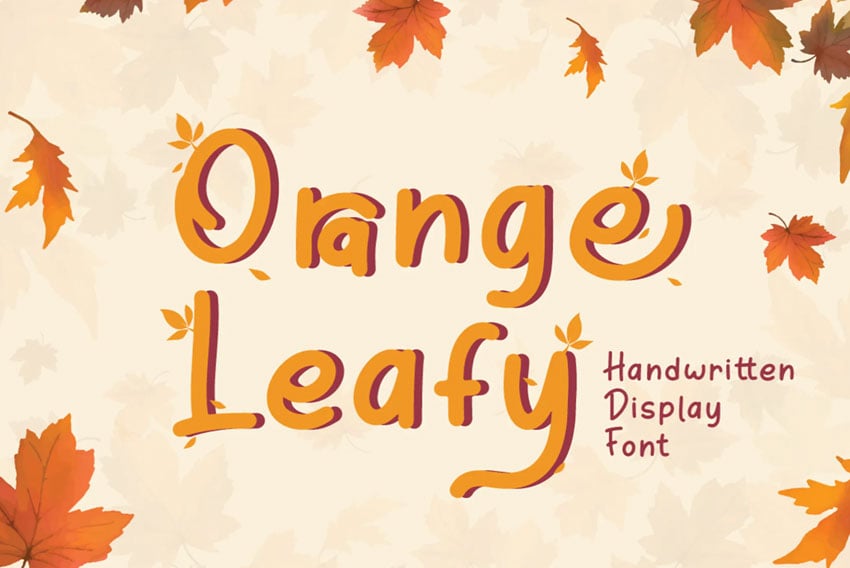  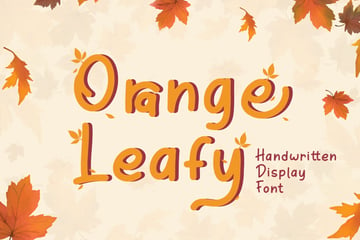 Check out this playful fall font alphabet. This display font has plenty of possibilities for whimsical design projects. Try it on T-shirts, seasonal decor, and much more. 2. Autumn Fairy Signature Monoline Script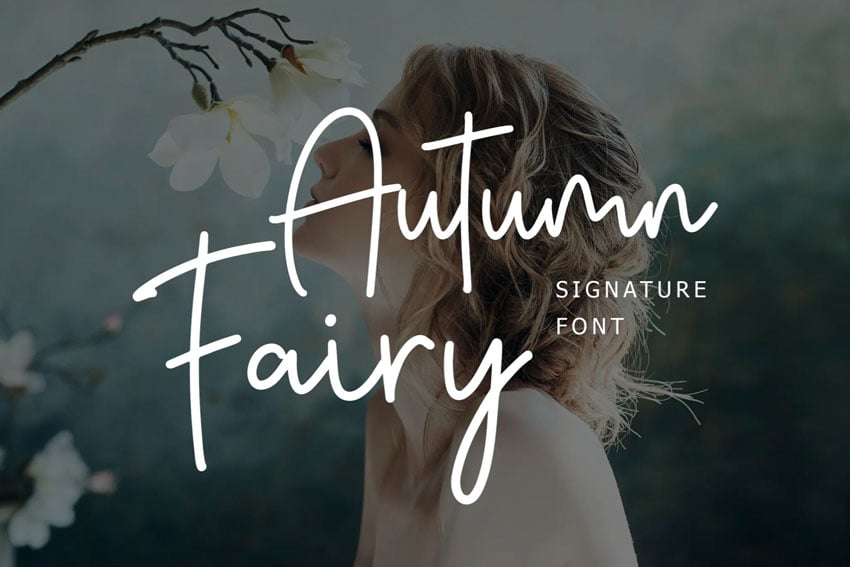 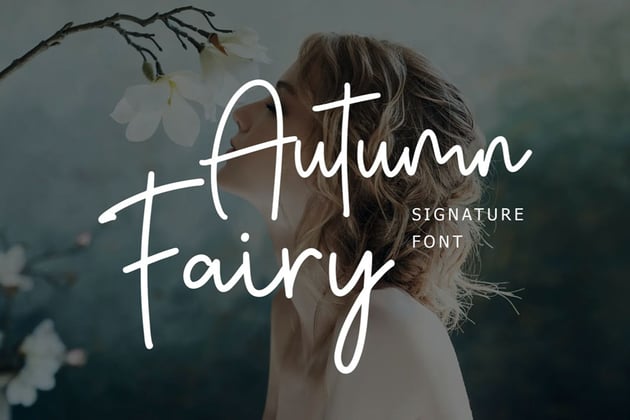  If you prefer themed, fall text that has an elegant vibe, why not try a fall calligraphy font like this one? It's a classy choice not only for fall, but for year round too. 3. Autumn Sunset Handwritten Font Duo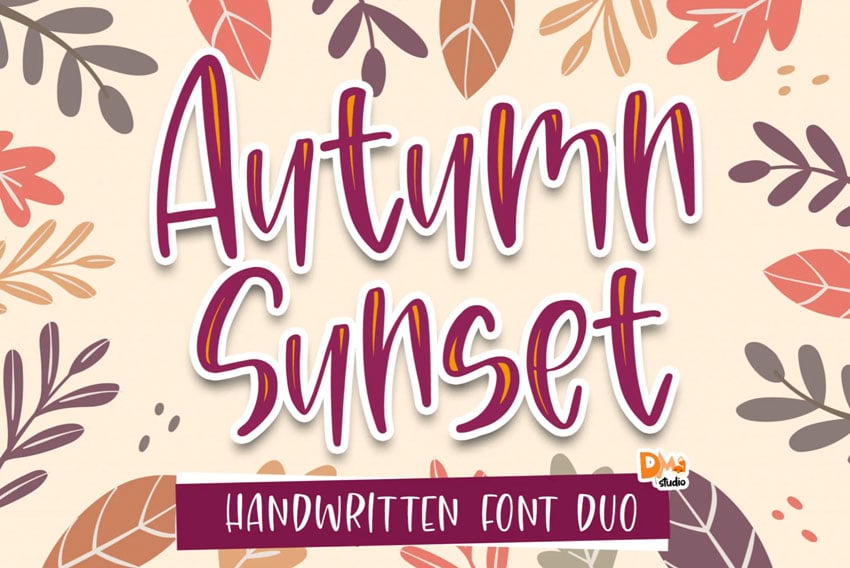   But if you prefer a quirky, upbeat look, cute fall fonts might be more your style. This handwritten font has so much personality. Try it out in different colors too. 4. Salting Friendly Fall Font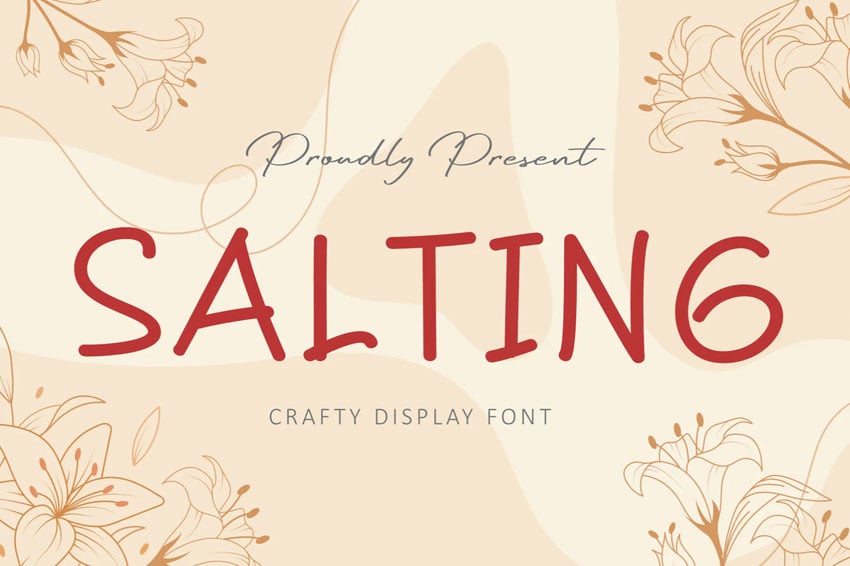 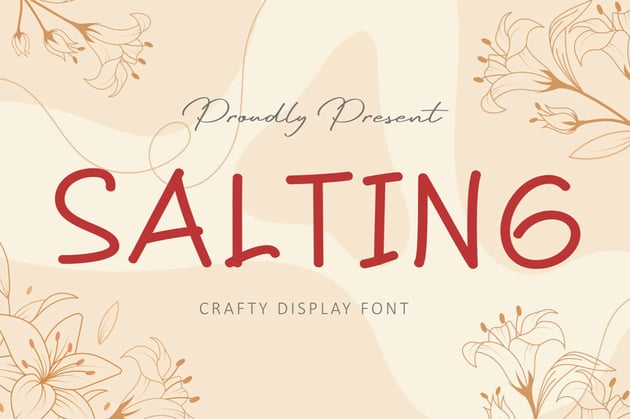  This font has an informal, friendly look, but it still keeps things more minimal and simplistic. If you're looking for a fun font that could also work at smaller sizes, try this one. 5. Hello Thankies Font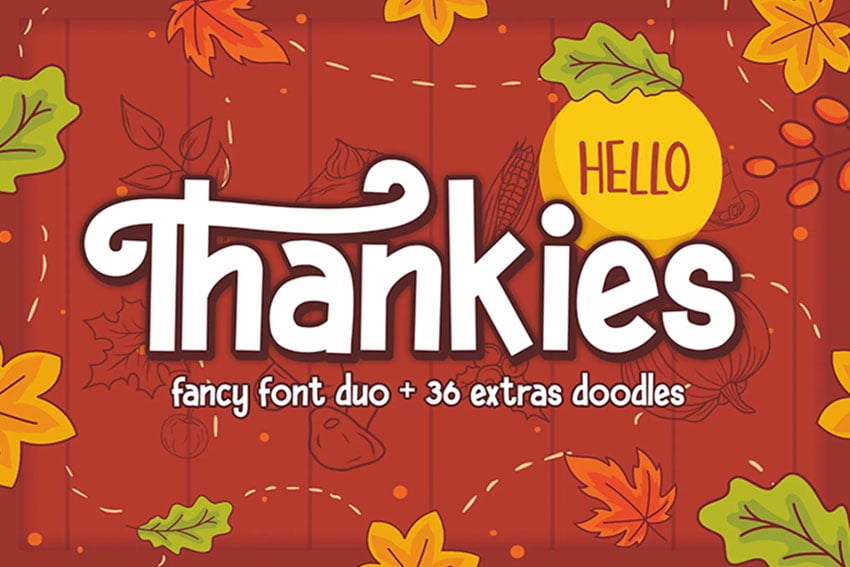  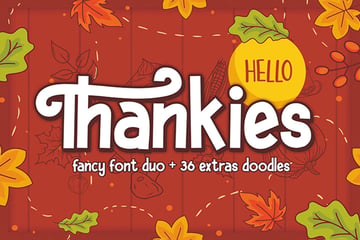 Isn't this chunky fall font cute? If you're looking to work with some fall text and you really want to make it bold, try a direction like this one. It would certainly stand out. 6. Blessed Fall Handwriting Font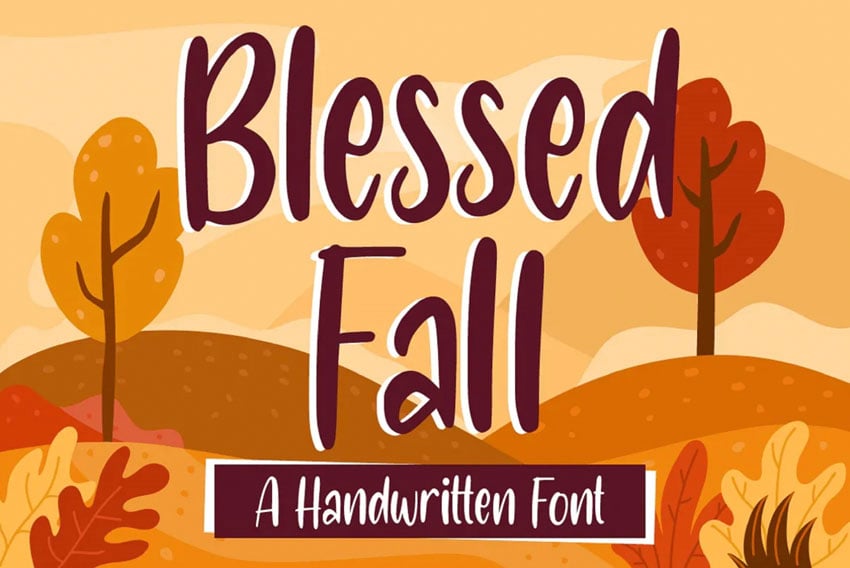 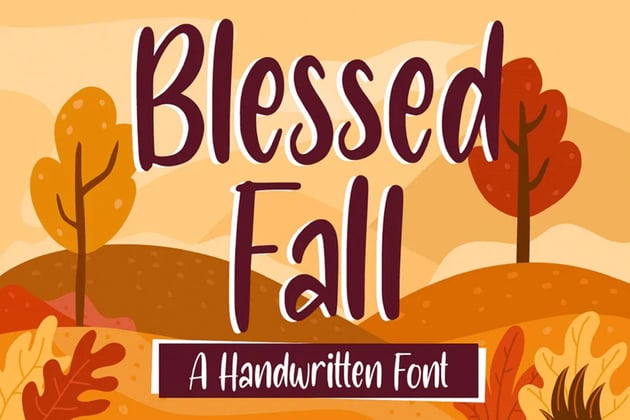  Handwriting fonts can help craft such an inviting, personal aesthetic. Imagine this one on invitations, gift tags, and T-shirts. It's a great choice that could work for other seasons too. 7. Omarta Fall Calligraphy Font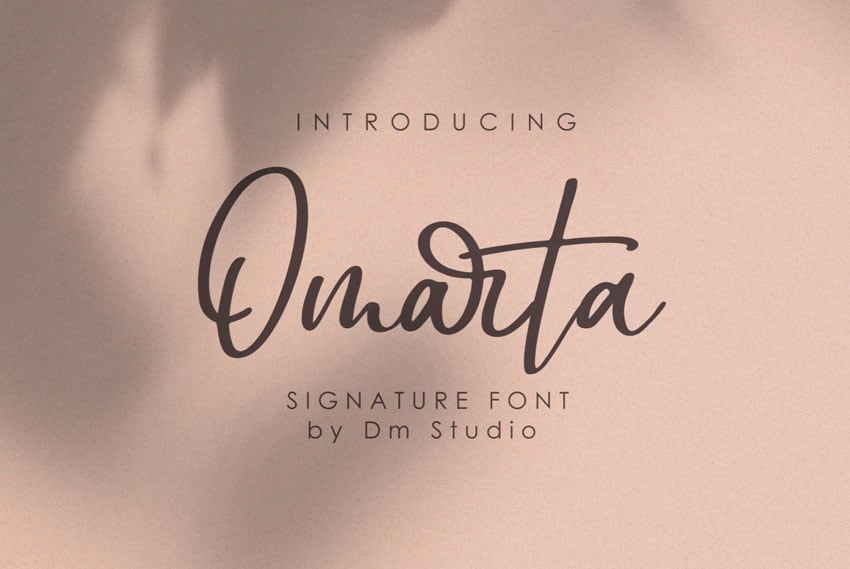   Calligraphy fonts can be such a stylish choice. Try pairing them with beautiful photography. They also work well for branding, advertising, and so much more. 8. Pear Leaves Autumn Script Font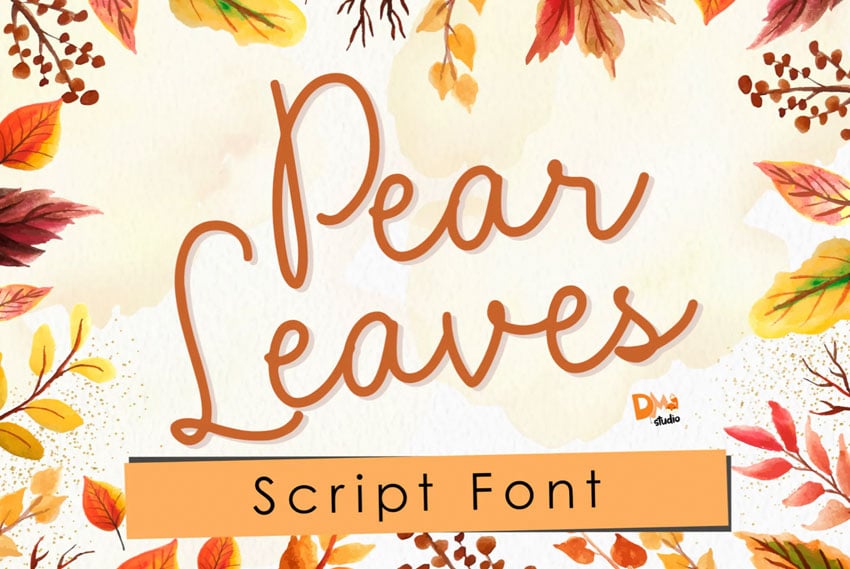 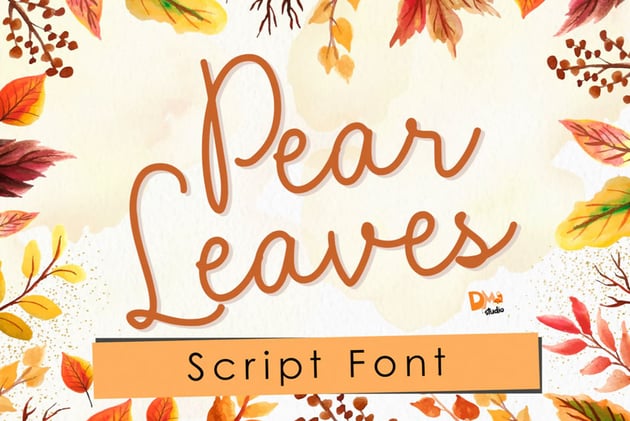  This script font has such cheerful personality. Imagine how well this one could work as a Cricut font. Try making your own seasonal T-shirts using cute fall fonts like this one. 9. Rolling Candy Beautiful Handwritten Font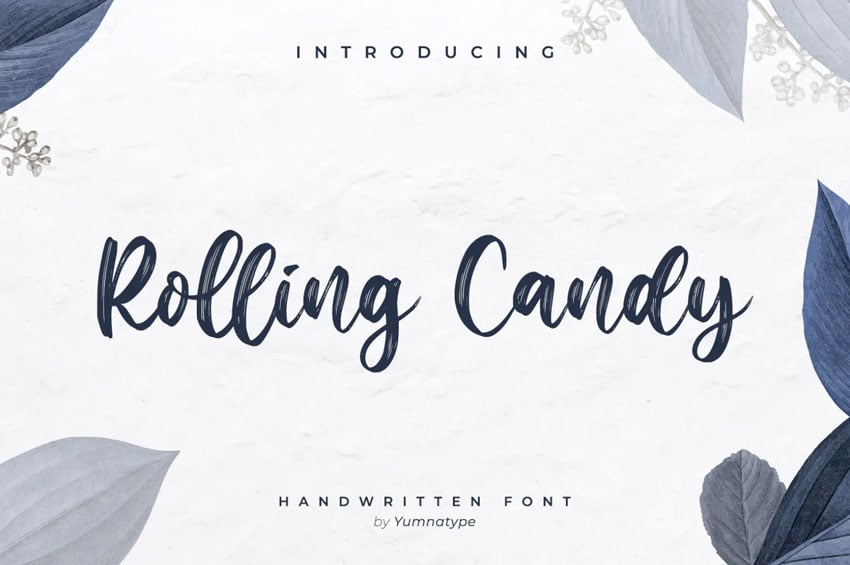 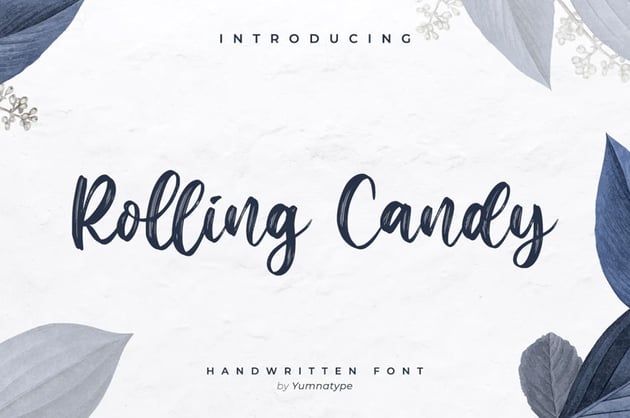 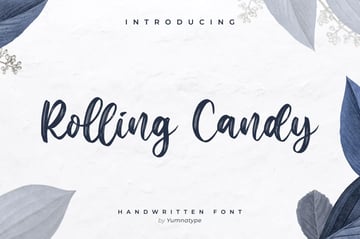 This font is such an elegant choice. Check out the visible texture in the brush strokes. There's some really beautiful contrast here too. It would make a classy design choice. 10. Samberia Modern Script Font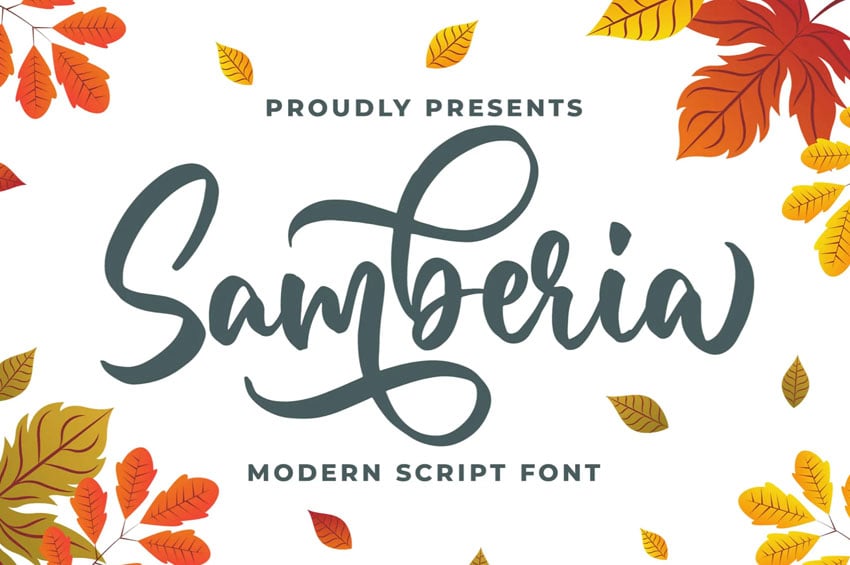 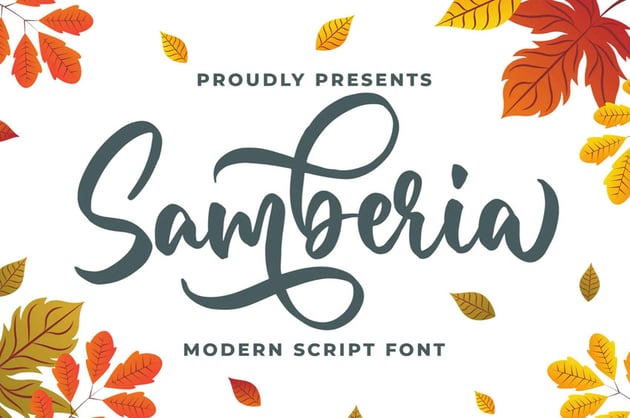  If you love a calligraphy or script font with plenty of stylish curves and twists, you'll love a pretty font like this one. Try out the stylish alternates for the perfect combo. 11. Gratefully Slab Serif Font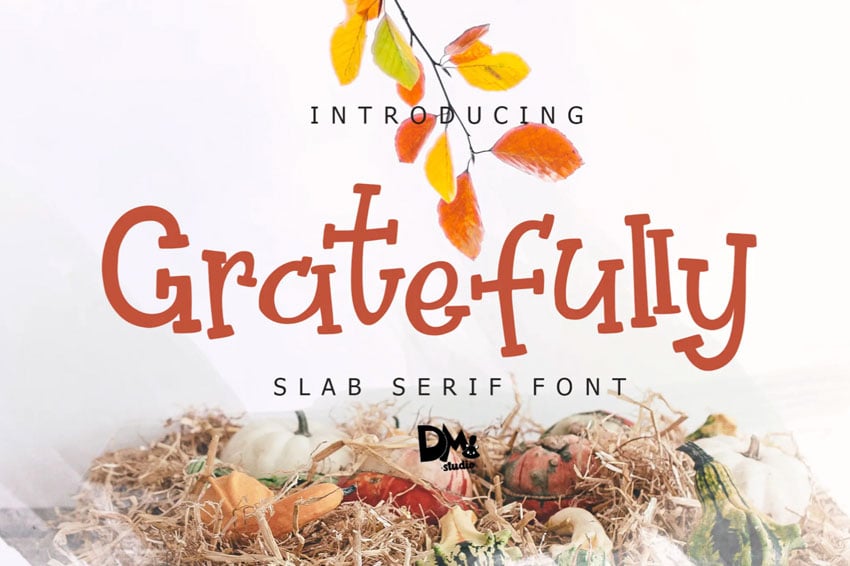 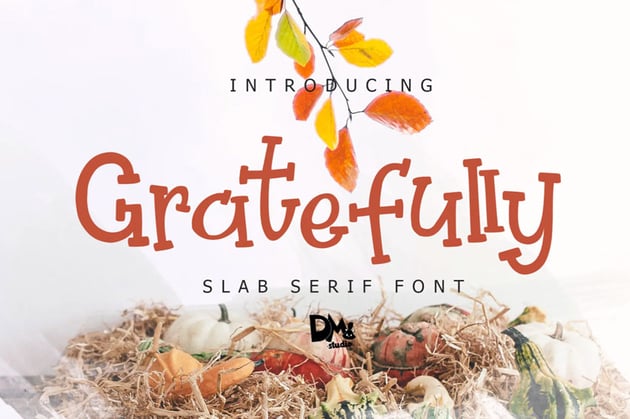  Serif fonts can also work great for fall designs too. This particular serif font has a whimsical, fun, hand-drawn aesthetic. It's perfect for festive projects. 12. Cherions SVG Sans Serif Font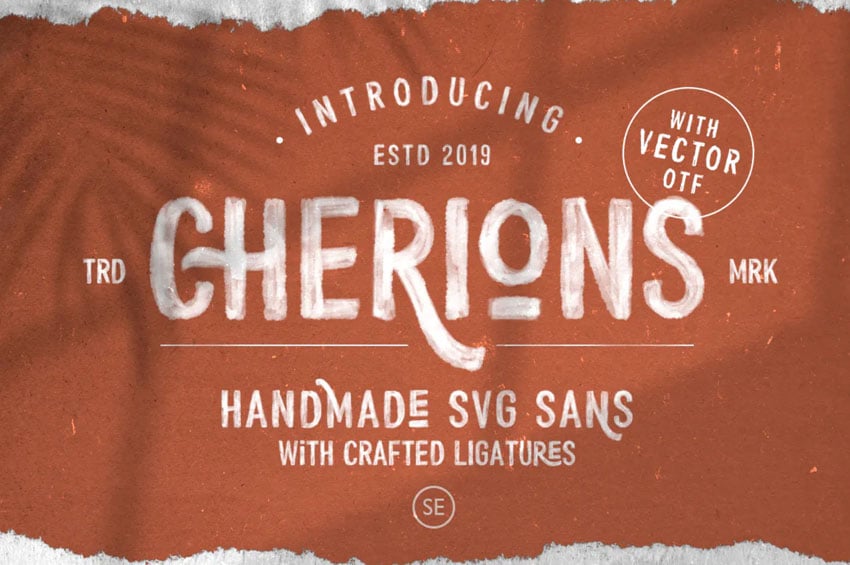 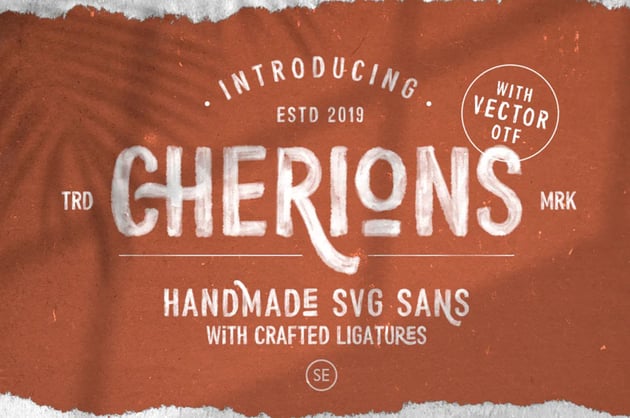  Try working with SVG fonts for an added layer of texture and detail. It has a number of ligatures too, so you can really create something custom and special. 13. Cute Maple Fall Font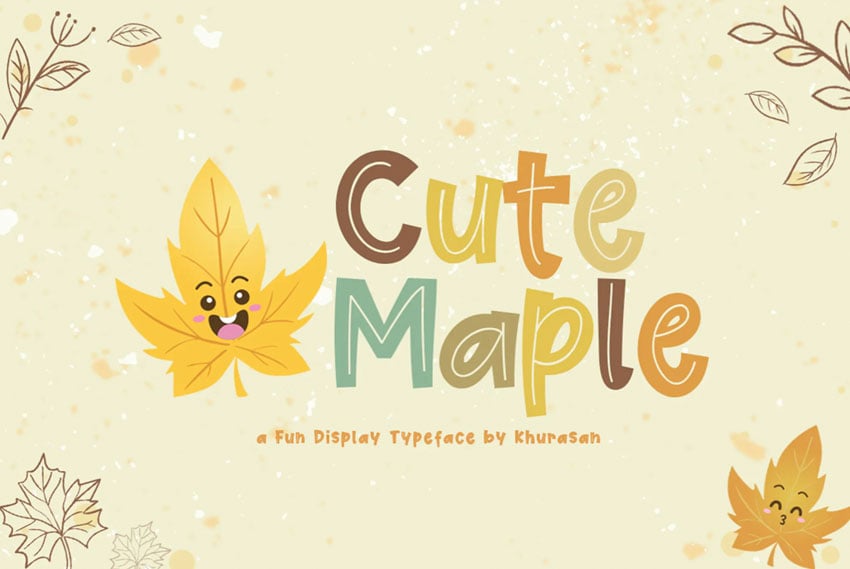  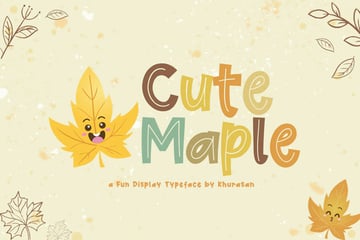 If you're here for cute fall fonts, this one is such an adorable choice. The inner lines help make this the perfect display font for whimsical, playful projects. 14. Hellena Handwritten Script Font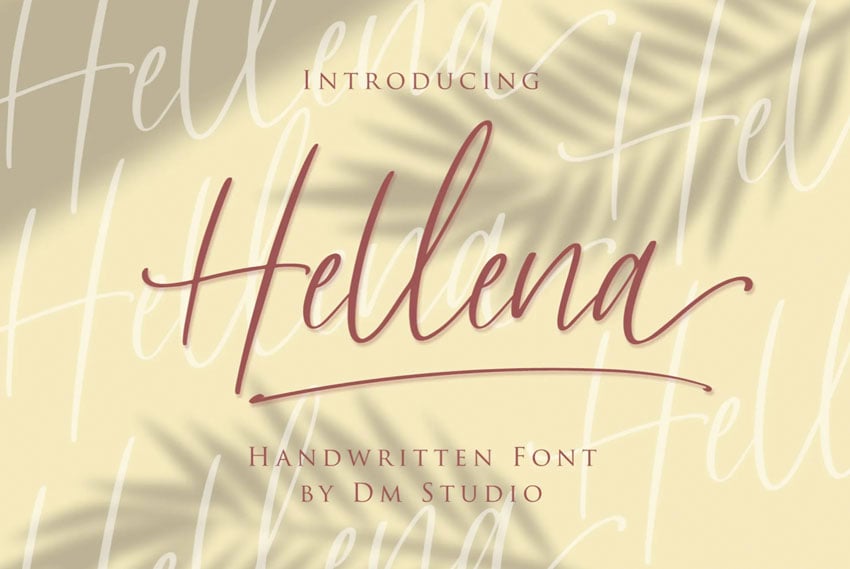 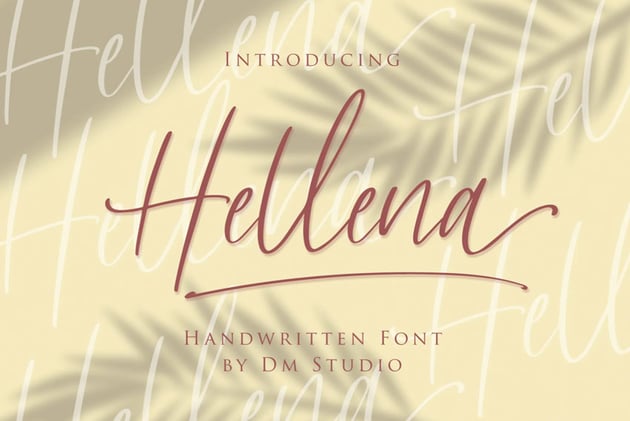  Bring some elegance to your fall designs with this beautiful script calligraphy font. You can dress this one up with gold or silver, or keep it casual with neutral colors. 15. November Beauty Signature Script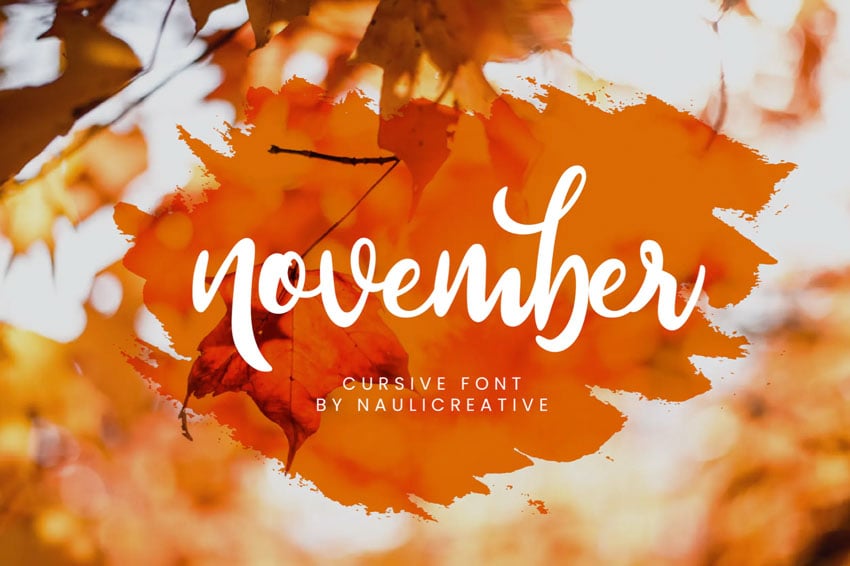   Calligraphy fonts just pair so well with autumn imagery, don't they? It just makes for such a classy look. Try this fall-inspired calligraphy font in your next design project. 16. Beautiful Autumn Sans Serif Font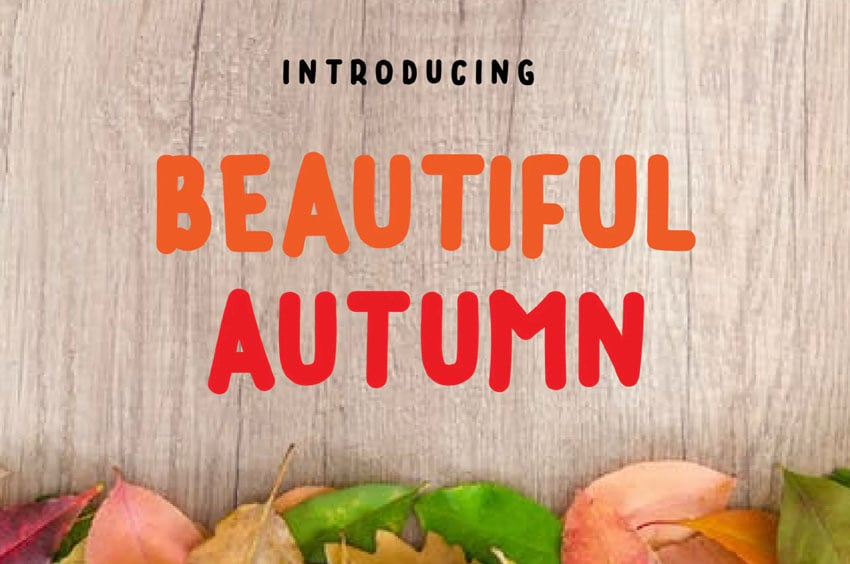 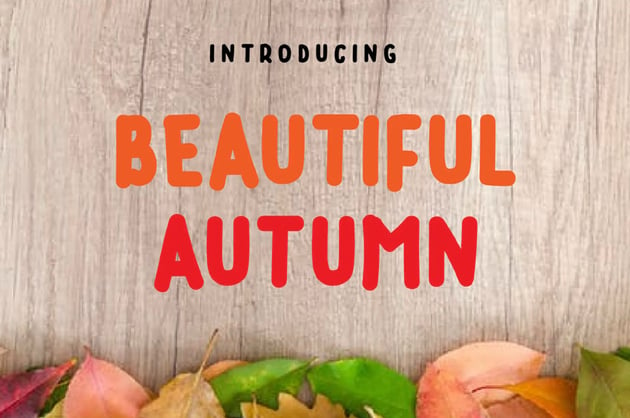  Here's a fall-inspired font that's more uniform. This also means that it works well at a variety of sizes, so it's a great choice if you're looking to create both large and small copy. 17. Sparkling Bright Beauty Font Duo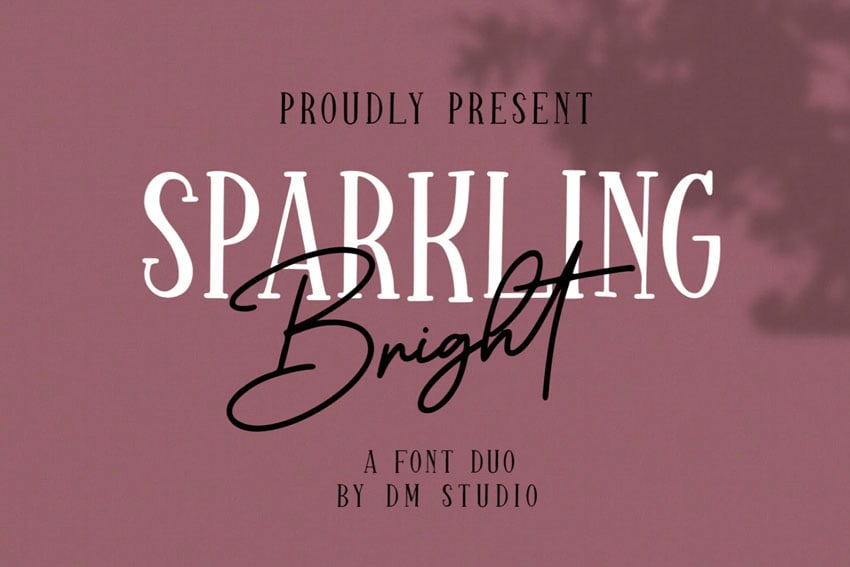  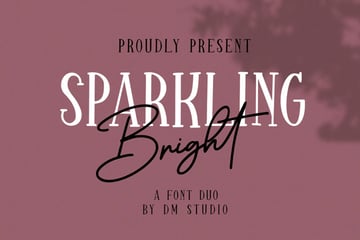 Not sure which fall fonts to use? Why not try a font duo, like this one? You get two fonts in one download, and they're already designed to be a perfect pair. 18. Friday Party Quirky Handwritten Font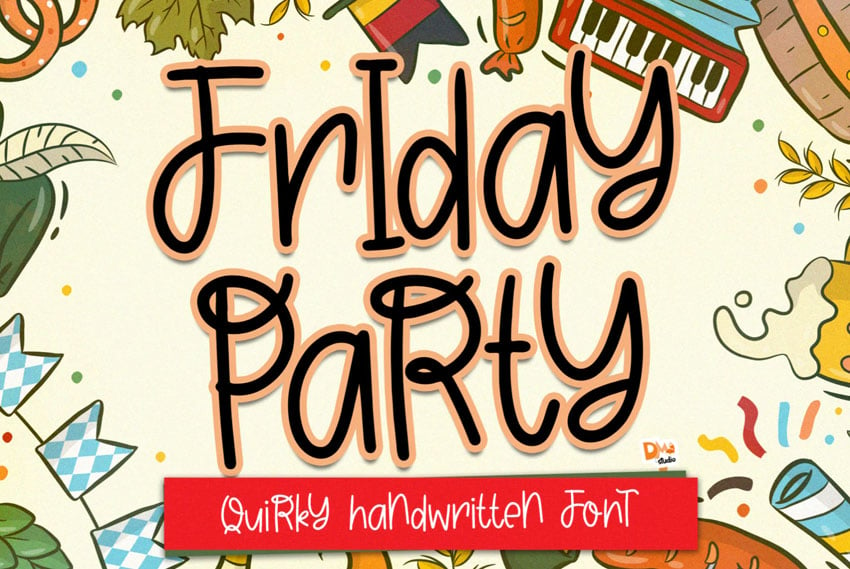   Now this is a playful, quirky font! It's a great choice for display type, especially for parties, kids' projects, and other whimsical design situations. 19. Hooked Autumn Typeface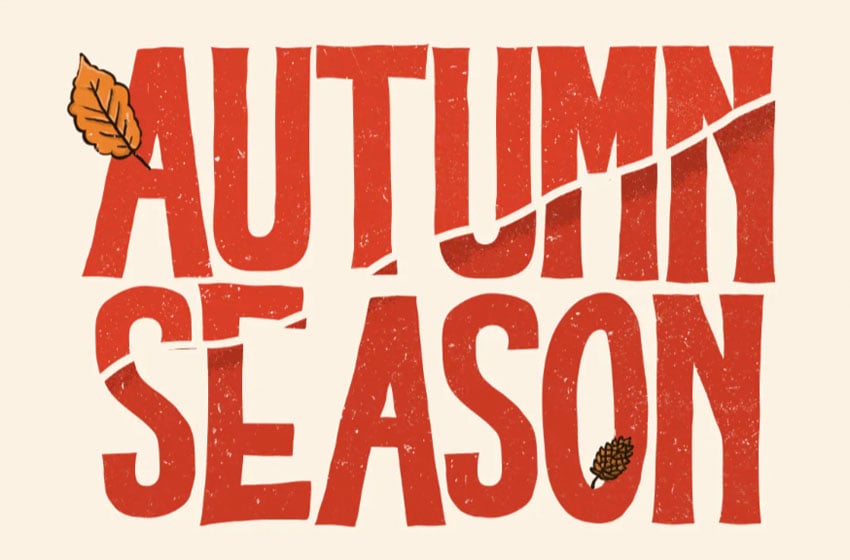 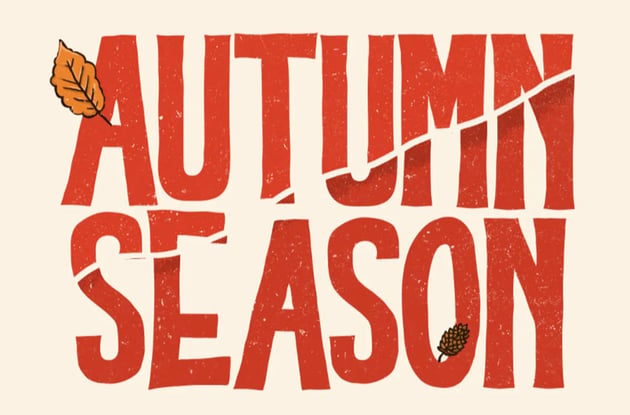  You can even find blocky sans serif type that works with a fall design theme. This bold font has organic contours, interesting texture, and plenty of personality. 20. Gold Shine Font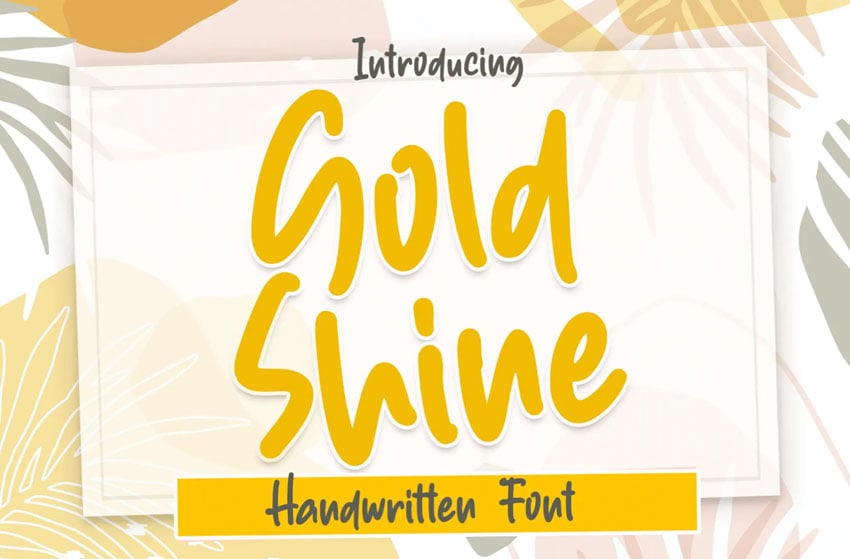 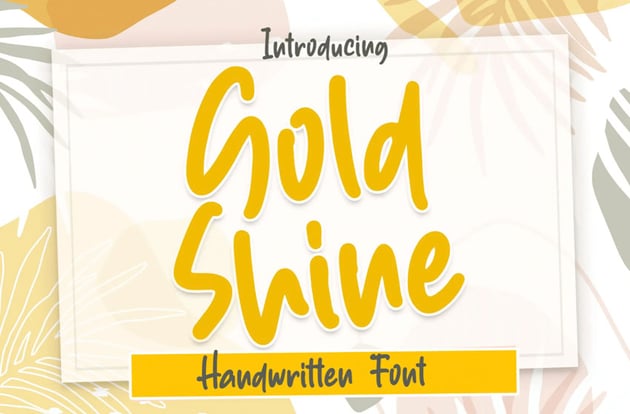  Gold can be such a welcome color with fall designs and themes. This handwriting font could work great in gold foil, or you could dress it down in matte colors. 21. Tall Fall Font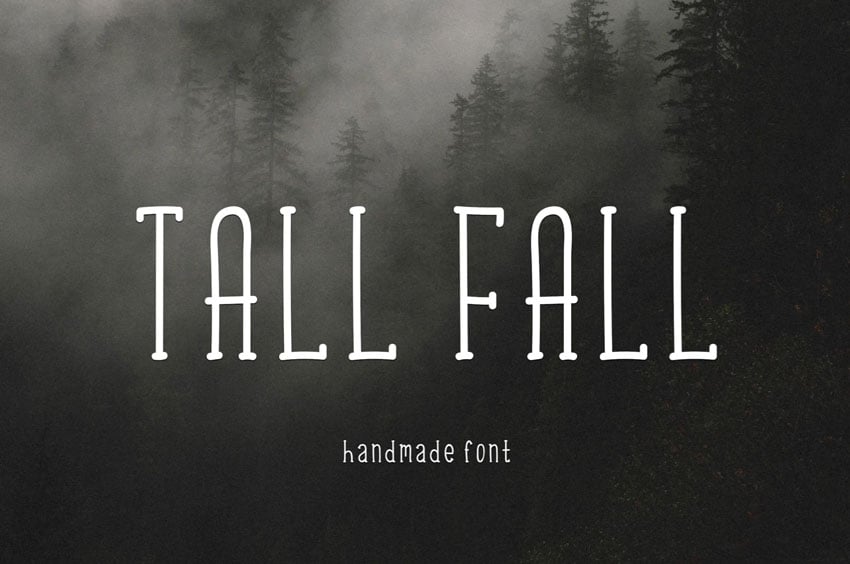  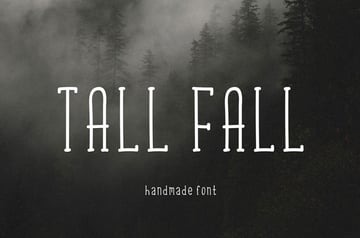 Fall can also be a spooky time of year for some. This long font could work well in a number of ways, depending on how you push it. Try it at smaller sizes too. 22. Postcard Script Font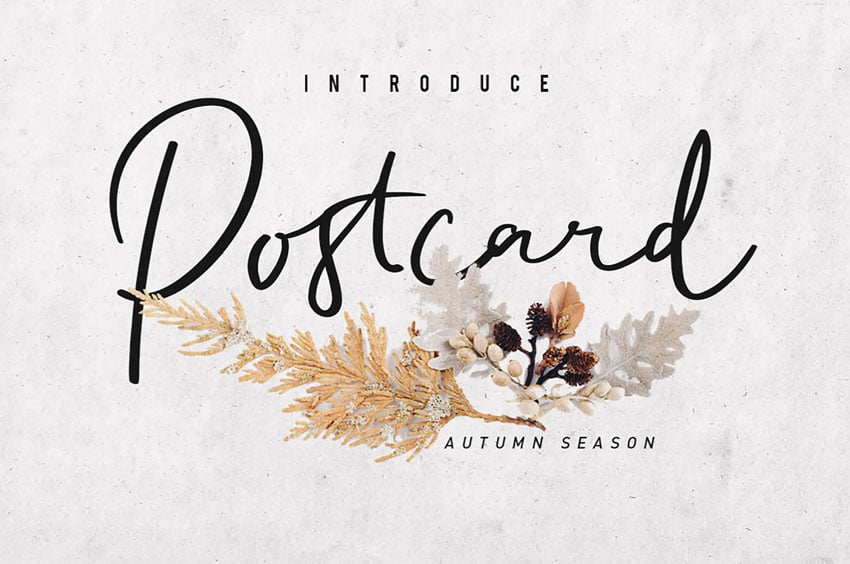 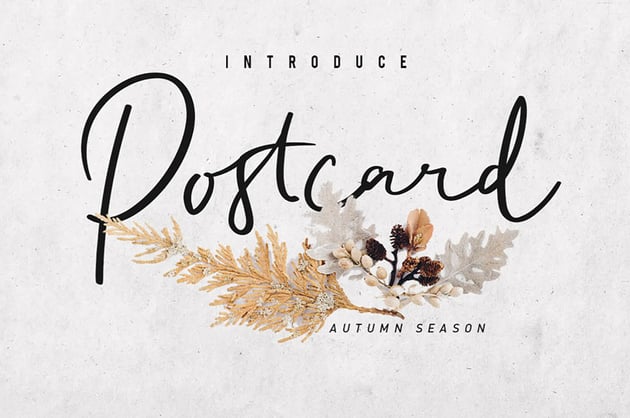  Isn't this script font romantic? It looks as if it came right out of a vintage manuscript or letter. Try it in your next fall-themed design project, or use it year round. 23. Thankful Sunday Font Duo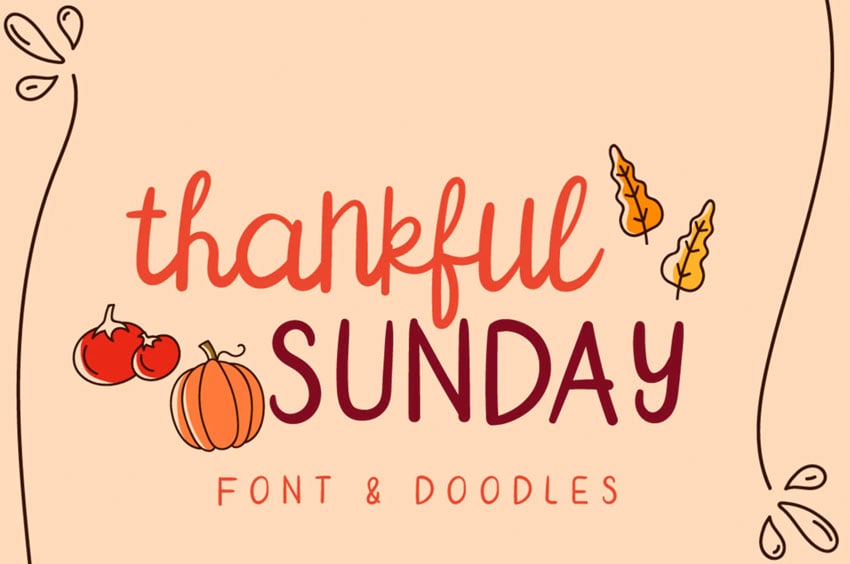   This font duo comes with two fonts, as well as some bonus doodle artwork you can use in your fall designs. Give this download a try today. 24. Fiosthic Modern Signature Font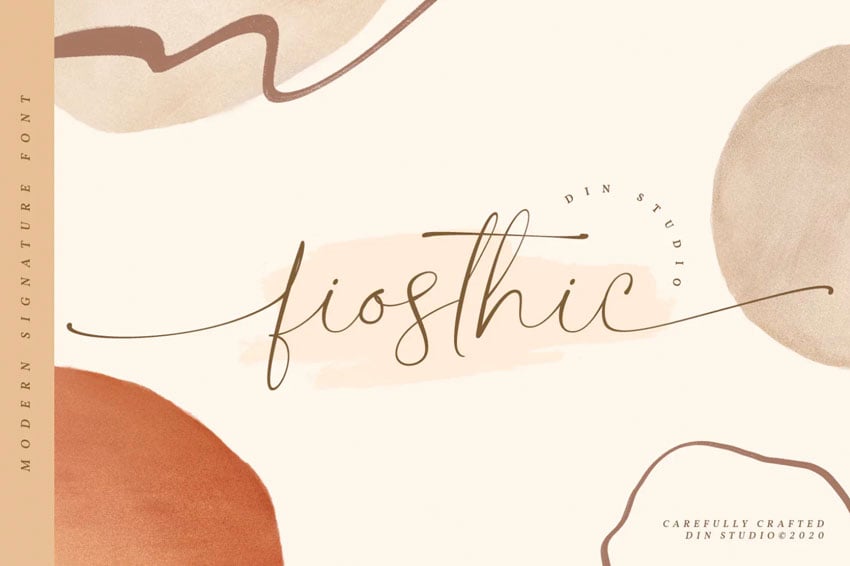 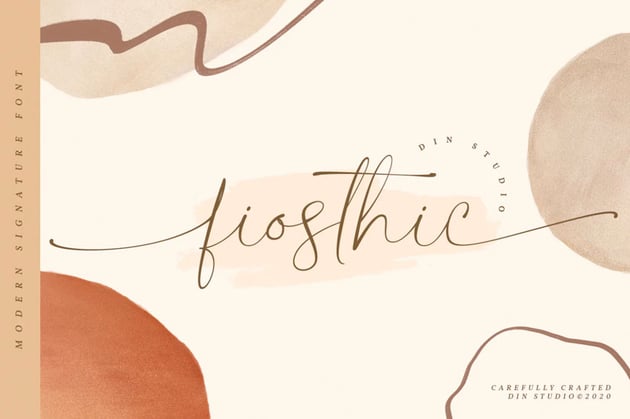  This delicate signature font is so very classy. It pairs great with neutral and earthy colors, which have a common association with fall. Give this a try in your project. 25. Maple Honey Autumn Fall Font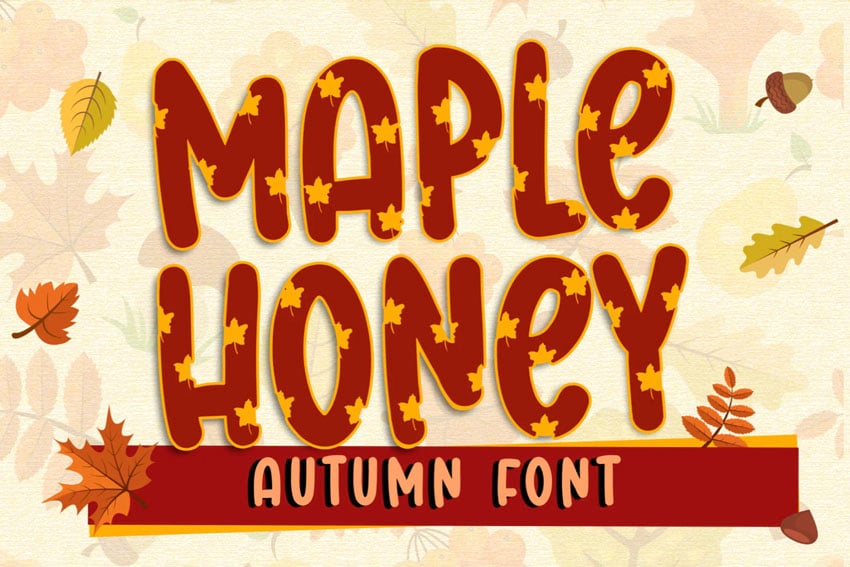  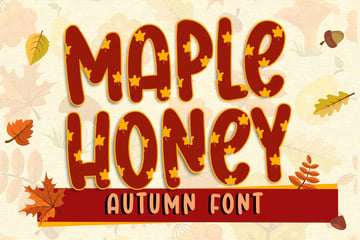 Or push in a super playful, graphic direction, like this autumn-themed font. Isn't it cute? It's definitely best suited to display type, and it would make a big impression. 26. My Autumn Cursive Fall Font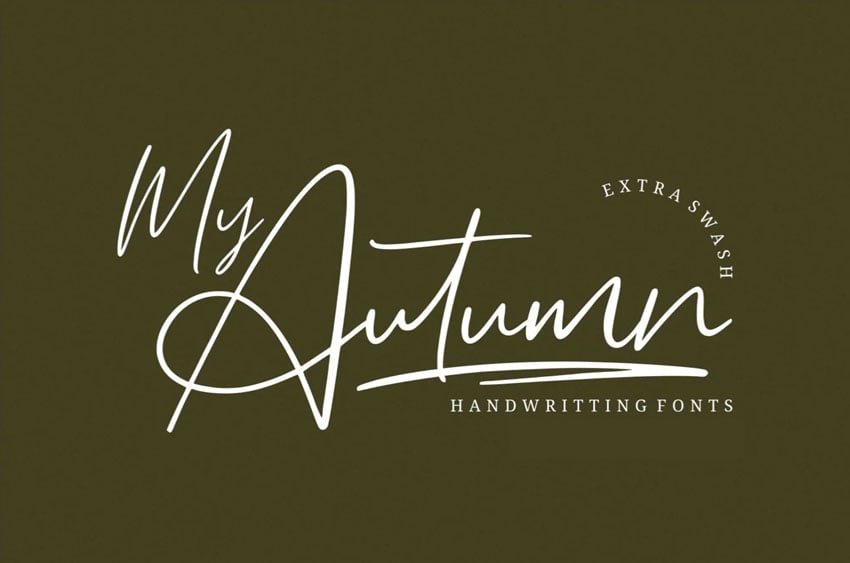 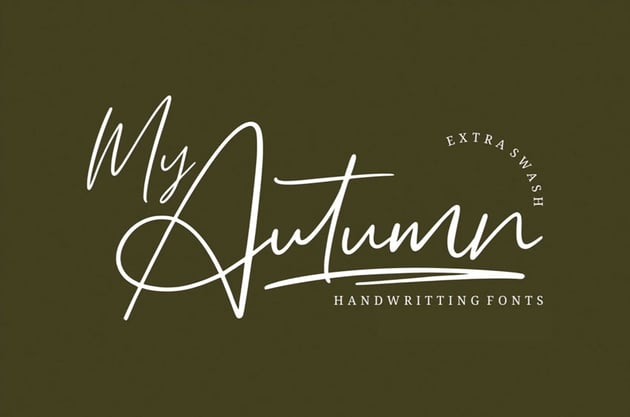  Here's another autumn-themed script font. It could be a stylish choice in your next design project. Try this one out in different colors to dress it up or keep it casual. 27. Qistilla Casual Handwritten Font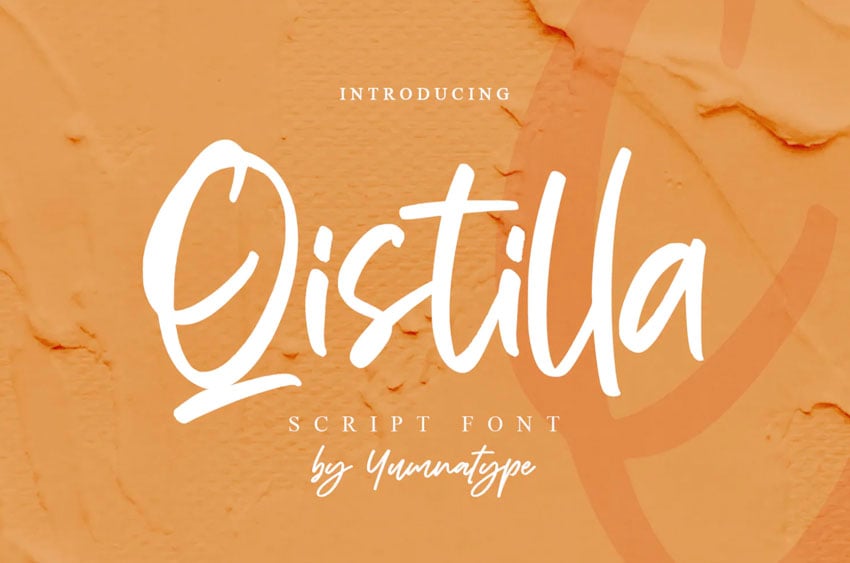 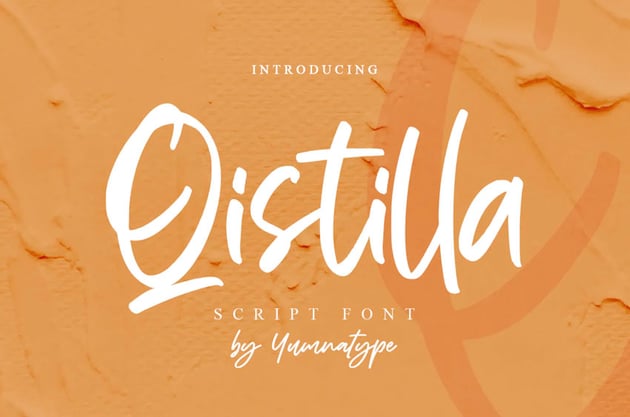  This script font has a lot of beautiful, organic details that make it feel personal. Use this as a signature font, or try it over some of your favorite seasonal photography. 28. Better Land Calligraphy Font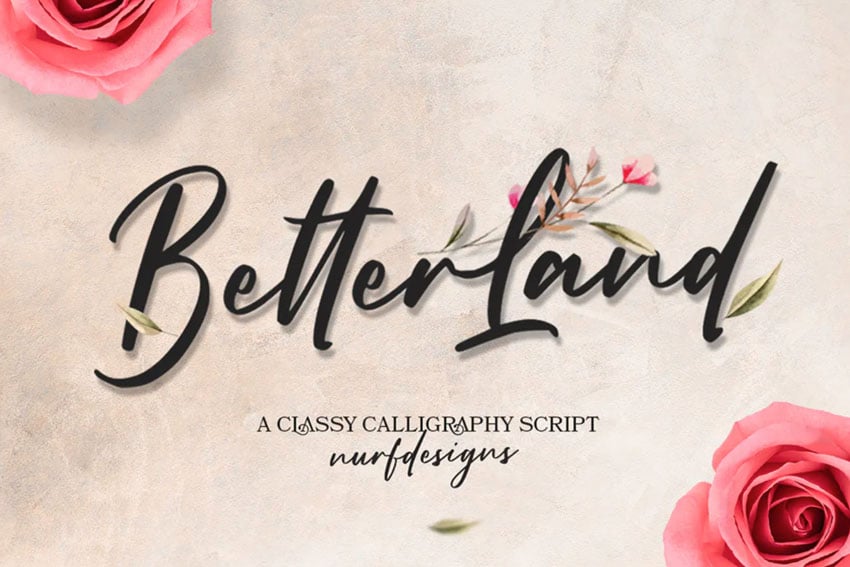 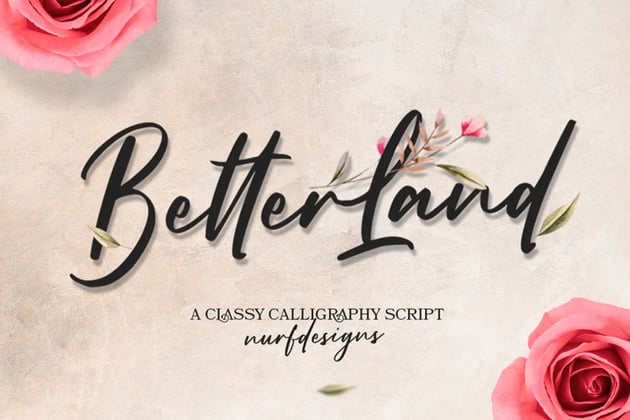  This classy calligraphy font has so much potential. Try pairing it with different graphics and imagery to create the perfect look and feel in your fall designs. 29. The Barethos Cursive Font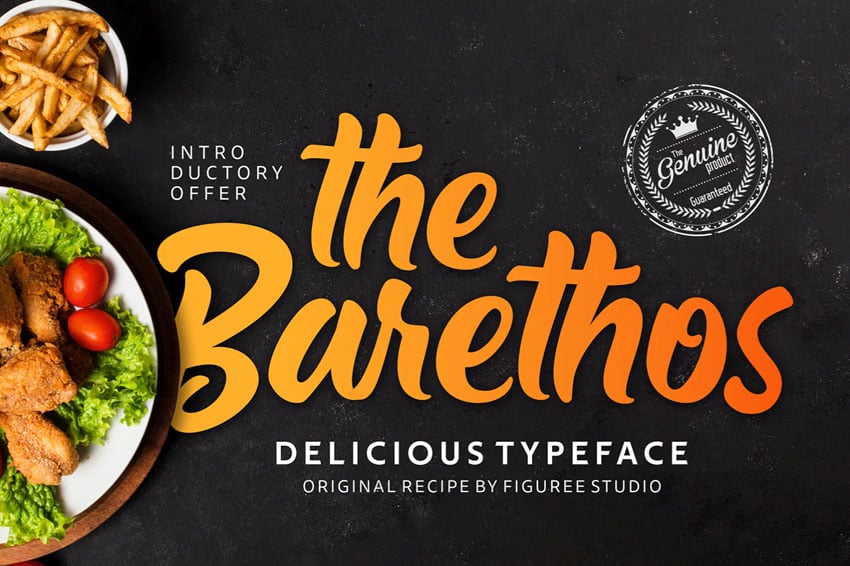  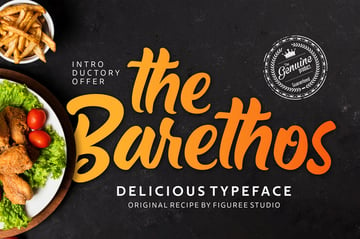 Or how about trying a chunkier script font? Notice how well this font pairs with food photography. It would also be a great fit for DIY projects, like cutting with a Cricut machine. 30. Sentania Handwriting Font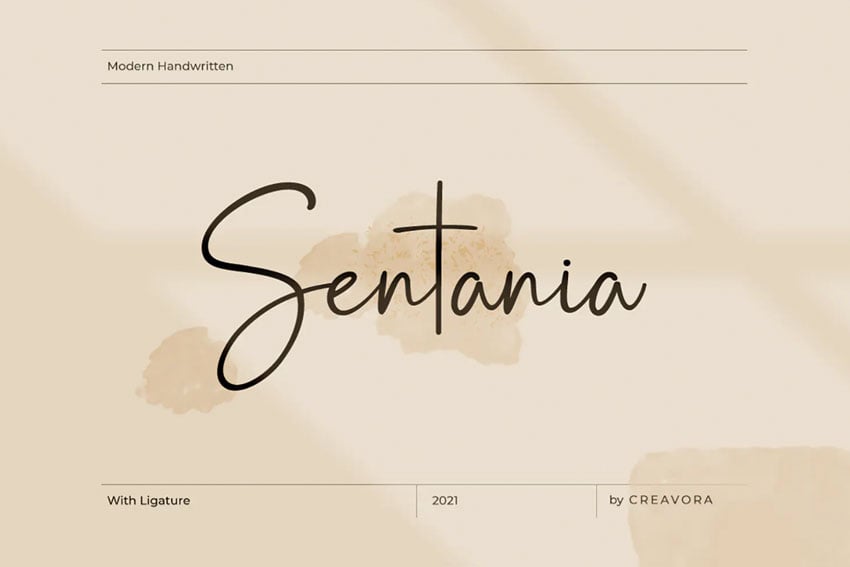   If you prefer something that makes a lighter, softer statement, how about a lighter script font, like this one? It has included ligatures to help you lay out the perfect fall text. 31. Sweet Maple Fall Lettering Font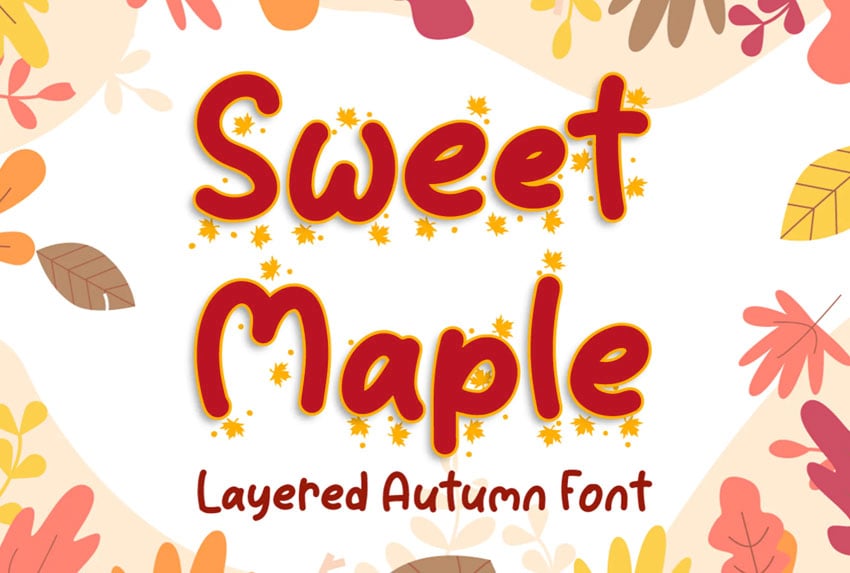   Cute fall fonts, like this one, can be such a fun choice. Use this layered font to create a fun, leafy effect. Or keep it single layered; it's a cute pick on its own too! 32. Billy Holiday Script Fall Font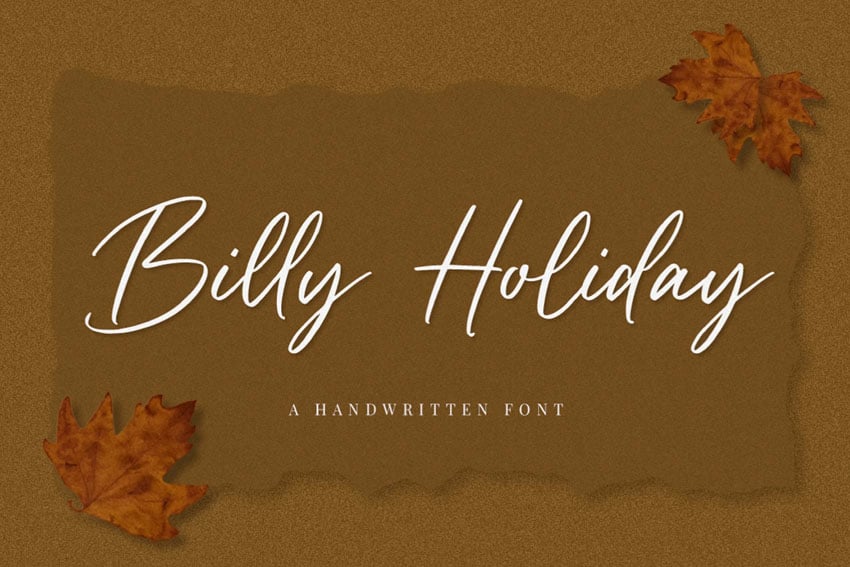 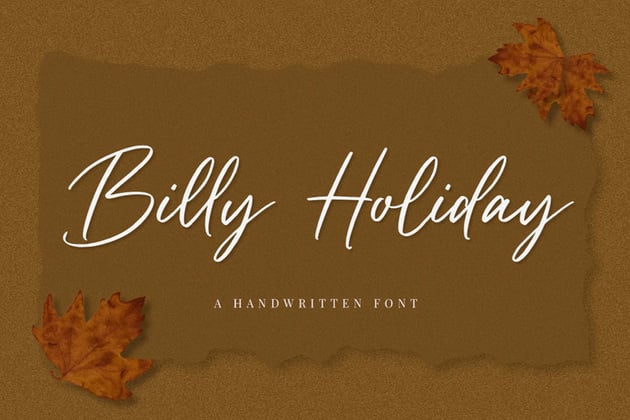  Here's another classy choice if you're looking for fall fonts. Notice how well it works in a solid color against a texture. Try this approach in your fall designs. Find Even More Autumn Fonts on GraphicRiverLooking for even more fall-themed fonts? Check out GraphicRiver. It's another collection of high-quality fonts, but the downloads are on demand. It's a great choice if you're looking to download one or two fonts. Take a look at these inspiring fonts you can download on GraphicRiver right now: 1. Pumpkin Story Cute Display Font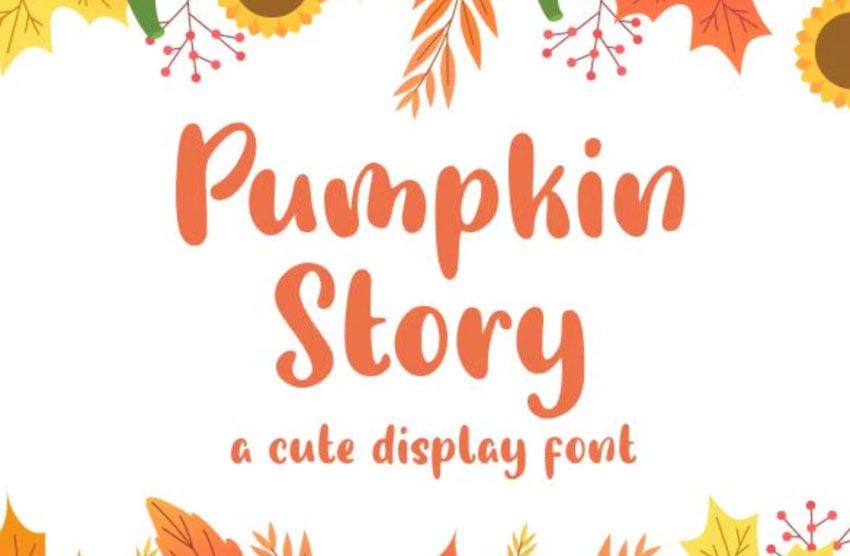  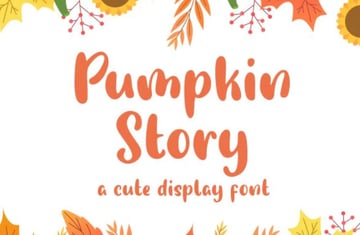 This cute display font has so much potential. It looks great with a fall theme, but this is another font download that has plenty of potential for year-round use. 2. Cannodya Fall Calligraphy Font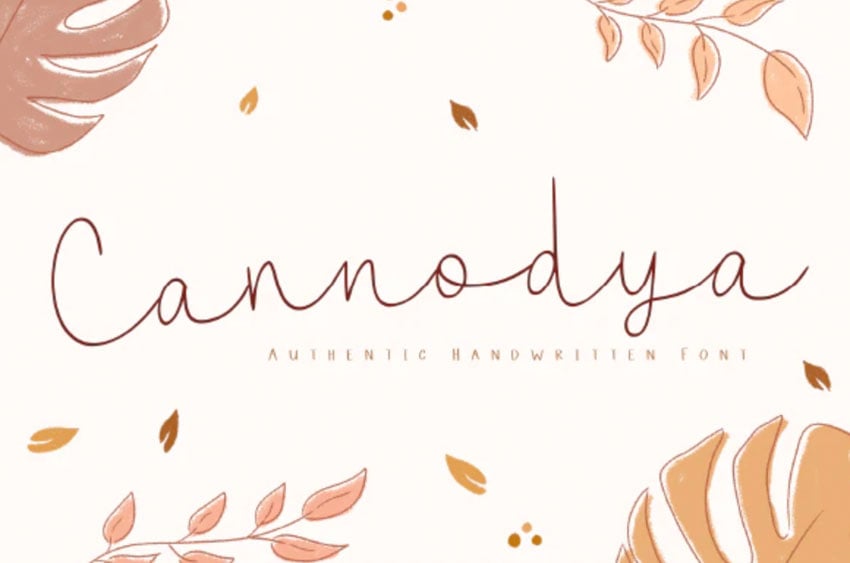   Here's a different take on an elegant, thin script font. Keep this one at larger sizes and use it for points of emphasis. It would be great for titles and headlines. 3. Autumn Days Playful Font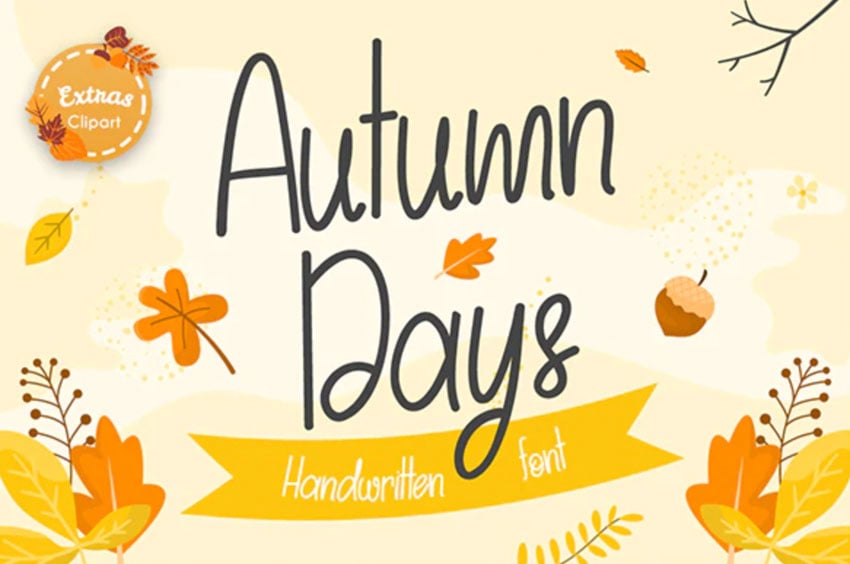   This handwriting font has plenty of cheerful personality. It would be lovely on T-shirts, custom seasonal decor, and much more. Try it on holiday nametags and bags. 4. Delicious Yellow Script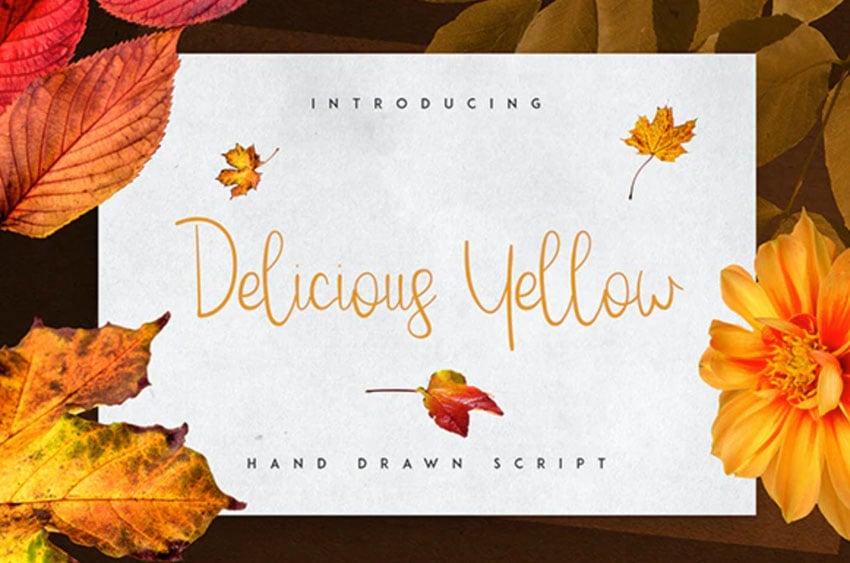 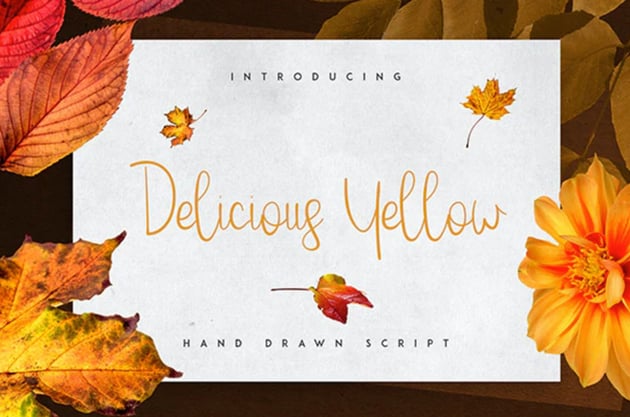  There are so many playful twists and curls to this lovely script font. It makes for an elegant look. Remember, you can always dress a font like this one up or down with color. 5. Lovely Autumn Quirky Fall Font Alphabet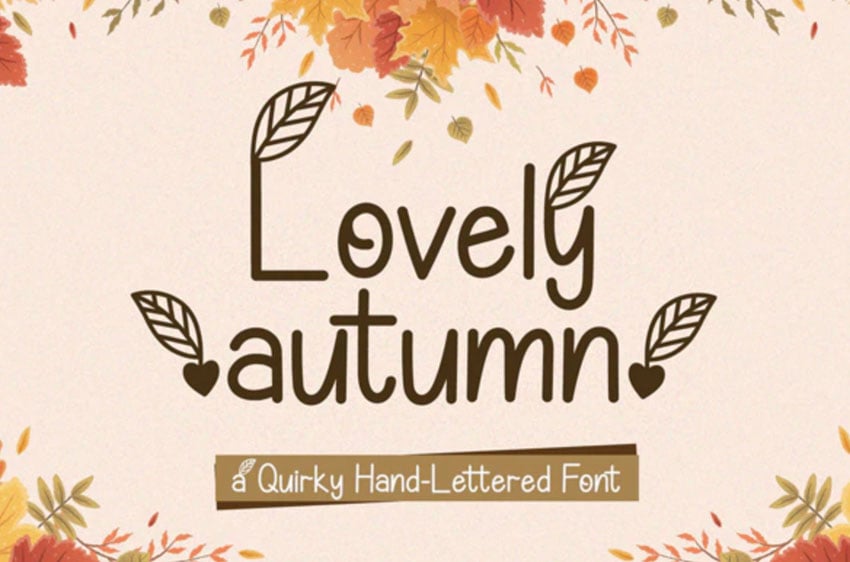  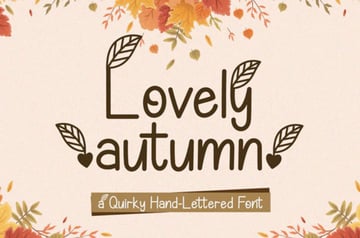 This display font has plenty of fun, quirky elements you could play with. Here's an awesome one for DIY home decor, signage, and other seasonal fun. 6. Sans Autumn Display Font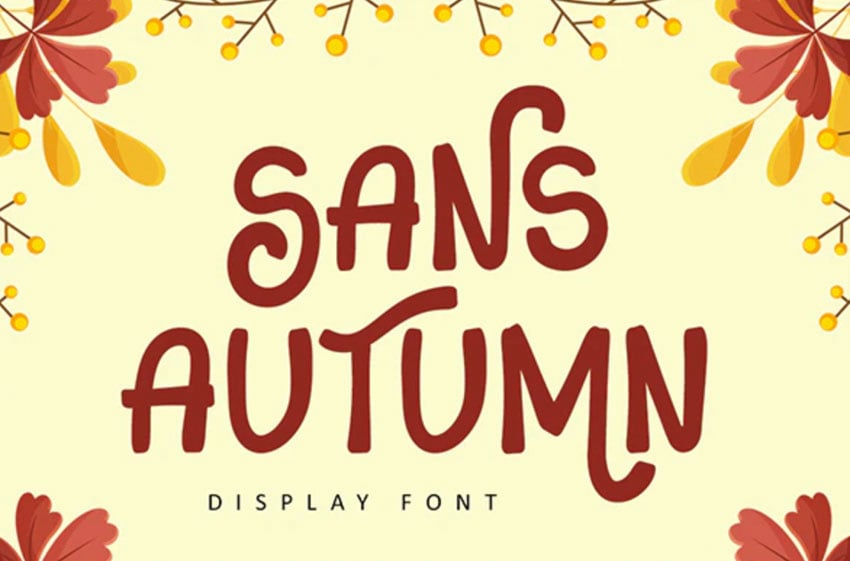   This font has autumn inspiration, but has plenty of year-round potential. Check out the playful ways the letters interact with one another. Isn't it memorable? 7. Hello Autumn Script Font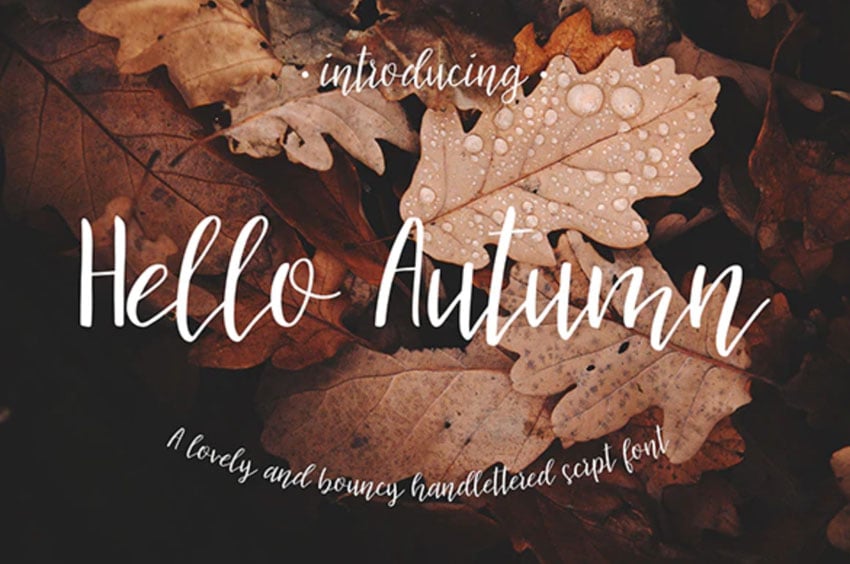 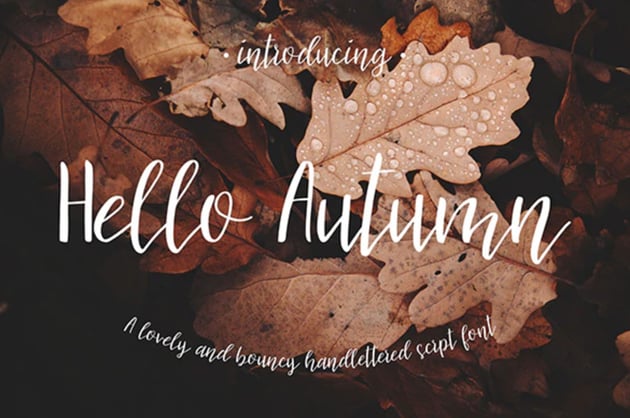  Here's another great example of why scripts and calligraphy fonts are popular in fall aesthetics. It just makes for such an elegant pair with photography. 8. Bragley Quirky Display Font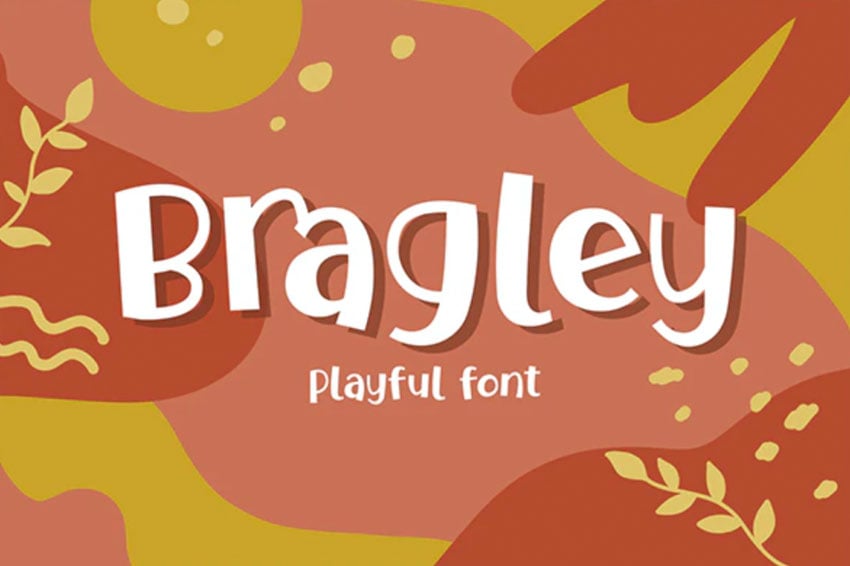 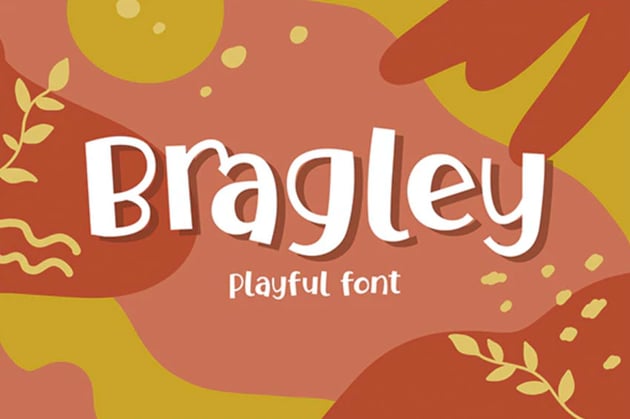  Or why not try something chunky and playful, like this fall font? Check it out at smaller sizes too. Try pairing this one with a script to create your own font duos. 9. Srikaya Autumn Handwritten Font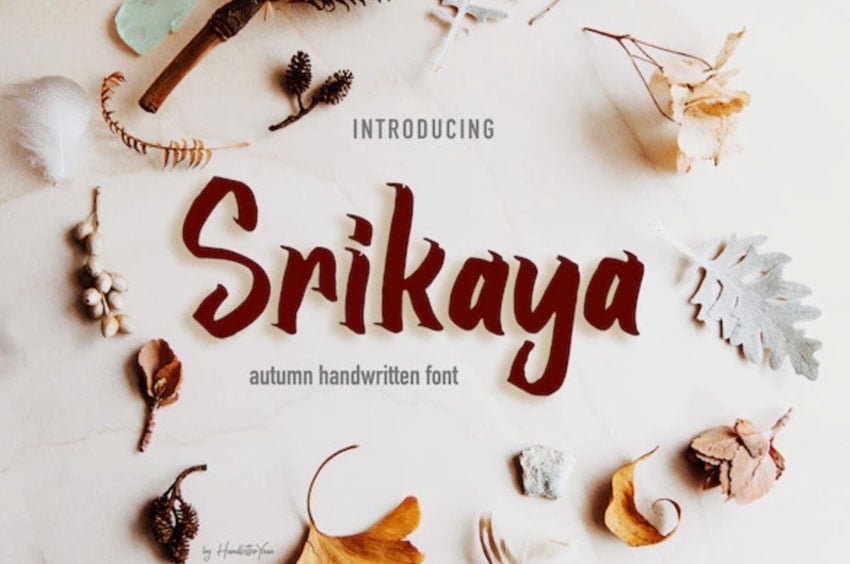  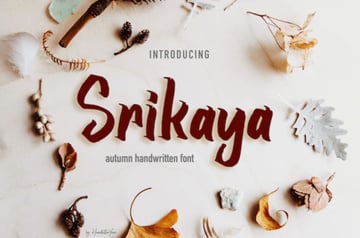 If you love the handwriting look but you're looking for something different, try a font like this one. It has really unusual edges that could make it a memorable choice. 10. Scrap Brush Typeface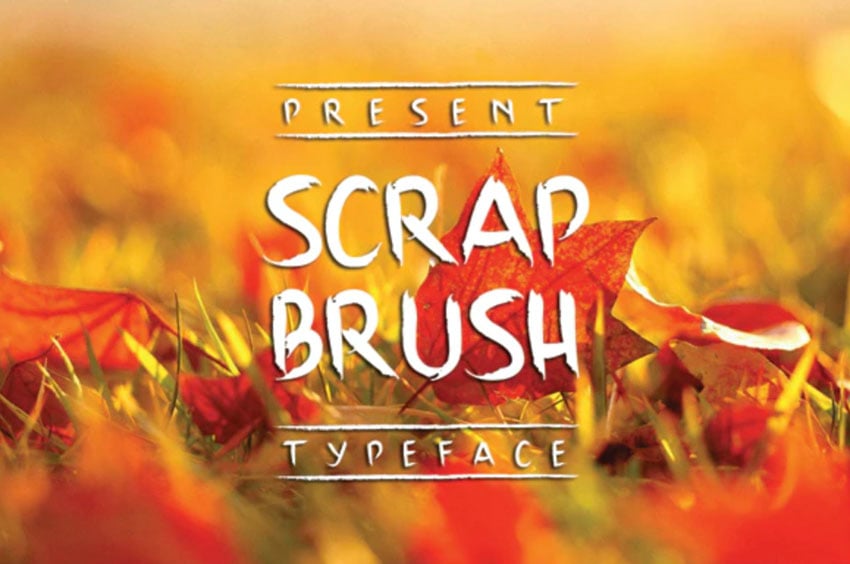   Or why not go for a handwriting look that really pushes the brush aesthetic? This is a great example of some possibilities with that aesthetic. Which Fonts Will You Use in Your Fall Designs?There are so many awesome choices out there when it comes to fall fonts. Remember, the best choice will depend on your objectives and your target aesthetic. If you're not sure which fall fonts are best for your project, why not consider Envato Elements? This way, you have unlimited access to an entire library of fonts. You can try as many as you like, and the tab won't add up. Sign up for Envato Elements today. Or you can download one or two fonts, as needed, from GraphicRiver. It's an excellent choice for on-demand downloads. Find your next favorite fall fonts on GraphicRiver today. Looking for even more font inspiration? Check out these font collections from Envato Tuts+:
   |
| 25 Best Shopify Themes for Beauty and Cosmetics Stores Posted: 19 Aug 2021 05:56 AM PDT A beautifully designed Shopify store will attract more traffic and better engage visitors. The more your customers immerse themselves in your products and content, the more positive results your sales figures and bottom line will see. For beauty and cosmetic stores an attractive design is a no-brainer. Shopify themes help you design the kind of store that will stand out from competition by reflecting your style. Beauty and Cosmetics Succeed with ShopifyBeauty and cosmetics brands do really well with Shopify; possibly the highest profile example of this being Kylie Jenner and her successful stores Kylie Cosmetics, Kylie Skin, and others.    In fact, Kylie cosmetics Shopify beauty stores are so successful that surges on product launches are a genuine risk; once that tweet or Instagram post announcing a new product goes out shop admins can expect a mad rush to the checkout. Shopify has dealt with this phenomenon in all kinds of ways, but its reliability and server stability has allowed Kylie launches to go ahead without any issues. "What Kylie's story proved is that entrepreneurship takes on many forms. That bombshell and business savvy aren't mutually exclusive. And, that the future of entrepreneurship is what you make it." – Shopify    If you want to follow the Jenner's footsteps, then take a look at Kylie cosmetics Shopify store. It's fully responsive and has a clean and minimalist design. It's no doubt Kylie cosmetics Shopify beauty stores are experts on their field. If you give it a read, you'll get some useful inspiration and the story behind Kylie cosmetics Shopify beauty stores. And so it's no coincidence that Shopify also powers the eCommerce for sibling Khloé Kardashian's denim line "Good American", which famously brought in $1M worth of sales on its launch day. If Shopify can handle Kardashian-levels of store traffic, it's clearly an eCommerce platform worth considering for your cosmetics and beauty website. Stunning Beauty and Cosmetic Shopify Themes on Envato Elements (With Unlimited Use)Now, after reading everything about Kylie cosmetics Shopify beauty stores, you can find loads of awesome and stylish Shopify themes on Envato Elements. It's a great offer: download as many as you want for a single monthly fee.    Shopify themes on Envato Elements cater for all kinds of niches, but we're going to run through the best themes for cosmetics and beauty, whether you're selling makeup and beauty products, targeting women or men, or even promoting a health and beauty spa. Let's take a look! 1. Comfortic - Clean Responsive Beauty & Cosmetic Shopify ThemeComfortic is one of our newest and best Shopify themes for beauty. This Shopify cosmetics theme comes with a drag and drop page builder for a quick and easy customization process. Use this beauty eCommerce theme to sell cosmetics, makeup, perfume, skin care products and more. Some of its best features are:
   2. Sasha Cosmetics Shopify ThemeSasha Cosmetics Shopify theme is a stylish theme that is easy to use. It utilizes a drag and drop editor so you don't need to know any coding to use it. It comes with all the essential features your online business might need including product filters, Ajax cart, wishlist, multi-currency, quick links, and product badges. You can sort your products in multiple ways such as by featured, best selling, alphabetically, date and price.    3. Sheena - Cosmetics Shopify ThemeLooking for Kylie cosmetics Shopify inspiration? This cosmetics store theme is a great choice. It's loaded with responsive design, so it looks good on any device. You can showcase your products as a carousel and give your clients the option to create an account and leave reviews. This retina and eCommerce ready theme is one of the best beauty Shopify stores themes we've got.    4. Helen - Shopify Health, Beauty Cosmetic StoreDo you want the best beauty Shopify store for your spa? Check this elegant and modern option. This cosmetics store theme works for a spa salon, nail salon, wellness center, healing center, and salons and beauty stores. Check its responsive design, slick slider, customer accounts, product carousel and many more useful features.    5. Sofee - Beauty Cosmetic, Hair Salon Shopify ThemeNo doubt, this is one of the best Shopify themes for beauty. Sofee features advanced sorting options, so your customers can get the exact beauty products easily from your inventory. With this cosmetics store theme you can bring more clients from various countries to your store using the multi-currency option. Check this fully responsive and retina ready theme!    6. HerPride - Shopify Beauty Center, Cosmetic ShopHer Pride is an awesome Shopify store example created for the online stores selling makeup, cosmetics, fragrance, lotions, skincare, accessories, and all beauty related products. This is one of the best beauty Shopify stores, it's highly customizable and responsive ready.    7. Cosmify Fashion Cosmetics Shopify ThemeCosmify is a fully responsive Shopify theme that comes with a very sleek and simple design to suit your cosmetic and beauty store. Features in this Shopify theme include: mega menus, layer slider, Google Web fonts, product widgets, brands slider, Ajax add to cart, product image light box, and much more.    8. Eli Lipstick Nail Polish Store Shopify ThemeThe Eli Lipstick fashion & cosmetic Shopify theme is a gorgeous theme for managing your online lipstick store. This theme uses the latest Shopify SEO features and it's easy to customize–no coding knowledge required. It comes with 5 types of mega menus, and sliders to help raise the quality of your content. Customers can set up accounts, register, login, change addresses and view past orders. You can easily link your Mailchimp account to the built-in newsletter form, and customers can share what they like by Twitter, Facebook, Google+ and Pinterest.    9. Dudu Cosmetics Shopify ThemeDudu Shopify Cosmetics theme is packed with elements that will make your cosmetics website stand out from competitors. Your customers will be able to create accounts, register, login, change their addresses and view past orders. They can sort products by price, A to Z, or newest in order to compare product prices. They can pay using multiple major currencies that are inbuilt with the theme. Finally, your customers can leave reviews on your website. We think this is a nice Kylie cosmetics Shopify inspiration.    10. Bardy - Beard Oil Shopify ThemeBardy Beard Oil Shopify theme is perfect for selling varieties of beard oil. It's quick to install. It has a neat, clean and simple design. It is equipped with a drag and drop editor that makes it easy to customize your website to reflect your unique style. It also comes with features like Blog Grid, Blog List, and Blog Sidebar that help you write content that engages visitors to your website. In addition, there are many options to feature your products like product badges/stickers, product details, product zoom, product popup, and more.    11. Simba Beauty Shopify ThemeSimba Beauty Shopify theme has 3 versatile templates that you can customize to suit the requirements of your cosmetics. You can change colors, fonts, and background images through the theme settings. You can create a seamless checkout experience for your customers using your logo and color scheme. And you can also add a custom checkout header to your checkout screens. To build a solid customer base and email list you can link your newsletter to MailChimp. Customers can also share your content by Twitter, Facebook, and Pinterest.    12. Beauty Store Cosmetics Shopify ThemeBeauty Store Cosmetics is a stylish and fashionable Shopify theme that displays beautifully across all devices from desktop to mobile. It comes with 5 different styles of the mega menu, 8 types of header, and 8 variants of the footer. You can display products in grid & list mode and also in a product owl carousel. Customers can zoom to enlarge a product image, they can add a product to their wishlist, while the product color swatch gives them ability to see products in different available colors. For sales promotions there is a built-in timer countdown. Finally, you have the ability to integrate your store with Instagram.    13. Triss Salon Barber Store Shopify ThemeHair salons and barber stores sell a lot of services and products, so finding a specialized theme built specifically for this sector can be hard. The Triss Salon and Barber Store Shopify theme is built exclusively to address the problem. It comes with tons of features that make it perfect for the hair business. For example:
Finally it comes with an advanced slider feature to display your products in formats like: slider, carousel, hero scene, and featured product slider.    14. Odour Perfume Shopify ThemeOdour Perfume is a very comprehensive cosmetics Shopify theme that will help you create an outstanding online store. It is quick and easy to install and comes with 3 home page variants, a dropdown menu, slider, and a video banner. In addition, you can use it for dropshipping beauty products and it has features that are focused on helping you increase the reach of your business. It has Google Analytics for reports that give you a complete picture of your business. Finally, Odour Perfume Shopify theme comes with documentation that includes well commented HTML and CSS.    15. Avery Hair Wig Shopify ThemeAvery is an elegant and artistic Shopify theme. Its sleek and smooth design provides a perfect solution for the stores selling hair, cosmetic, and skin care products. It is loaded with features that will allow you to build a website that attracts and keep buyers engaged. Front-end features include an attractive homepage, about us page, catchy inner pages and contact page. The pages are highly customizable using a drag and drop feature. You can change colors, fonts, background images.    16. Be-You Cosmetics Sectioned Shopify ThemeBe-You Cosmetics Shopify theme is highly flexible and easily customizable. Its comes with advanced features that are guaranteed to make your store visible in a competitive market place. These features include:
   17. Bonita Cosmetic Salon Shopify ThemeBonita is a stylish and modern beauty/cosmetic Shopify theme. It is flexible and easy to use. It comes with features that help you create a professional online shop that engages your customers. Some of the features include: products sliders that allow you to display your products in attractive ways, an option to show products in a carousel, product sale labels, and a feature that allows customers to compare products by categories like prices, A to Z, and newest. You can allow customers to purchase items without leaving the current page, and they can pay with any major currency.    18. Axii - Beauty Spa Shopify ThemeLooking for more Shopify store examples? This is one of our best Shopify themes for beauty and spas. The theme is easy to use and mobile-friendly. This cosmetics store was created in accordance with the modern trends in the web design. It features a responsive design, customer accounts and ajax filters.    19. Muhil - Hair Wig, Hair Extensions Shopify ThemeMuhil is one of the best Shopify themes for beauty and hair. The Shopify store example was designed to create a wonderful Hair Wig & Hair Salon online shopping website. The Shopify theme has a fully responsive design that works on any device and features a fantastic product carousel.    20. Charmee - Perfume And Cosmetics Shopify ThemeCharmee is a great Shopify store example because is fully responsive, retina ready and eCommerce ready. It can be one of the best beauty Shopify stores for perfumes thanks to its attractive shop page layouts.    21. Mika - Multipurpose Sectioned Shopify ThemeThis multipurpose Shopify theme is a fantastic options for any online store you've got in mind thanks to its 20 demos. Each of them are handpicked and tailor-made to suit their niches. This theme works great as a Shopify cosmetics store, as you can see in this demo. This theme is fully responsive and eCommerce ready.    22. Novetty - Responsive Shopify ThemeNovetyy is a nice multipurpose theme that can easily be adapted as a Shopify cosmetics store. If you're looking for Shopify store examples with a simple yet attractive design, this is for you. Some of its coolest features are:
   23. Monspa - Elegant Wellness & Spa Shopify ThemeSpas are a big element of the beauty eCommerce world. This Shopify cosmetics theme allows you to promote your wellness center and to sell your cosmetic products. This beautifully designed Shopify store example is retina ready, fully responsive, and mobile-ready to ensure that your website looks stunning and work smoothly across all devices.    24. Dking – Multipurpose eCommerce Shopify ThemeDropshipping is a business practice where you sell products from third party stores and you just send them to customers. Dropshipping beauty products has been a hot trend this year. Take advantage of it and get a Shopify cosmetics theme built for it. This example displays fashion products, but you can easily use Dking for dropshipping beauty products. Other nice features are:
   See more cool dropshipping Shopify themes here: 25. BigSale - Unlimited Bootstrap 4 Shopify ThemeWe close the selection of Shopify cosmetics stores with this multipurpose theme that supports dropshipping beauty products. This cool Shopify store example includes a drag-n-drop website builder and other cool features like:
   3 Free Shopify Themes To Try In 2021You've seen the best Shopify theme for beauty products from our marketplace. Now, if you're starting your cosmetics store, maybe you don't want to spend on premium Shopify cosmetics themes yet. In that case, Shopify offers a few free Shopify themes you can try for your new online cosmetics store. Just remember that free Shopify themes offer very limited customization options. On the contrary, premium Shopify themes from ThemeForest give lifetime updates and customer support. 1. Free Brooklyn Theme ShopifyBrooklyn theme Shopify is another of the popular free Shopify themes. It also includes two styles and a dynamic product grid. The Brooklyn theme Shopify works good for modern apparel stores.    2. Free Debut Theme ShopifyThe Debut theme Shopify is one of the popular free Shopify themes. This theme offers two different styles, a slideshow and customer testimonials. The Debut theme Shopify is better for small catalogs. You can easily adapt it as a beauty eCommerce theme.    3. Boundless Free Beauty eCommerce ThemeBoundless is a minimal free Shopify theme that could work as a beauty eCommerce theme. It comes with two styles, a single product gallery and it's optimized for large images.    4 Tips for Marketing Your Shopify Cosmetics StoreBuilding your online store and launching it is just the beginning! Customers have to know that your store exists. There is very stiff competition. By knowing how to market yourself you will be able make a dent in the market and sell effectively. Here are some tips to help get your marketing game off the ground. 1. Be Active and Visible on InstagramAs Kylie Jenner has proved time and time again Instagram is very supportive of brands. It provides a built-in and highly engaged audience. Creativity and originality in how you present your store and products to an Instagram audience ensure you are going to build a following. These are leads that you can convert to loyal customers. You have the advantage of being able to interact directly with the audience and building trust. Adding a "Buy Now" button to your products is a big plus.    2. An Email List Means Repeat CustomersBuilding an email list is building your repeat customer base. People in your email list end up becoming regular and loyal customers. Sending regular and interesting newsletter emails to your audience creates engagement. Invest in a good email marketing platform like MailChimp and find creative ways to have visitors on your website sign up for your newsletter. 3. Content is Still KingBlogs are powerful tools for store owners. Content helps raise SEO ranking. This means more traffic. Post regular and interesting content that is useful for customers and that they can apply to their own lives to show that you have more to offer them than getting them to buy your stuff. Think of how knowledge you have gained in your niche can be useful to your customers. 4. Take it to the RoadTraditional ways of marketing still work. You can hand out flyers. You can go to weekly markets. You just need a stall, card reader, and of course your products. Learn More About eCommerce and Shopify TemplatesI hope you've liked the selection of the best Shopify themes for beauty and you've found some Kylie cosmetics Shopify inspiration. Next up, after the useful marketing tips, I'd like to share with you even more helpful resources, so you can launch an amazing Shopify store. Extra for web designers and developers: we've created this Shopify guide especially for you! If you'd like to learn how to build Shopify themes, check it out!
Discover More Shopify Themes From EnvatoBefore you go, let me share with you some of my favorite Shopify themes from our Envato markets. If Kylie cosmetics Shopify beauty stores aren't your thing, I'm sure you'll find what you're looking for here:
Launch Your eCommerce Site With a Great Shopify ThemeThe design of your store matters! Alongside performance it is the first thing visitors to your website take note of. Their first impressions may mean staying and engaging with your store or moving on to the next. Have a look at our best Shopify themes and build your online store with a design that reflects your brand. Editorial Note: This post has been updated with contributions from Maria Villanueva. Maria is a staff writer with Envato Tuts+.    |
| 19 Incredible Google Slides Templates With Icons for 2021 Presentations Posted: 19 Aug 2021 05:55 AM PDT One rule of good presentation design is to minimize words and maximize visuals. Google Slides icons can help.    Google Slides icons replace words on your slides. They also provide a visual shortcut since we can process images faster than words. You could buy icon sets or select Google Slides templates with icons included in the pack. As you'll see below, many templates come with all the Google Slides icons you'll ever need. In this article we share the best Envato Elements Google Slides templates with icons. We also share templates that come with icons for Google Slides from GraphicRiver. Where to Find Google Slides Templates With IconsYou'll want to look for premium Google Slides templates that include editable vector icons. This means you can edit the icons—resize, recolor, or redesign them—and their quality won't suffer. One source of premium Google Slides templates with icons is Envato Elements. This is a good choice if you create several presentations regularly. All you need to pay is one low monthly subscription. This will give you unlimited access to the entire library of Elements Google Slides templates.    You also get access to all the other creative assets on Envato Elements with your subscription. These include fonts, photos, video clips, soundtracks and special effects. Yes, you get all the Google Slides icons you'll ever want! With premium templates, you get professionally designed designs that are fully editable in Google Slides. Most of these templates include a library of vector icons. Let's now have a look at the best-selling Google Slides templates with icons on Envato Elements. 5 Top Google Slides Templates With Icons From Envato Elements for 2021 (With Unlimited Downloads)If you're looking for Google Slides icons, make Elements your first stop. You'll have over a thousand Google Slides templates to choose from. It's hard to pick a favorite, and that's okay. The unlimited downloads allows you to use a new template for every presentation you start. Below are five templates from Envato Elements with icons for Google Slides: 1. Iconic Multipurpose Google Slides Template   This template comes with plenty of icons to make your presentation more compelling and effective. The template offers 25 slide layouts, three color themes, and both widescreen and standard sizes. This template will fit all different types of presentations 2. Axom Google Slide Template   If you'll be needing plenty of Google Slides icons, then Axom may be the template for you. It comes with a Smart Icon Library of over 1,000 icons. You can also expect eight color schemes and a Master Slide layout that simplifies the customization process. Charts, infographics, timelines, mockups, are also included in this template. 3. Visualizm - Pop Art Google Slides Template   Visualizm provides a dynamic design making it great for different topics. You get 33 unique slide layouts and three icon slides. These are vector icons you can resize, recolor, or edit without losing quality. This template uses picture placeholders. This means you only need to drag and drop your images to add them to the slides. 4. TIKA Google Slides   If you're looking for a clean and eye-catching design, then check out the Tika. With 150 slide layouts and 25 icon slides, this is one hefty package. These multipurpose slides come in 16:9 widescreen size. 5. Vallencia Google Slides Presentation   Vallencia gives you a Google Slides template that's anything but ordinary. From its borders to its creative use of geometric shapes, your presentation is sure to stand out. With this template, you get 45 unique slide layouts for various types of content. It also comes with built-in animation. Vector icons for Google Slides are included. Envato Elements (Design Without Limits)   Envato Elements has a single compelling (all inclusive) offer: Sign up for Envato Elements and you get access to thousands of unlimited use graphics and templates (with unlimited use). Get great web themes, Google Slides templates with icons, and more—all for one low price.    That's right! Download as many professional templates and graphics as you want. Then customize them to fit any of your project needs. While Envato Elements is a powerful option. But you may only need one template. If you prefer to buy unique PowerPoint templates one at a time (instead of getting unlimited access to hundreds of creative designs), check out the selection from our GraphicRiver marketplace below. 14 More Great Google Slides Templates With Icons From GraphicRiver (For 2021)   Looking for a template for a one-off presentation? Then GraphicRiver may be a better option for you. Its marketplace also holds over a thousand Google Slides templates with icons, but here, you only pay peruse. This makes GraphicRiver a great choice for the budget-conscious. Here are 14 of the top templates with Google Slides icons from GraphicRiver: 1. Business Development Google Slides Template   Convey both creativity and professionalism with the Business Development Google Slides template. This Google Slides icons template gives you everything you need. It includes 40 unique slide layouts, 20 built-in color schemes, and over 4,000 vector icons for Google Slides. It was also designed to be easy to edit, even if you're not a Google Slides expert. The icons in Google Slides template are also available for PowerPoint and Keynote. 2. Braum Google Slides Presentation Template   Simple and clean yet edgy best describes the Braum Google Slides Presentation Template. You will have plenty of room to express your creativity with this icons for Slides template. With over 450 vector slide icons, 1,000 slides, and 10 pre-built color themes, you've got plenty of room to express your creativity. No design skills required. 3. Swift Minimal Google Slides Template   This Google Slides icons template has a modern and minimalist design. Swift is another extremely popular Google Slides template in GraphicRiver. It's available in 16:9 and 4:3 sizes, as well as A4 for printing. And, if Google Slides icons are what you want, Swift delivers more than 3500 icons! You also get plenty of other graphic elements, such as maps, flow charts, and infographics. 4. Business Strategy Google Slides Template   The Business Strategy Google Slides template is a good choice for business presentations. Yet, it's versatile enough to be used in other contexts as well. Available in both 4:3 and 16:9 ratios, this icons for Slides template ensures your presentation looks good on any device. It comes with 120 unique slide layouts, 16 premade color palettes, and over 1,000 slide icons. 5. Gajah Google Slides Template   Its no-fuss style makes Gajah another favorite in the GraphicRiver marketplace. This is an amazing deal for the price. You get over 500 unique slides, 100 premade color schemes, and 1500+ vector icons. Gajah's designer includes not just a PDF guide but also a video tutorial on how to use the icons for Google Slides template. 6. Verzus Minimal Google Slides Template   This icons in Google Slides template is one of the bestsellers at GraphicRiver and it's easy to see why. Its clean and minimalist design can be adapted to any topic. With Verzus, you get more than 200 unique slides in both 16:9 and 4:3 aspect ratios, along with over 3,000 vector icons! Verzus customers commend it for its high quality and flexibility. Also, the customer service is very responsive if you have any issues. 7. Boost Business Google Slides Template   Even if you're new to Google Slides, you'll still find it easy to use Boost. It was created to be easy to edit and comes with great support from its designer. You get more than 2,000 total slides, 10 color schemes with dark and light versions, and over 4,000 vector icons. Included are Ai and EPS formats in this Google Slides icons template. 8. Clean Google Slides Template   As its name implies, the Clean Google Slides template offers a clean, modern design. It comes with 350 slides and five color themes. You won't run out of Google Slides icons because this template includes more than 1,000 icons. Plus, for a dynamic presentation, this icons for Slides template includes built-in animation. 9. Simplex Google Slides   Create a professional presentation with the Simplex Google Slides template. You can expect 270 unique slide layouts, 4:3 and 16:9 aspect ratios, and 20+ color palettes. Need a different color theme? The designer is willing to create it for you. This template also comes with more than 700 Google presentation icons. And PowerPoint and Keynote versions of the theme are yours for the asking. Just email the designer! 10. Business Proposal Google Slides Template   For Google Slides icons that keep your audience engaged, consider the Business Proposal Google Slides template. If you love slide icons, then you'll love having more than 4,000 Google Slides icons in this pack. Also included are 6000+ slides in total and 20 color theme variants with dark and light versions. 11. Motagua - Multipurpose Google Slides Template   Motagua is designed to help you create an impressive presentation. You get 121 slide layouts in both 4:3 and 16:9 aspect ratios. Choose from 16 color themes with dark and light versions. Charts, maps, infographics, and Google Slides icons are also included with the icons for Google Slides template. 12. Be Google Slides Template   Be Google Slides Template lets you create a presentation that looks good on any device. It is available in sizes 4:3, 16:9, and A4, It comes with more than 300 slide layouts for any type of content. You also have a choice of 10+ color schemes with dark and light variations. Aside from the 700+ slide icons, you also get maps, infographics, and device mockups. 13. Everland Business Google Slide Theme   This multi-purpose Google Slides theme can be used by businesses, nonprofits, and education sectors. The Master Slide layouts let you make global changes easily. If you'll be needing plenty of slide icons, Everland delivers over 1,000 vector icons. This icons in Google Slides template comes complete with a PDF guide as well as video tutorials. 14. do 2.0 Google Slides Theme   do 2.0 has a clean and modern design. It lets you create an impressive presentation, complete with maps, charts, and infographics. This package comes with over 180 unique slide layouts for various types of content. Also built into the template is a choice of five color palettes and a library of 700+ vector icons. Best of all, the designer is on-hand to provide support as you personalize the Google Slides icons template. How to Customize Your Google Presentation With IconsOnce you've selected a template with icons in Google Slides, it's time to customize. In this section, we'll walk you through some basic customizations. For this tutorial, we use the OSAKA premium Google slides template.    1. How to Change the Color of an IconFor these first four tips, we'll be using slide number 7. Here's what it looks like without any changes:    First, select the icon that you want to change the color of. You'll know that the icon is selected when a box with handles appears around the icon. Next, select the Fill Color button. Finally, select the color that you want to make the color of the icon from the color menu.    2. How to Change the Font ColorSelect and highlight the text that you want to change the color of. Next, click on the Text Color button. This will cause a color menu to drop down. From the drop-down menu select the color of your choice.    3. How to Add New TextTo add new text, you'll need to add a new text box. To add a new text box, click on the Text Box button. Next, draw a diagonal line in a blank space to create a text box. Finally, click inside the box and start typing.    4. How to Delete an ObjectBegin by selecting the object that you want to delete. You'll know that the object is selected when a box with handles appear around the object. Next, click the Edit tab above the toolbar. Once you click the Edit tab a menu will drop down. Select Delete from that menu.    5. How to Insert a PictureFor this tip, I'll be using slide 2. Here's what slide 2 looks like without any edits made to the slide:    To add an image, click on the Insert tab above the toolbar. Once you click the tab a menu will drop down. Click Image from this menu. Select the location where your image is located.    5 Quick Icon Presentation Ideas for 2021Used correctly, slide icons help you communicate. But used inappropriately, icons can confuse your audience and hurt your reputation. Follow these tips to harness the power of icons in your presentation. 1. Use Icons Only Where Appropriate   Don't go overboard with Google Slides icons. Use them only when it makes sense. Common places to use an icon for presentation slide include:
2. Keep It SimpleIcons for Google Slides are usually kept small, so they don't take up a lot of space. This means they need to be simple line art without a lot of fussy details. Be sure to preview your slides in the size and format that your audience will be seeing them. This will make sure that your slide icons display properly. 3. Ensure Understanding   A slide icon works best if your audience understands what it symbolizes. And so, when choosing which icons for Google Slides to use, opt for commonly known ones. For example, the conventional icon for "email" is an envelope. The best icons are understandable to audiences with different backgrounds. 4. Use MetaphorsSometimes you might need a slide icon for something that doesn't have a conventional symbol. This happens when you present an abstract idea. If this is the case, think metaphors. For example, if you are needing to symbolize growth, you can use a seed icon that is growing. 5. Think Out of the Box   You do have some wiggle room to get creative with Google Slides icons. Make sure this fits with your presentation message. You can change the colors and transparency of slide icons, for instance. Rotate, flip, or combine them. You can even edit vector icons to create something new. You can also use Google presentation icons in unusual ways, such as to create a:
Top 4 Design Trends for Google Slides Icons Templates in 2021To get the most from your Google Slides icons, you'll want to borrow from the latest trends. Here are four trending ideas to use with your next presentation: 1. Use Color BubblesAdding colored bubbles behind your icons is a great way to add even more interest to your presentation. This lets the icons pop off the page. Try mixing in colors that are in the color palette for our presentation.    2. Don't Overcrowd Your SlidesIcons add a lot more visual interest to your slides. It can be easy to get carried away with adding a ton of icons. Try to limit your icon usage to a maximum of five per slide.    3. Use Icons to HighlightOne of the best ways to use icons is to have them highlight your main ideas. By providing text and visuals for your main idea, you help your audience remember this idea. This ties in with tip number two. If you add too many icons, your audience will have a harder time remembering the more important icons that support your main idea. Make sure to use icons sparingly! 4. Use Social IconsSocial media icons are a great way to show your audience that you're on specific platforms. Either in the intro slide or final slides, include social media icons for the platforms that you're on. Also, link to them in the slides as well.    Still haven't found a premium template for your next presentation? Let's look at the next More Google Slides Icon TemplatesDo you want to find more Google Slides templates? We've articles that can help you find more Google Slides templates with icons. Check out the following articles for more template options:
Where to Find the Best Google Slides Icon Templates in 2021 (Envato Elements vs GraphicRiver)Envato Elements and GraphicRiver have stylish and trendy Google Slides templates designed by professionals. Both are great options to use. So, what are the benefits of each option? 1. Key Benefits of Envato ElementsEnvato Elements is a premium subscription service. You get unlimited professional template downloads for a low monthly fee. With Envato Elements download as many Google Slides templates as you need to use at any time. It's got more than templates this service offers fonts, add-ons, and graphic assets. Envato Elements has a lot of high-quality Google Slides templates with stylish and trendy designs.    2. Key Benefits of GraphicRiverGraphicRiver is the top digital marketplace. You can buy single-use graphics and visual assets on this marketplace. GraphicRiver is a part of the Envato Market Suite of online marketplaces that cater to many of your digital asset needs. If you need a single Google Slides template to use on your project then GraphicRiver is the place for you. Buy the template you want and download the files. Here are some trendy and stylish templates from GraphicRiver:    Which Option Is Right for You?If you are in constant need of new digital assets, then Envato Elements is the best offer for you. Sign up for Envato Elements now.    If you need a single template with Google Slides icons or any other file type for one-time use. Then GraphicRiver is the best option for you. Go to the GraphicRiver website to find what you need. Common Google Slides Questions Answered (FAQ)Google Slides comes with many features that can help you make professional presentations. But you may have unanswered questions about Google Slides. Below we've collected five of the most frequently asked questions and the answers: 1. Should I Use Google Slides Over PowerPoint?PowerPoint is the world's most popular presentation software, but the full version isn't free. In contrast, Google Slides offers many features that can't be ignored.
For more information on using Google Slides over PowerPoint, check out the article below: 2. Can I Use Google Slides When I'm Not Connected to the Internet?Yes! Google Slides can be used without being connected to the internet. This allows you to work in your browser wherever you are. But the file won't be saved in Google Drive. You'll need to be connected to the internet for it to update. Here is a step by step guide on how to use Google Slides when offline: 3. Can I Convert PowerPoint Files to Google Slides?Absolutely! Google Slides makes it easy for you to load PPT files. For a detailed description on how to do this, follow the tutorial below: 4. Can I Print Slides on Google Slides?Just like PowerPoint, Google Slides allows you to print your slides. This allows you to share the presentation with your live audience. In Google Slides, navigate to the File > Print Settings and Preview menu. Then, choose how many handout slides to print from the dropdown. To learn a more effective way for printing out your slides, check out the tutorial below: 5. Can I Add Animations and Transitions in Google Slides?Animations and transitions are a great way to add that professional polish to your presentations. Google Slides gives you the opportunity to add these features to all your presentations. For a more detailed instructions on how to set this up in Google Slides, check out the tutorial below: Let's look at how you can learn even more about Google Slides. Learn More About Google SlidesGoogle Slides is a free software. It has powerful features to help you craft a high-impact presentation. On top of that, Google Slides is easy to use. You can probably figure out your way around the application. You could also easily miss many of its impressive features. Read our ultimate guide to Google Slides to ensure that you make the most of this empowering application. You may also find these tutorials helpful:
Harness The Power Of Google Slides Icons In Your PresentationGone are the days when you needed to pay big bucks for icon sets. Today, you can get your hands on huge icon libraries without paying extra for them. They're included in many premium Google Slides templates, such as the ones featured in this post. Get Google Slides templates with icons from Elements. You get access to unlimited downloads of templates, fonts, photos, and even more icons. Your small monthly subscription gives you unlimited access to thousands of creative assets. If you create many presentations and marketing materials, then you get a great deal from Elements. Or, go to GraphicRiver for Google Slides icons and pay only for each use of a template. This is a good option if you need to make only one presentation every so often. Either way, you can get access to hundreds or even thousands of templates with slide icons. Use them to make a compelling presentation. Editorial Note: This post was originally published on September 24,2019. It's been updated with contributions from Sarah Joy and Daniel Strongin. Sarah Joy and Daniel are freelance instructors for Envato Tuts+.    |
| 25+ Tasty Grocery and Food Store Shopify Themes (Free and Premium) Posted: 19 Aug 2021 05:23 AM PDT We all know that this year has been a year unlike any other, with just about every industry impacted in some way by COVID-19. Online grocery sales, for example, have soared by around 40% this year, with nearly half of shoppers buying more groceries online. Maybe you're thinking about setting up your own business to help others get their hands on their favorite snacks, or perhaps you're looking to digitize your already established company—well, we have some tips for you! How to Set Up a Shopify Grocery StoreSetting up a Shopify grocery store ultimately means you'll be able to sell your services to users quickly and easily. Firstly, watch our free easy-to-follow guide to find out how to set up an online store: You can then head to ThemeForest to pick a Shopify grocery theme template that best suits your business. From luxury food stores to fast food joints and everything in between, there are so many options that you're bound to find the perfect grocery theme template that's just right for your business. Best Shopify Grocery Store Examples from Envato ElementsEnvato Elements is filled with creative assets like stock photos, music tracks, and cool fonts. It's also home to a nice selection of Shopify themes. Here are five of the top Shopify grocery store examples on Envato Elements that you can use for your site. 1. Vegeda - Vegetables And Organic Food Shopify ThemeVegeda is a vibrant and minimal grocery shop website template. Its layout is toned back so that your product photos stand out to customers and visitors. Build out an incredible vegetable eCommerce website thanks to the customization options. You'll get five premade home pages, six headers, and unlimited mega menu layouts to work with. This grocery theme is also Retina-ready and fully responsive so your final design will look great on any device size.    2. Tomoko - Organic Food/Fruit Shopify ThemeAre you looking to build out a Shopify organic store from a template? Then try out Tomoko. This supermarket theme includes powerful editing tools and elements. You can accept multiple currencies so that Tomoko can be used around the globe. The Tomoko grocery shop website template has features like:
   3. Gopher's | Grocery, Shopping Shopify ThemeGo for Gopher's if you need a supermarket or grocery shopping theme for Shopify. It has a modern layout that's easy for visitors to navigate. The design is completely responsive, so your site will be functional on tablets, smartphones, and computers. Gopher's is also easy to work with if you have no coding experience. The drag-and-drop page builder makes this one of the simplest Shopify grocery store examples to use.    4. Foodly – One-Stop Shopify Grocery Shop Website TemplateFoodly is one of the top Shopify fruits website templates if you want product photos to be the star of the show. Navigation is smooth, and you can promote featured products, sales, and more with ease. Sharing recipes, blogs, and company background is all possible with the Foodly organic store template.    5. Oranda - Organic Food/Fruit/Vegetables eCommerce WebsiteOranda is another supermarket theme that's designed with organic products in mind. Experiment with the different home page, header, and menu layouts to make a unique grocery shop website template with Oranda. It also comes with features like:
Free fruits website templates can't match up with Oranda.    Top Online Grocery Shopping Website Templates from ThemeForestRead on for our selection of the top Shopify grocery store themes. All listed themes are available under food store or grocery in ThemeForest. 1. FreshGo - Organic & Supermarket Food StoreFreshGo is one of the special online grocery shopping website templates on ThemeForest. The theme comes with three unique home page layouts. Visitors are treated to a newsletter popup when they first land on your site, allowing them to stay up to date on news and offers. FreshGo is also one of the ThemeForest Shopify themes for food that have a responsive design. Browsing your site on any device will never be easier.    2. GreenBee - Vegetable and Fruit Shop Shopify ThemeGreenBee is one of the best vegetable and fruits eCommerce website templates for Shopify. Its minimal design is product-focused, and users can easily see the available deals. Like many online grocery shopping website templates, it's responsive so you don't need to worry about your site losing features for users based on the device they're using. This Shopify supermarket theme also comes with four premade home pages that can help you save time on design.    3. Harmic – Organic Food Shopify ThemeAnother newbie, Harmic landed on ThemeForest in June 2021. It comes with a pair of home page layouts that are already made. It has everything your Shopify grocery store could need, including an engaging shop page, featured products, and a lot more. There's also a newsletter subscription form so you can encourage visitors to sign up for your latest news and information. Harmic is a great choice if you need an organic store template for Shopify.    4. Marios - Food Store Shopify ThemeShow off your products with the Marios food store template. It features a drag-and-drop home page for easy page building. Marios was designed with SEO in mind and the theme can be customized with more than 800 Google Fonts. Personalize the grocery theme template even more with Font Awesome icons and add prices in your local currency.    5. Groca - Grocery, Supermarket Shopify ThemeThis Shopify grocery store theme comes with a stunning home page and five unique mega menu styles. Create custom deal countdowns and let consumers easily browse through items and their carts. It's also fully responsive. If simple and no-fuss is what you're after, then the Groca grocery theme is a great option!    6. Vegist - The Vegetables & Organic Food eCommerce Shopify ThemeReleased in July 2020, this Shopify grocery store has already collected its fair share of fans—and an average review of five out of five stars! There are at least 12 demos to choose from in this organic store template. You can either pick from the selection or customize your site to make it distinctly yours. Vegist comes with loads of features, like multiple grids and list options, custom product filters, wish lists, and a sticky cart.    7. Veggie - Shopify Multi-Purpose Responsive ThemeEnter another highly ranked Shopify grocery store (another five out of five stars!). This vegetable eCommerce website theme comes with at least five unique demos. There's even one made with the festive season in mind. Home Page 1, for example, is modern in feel with a full-width header, with large content blocks with plenty of room for imagery of the products you're looking to sell! You can also easily categorize your products to help users find what they're looking for quickly and easily.    8. Oars - 7 Fastest UI/UX Optimized Section Shopify Themes for Organic Food StoresThis vibrant and fresh Shopify food store template looks good enough to eat. It comes with seven homepage styles, each one with a different feel! Store 3, for example, is bright and colorful as well as modern in feel. With clearly defined content blocks highlighting different food groups, it's easy for the user to quickly find what they're looking for. This Shopify grocery theme also comes with plenty of inner pages to guide the design of your own site.    9. SeedMart – Shopify Food & Grocery StoreOnly launching in August of 2020, this Shopify grocery store theme is a serious newcomer, but it earns a place on the list for its simple, well-organized home page. The daily deals section is also useful, as you can see how many days left on the deal as well as a scrolling list of other available products. There are great features in this grocery shop website template like a different angle of the product appears as the user scrolls over it with its cursor. You can also show items in 'bestseller' categories and add a blog section—a great tactic to improve your SEO. Finding a grocery store template that's free with this attention to detail is a tough task.    10. JoyFood - Grocery, Supermarket Organic Food/Fruit/Vegetables eCommerce Shopify Website ThemeIf you're specializing in healthy food and fresh products, JoyFood is an ideal Shopify grocery store theme. There's plenty of space to add large images of the food you have available, ideal if you want your users to see the quality of your products up close and personal! If you'll be writing or commissioning regular blog posts, then JoyFood is a great shout as this Shopify organic grocery store template for them gives them plenty of space!    11. Waffy | Spices, Dry Fruits and Nuts Organic Shop Shopify ThemeThis Shopify grocery store theme has a luxurious, decadent feel. Although it's used for spices, fruits, and nuts, the products could be adapted based on your requirements. It's highly flexible, and like many of the best Shopify grocery and food store templates, copy, colors, and other elements like the time it takes for sliders to change can all be edited. It also comes with a pop-up newsletter to encourage people to sign up, and five mega-menu styles so you can adapt the way you'd like to organize your content. When compared to a grocery store template available for free, Waffy is the easy pick.    12. Appetiza - Supermarket Shopify Theme - Online Grocery Shop and DeliveryWhat a bright and vibrant Shopify grocery store theme this is! All three homepages opt for plenty of color—you certainly won't miss these grocery delivery website design templates! Home 2, for example, is playful in design—bold color blocks really add to the site's appeal and helps to categorize products. The creators of Appetiza also prize the Shopify general store theme for being multipurpose as the structure of the site can be used to display various products, food-based or not!    13. Cigar - Grocery & Electronics Store Shopify ThemeEnter another great Shopify general store theme, Cigar can easily be adapted based on the products you're looking to sell! Explore the four homepages, and you can see just how much customization is possible, with HOME TWO being most relevant for food products! You can easily signpost products, adding relevant information like its discount or whether it's sold out.    14. Obrien – Organic Food Shopify ThemeReleased in September 2020, Obrien is another newcomer, but its effortless style wins itself a place on the list! Mixing products with full-width banners displaying latest deals etc., it's super easy to navigate. It also comes with loads of features, including 'latest blog' signposts, calls to action buttons, featured product collections, and the ability for users to add products into their wishlists. It's already received some positive feedback and we predict this one's going to be a hit.    15. Kala | Customizable Shopify Theme - Flexible Sections Builder Mobile OptimizedWith more than 4,000 sales, Kala is a popular theme! It comes with more than 50 demos for a whole range of businesses, so all you need to do is pick one that best works for you. There are at least five relevant Shopify grocery store examples, such as the Food Online template. The homepage features loads of categories to help users navigate to relevant pages quickly. Plus, there's a useful map integration to help visitors find your physical store too. It's hard to find these features in a Shopify grocery store template that's free.    16. Mega Shop - Shopify Multi-Purpose Responsive ThemeAnother Shopify general store theme with plenty of versatility, Mega Shop comes with at least 14 unique demos for businesses ranging from electronics to fashion and wine to pet food! There's also a Grocery demo that comes with everything you could need—from a 'best seller' column to the main product page being separated by 'latest' 'featured' and 'specials'. You can also easily change the header and adapt the blog styles to suit your business' needs.    17. Organic Food Shopify eCommerce Theme - GreenfarmThis Shopify grocery store theme puts publishing front and center, with a blog detail page enabling editors to provide multiple options for users to comment and share. There's also a products slider where all types of products, i.e. new, featured, best-selling, etc. are displayed in a well-designed slider. You can also opt for a product grid view or a product list view. As far as Shopify grocery store examples go, Greenfarm is one of the best.    18. Oganova - Organic & Food Store Shopify ThemeCrafted with all types of food and beverages in mind, the Oganova grocery template is another excellent option. It comes with six home pages, that cover everything from organic food to craft beers. The cart pops out and is stylish, and even has a unique cool free shipping progress bar to encourage more purchases. It's a premium alternative to a Shopify grocery store template that's free.    19. Vegfru - Organic Vegetables eCommerce Shopify ThemeVegfru is a Shopify vegetable eCommerce website template that's worth checking out. You'll get five well-designed Shopify grocery store themes in this download. Each premade layout can be tweaked and experimented with to get your perfect design. It's also 100% responsive, compatible with all browsers, and comes with a mega menu, unlimited Google Fonts, and more. This helps to ensure the smooth user experience remains no matter the device, and that you can feel confident that your Shopify grocery theme is completely your own.    20. BeFresh - Shopify Food and Grocery Delivery Website TemplateWe wrap up our list of online grocery shopping food store website templates with the fantastic BeFresh. It was designed with food shop delivery in mind, but it can be adapted to sell anything. The Shopify grocery store site is completely customizable and features a visual builder and multilingual functionality. You can also rest assured that this grocery delivery website design template is SEO-friendly so your business can reach a larger client base.    Best Free Grocery Shopify Themes21. Express (Free Grocery Shopify Theme)This impressive free grocery Shopify theme is mobile-first in design so it requires little content and photography—perfect if you're just starting out. It's also optimized for one-page stores for quick ordering, and customers can quickly add items to their cart without leaving the current page. It also comes from free stock photos, social media icons, and built-in styles and color palettes. This grocery store template is free and comes with two styles: Bistro and Pantry.    22. Minimal (Free Grocery Shopify Theme)If you're after a seriously simple Shopify grocery store template that's free, then Minimal could work for you! It comes with three styles: Vintage, Fashion, or Modern, but its simple site structure means it could be easily adapted to showcase your food products. This grocery template is free and comes with a Slideshow where you can display multiple product or brand images on the homepage, as well as product filtering to allow customers to filter product by type, or sort by best sellers and price.    Free vs Premium Shopify ThemesAs you can see, there's a huge variety when it comes to the online grocery shopping website templates at your disposal! Depending on your budget, you can pick a free or a premium Shopify theme—ultimately, the choice is yours. Premium themes tend to come with more features and customization options. Grocery themes that are free—well, they're free! Even More Shopify ThemesWhether you're looking to set up multiple shops or for inspiration for your Shopify general store theme, Envato Tuts+ has you covered. Our instructors have gathered some of the best Shopify themes for different niches for you to explore. From dropshipping to fashion, there's a number of cool templates and layouts worth checking out.
Tips for Setting Up Your Shopify General Store ThemeI hope you've found the best theme for your Shopify grocery or general store. The features premium Shopify themes have will have you setting up a modern storefront in no time. But if you want to take your finished site to the next level, take these tips on board: 1. Put Top Deals FirstThe best way to get visitors to stay on your Shopify grocery store site is to grab their attention as soon as they land on your home page. What better attention grabber is there than a great deal? If you have sales on specific products, keep them towards the top of the home page, or even use them as a banner. If you have sliders, you can feature multiple sales for visitors to check out.    2. Select Featured ItemsA section that many of the top Shopify general stores have in common is one centered around featured items. These sections are pretty self-explanatory. It's an opportunity to highlight new products and best sellers. You'll find that a lot of Shopify themes for food have these types of sections included. 3. Design for Mobile DevicesThis is a tip that should be followed for any Shopify grocery store made in 2021. Mobile is the way half the world interacts with the internet. And that's not a stretch! As of 2020, half of all worldwide web traffic comes from mobile devices, according to Statista. It wouldn't be unreasonable to think that number could climb. That's why it's important to design for mobile devices first instead of leaving it as an afterthought.    4. Take High-Quality Product PhotosHaving the best online grocery shopping website templates is good, but pairing them with great media is a game-changer. The quality of your product photos can be a huge difference-maker when it comes to sales. Avoid photos with poor lighting, shadows, and blurring. If you can't hire a photographer, Shopify has made a product photography guide that's easy for everyone to follow. Looking for something with even more depth? Envato Tuts+ instructor David Bode has made an excellent iPhone product photography course that's perfect for you. 5. Keep the Focus on ProductsWhen you're designing your site with an online grocery shop template, it can be easy to get carried away with all of the design elements at your disposal. But remember that the real stars of the show are the food and beverage products you plan to sell. Make sure your website design complements, not overpowers, the photos and descriptions of what you're selling.    Learn More About Shopify and Web Design With Envato Tuts+Getting the most out of your Shopify online grocery shop template can be as simple as finding the right resources. Thankfully, many of those resources are right here on Envato Tuts+. Learn more about the Shopify platform, web design skills, and more with the help of our instructors and helpful tutorials. Watch Video Tutorials From Envato Tuts+ on YouTubeIf you prefer videos to written guides, just head over to the Envato Tuts+ YouTube channel. You'll be able to pick up useful skills at your own pace from the videos in our web design tutorial playlists. Here's a little look at something you can find from our channel: Over to You!Now you've seen some of the options at your fingertips for creating a Shopify grocery store, it's time to pick one that best suits your brand. Head over to Envato Elements and ThemeForest and search grocery or food store Shopify templates to see the full collection. Are there any other Shopify templates that you think deserve a place on the list? Let us know in the comments below!    |
| Posted: 19 Aug 2021 05:00 AM PDT Trying to figure out how to identify a font? Whether you're working on how to identify a font on a website, how to identify a font in a logo, or how to identify a font by image, we'll help you get started. Learn about font basics and common font traits so you can narrow down your search and find what you need.    Intro to How to Figure Out a Font StyleBefore we take a look at some specifics, like how to identify a font in a scanned document versus something like how to identify a font in a PDF, PSD, or other digital file—let's start at the beginning. If you're going to try to identify a font, you'll need the basics: how to figure out a font style. Perhaps it might be better to explain it as "how to find out a font type", because we'll begin with some of the most basic font classifications. Generally speaking, almost all fonts will fall into these basic categories:
Let's take a look at an example of each. Serif Fonts: The Fonts With Strokes at the EndsA serif is a stroke or extra line at the end of a letter. Times New Roman, for example, is a very common and well-known serif font. Serifs can come in a variety of shapes and sizes. Take a look at this modern example. Notice how, for example, it looks like the letter "n" has "feet". These extra ends are called serifs. Not every letter has to have visible serifs for the font to be considered a serif font, either. For example, notice how "o" and "e" don't have visible serifs. We do, however, see them in the other letters. There aren't necessarily strict rules on this font, especially with modern type design. We'll take a look at some of the variety of serif styles a little later.    Sans Serif Fonts: There Are No Serifs HereSans serif fonts are literally fonts without serifs. Easy, right? Sans serif fonts are particularly popular in modern design. For example, this website's text is a sans serif font. Microsoft Word's default font is Calibri, a sans serif font. Just like serif fonts, you can get a lot of variety in sans serif too. The main point here is to recognize what a sans serif looks like. Take a look at this example. Notice how, at the end of the letters, they stop abruptly. We don't see "ends" here, like the ones we saw in the serif example.    Script Fonts: Cursive and Connecting FontsThen we have script fonts. Technically, this is a sans serif font (as it doesn't have serifs). However, scripts are often grouped into their own category. A script font has fluid strokes, as we see in this example. They often mimic a handwritten or cursive look.    These three general classifications have sub-categories too. Use this brief guide to help you understand how to find out a font type. None of the Above?Then, sometimes, you might just stumble upon a font that seems to break all the rules. Take look at this example, below. Technically, this is a sans serif font. Note the ends of the letters here. No serifs! However, this color font is really graphical and unusual. It's a display font, and when you're trying to figure out how to identify a font, it can be good to note this. Display fonts are often quite visual and not suitable for body copy.    How to Figure Out a Font Style: AdvancedNow that we've taken a look at some font basics, let's take a look at some sub-genres. You can use this info to help further narrow down what your mystery font might be. However, keep the following in mind too: you might not have to find a perfect match. For example, let's say I'm looking for a specific serif font. I can figure out what kind of serif font it is, and I might be able to find a similar replacement, using that style as my guide. In fact, sometimes, a font might not be easily available or accessible to you, no matter how hard you look. Identify what qualities you like, and then you'll be able to find a similar or suitable alternative. Serif Fonts: Old StyleHere's an example of old style serif fonts. Notice how they have a slightly calligraphic quality. Take a look at the slight tilt or angle we see in the lowercase "o" too. The serifs themselves have a taper to them. Garamond is a popular old style font.    Want to see more examples of old style fonts? Check out this collection: Serif Fonts: TransitionalTransitionals are kind of a mid-way between old style and modern serif fonts. Times New Roman is a popular example of a transitional serif typeface. Notice that we still see tapered serifs, but we're not really seeing that calligraphic quality as much anymore. The "o" here is a great example; notice the lack of that slant.    Take a look at this collection for even more examples of transitional and similar fonts: Serif Fonts: DidoneDidones are really quite visually different. Note the intense contrast in these letters. This means thick versus thin strokes. We also see a very harsh serif. It's usually blunt, rather than tapered. Bodoni is a popular example of a Didone serif font.    Check out this article for even more examples of beautiful Didone typefaces: Serif Fonts: SlabTake a look at this slab serif font. Note the chunky serifs and how blunt they are. There's no taper here. Rockwell is a popular example of a slab serif font. Note that slab serifs don't necessarily have to be bold; the key here is that serif.    Want to see more stylish slab serif fonts? Check out this font collection: Serif Fonts: Modern, Mixed, and MoreModern font design doesn't necessarily follow type classifications and categories, although they often borrow aspects. That's why it's valuable to know what they are. For example, take a look at this fun serif font. It's has a handwriting aesthetic, but would definitely be considered a serif font—it has serifs.    Sans Serif Fonts: Grotesque"Grotesque" might seem like an odd name for these sans serif fonts. It was a reference to them "lacking beauty", back in a time when ornate qualities were more desirable. Of course, this isn't the case today. They are beautiful, clean sans serifs. Helvetica, for example, is a popular neo-grotesque font.    Want to see more examples of grotesque sans serif fonts? Here's a collection to check out now: Sans Serif Fonts: GeometricGeometric fonts take visible geometric inspiration in their design. Notice, for example, how geometric this example font looks. We see the same circular shape in the "o" and in the "e". Futura is a popular example of a geometric sans serif font.    Want a look at even more geometric sans serif fonts? Here's a collection to browse right now: Sans Serif Fonts: HumanistOn the other hand, humanist sans serifs tend to have a bit more of a calligraphic quality. Notice, for example, how the "a" has a bit of a curvature to it. Still, it does not have serifs. A popular example of a humanist sans serif font is Gill Sans.    Humanist sans serif fonts can be such a classy choice. Check out even more examples here: Sans Serif Fonts: Modern, Mixed, and MoreLike serif fonts, you can get a lot of variety in modern sans serif fonts. For example, check out this awesome modern font design. It has such beautiful curves and accents. There's some inspiration here that rather looks like the Didones, but without the serifs. It has some humanist inspiration too.    Script Fonts: BrushNext, let's talk about script fonts. They come in a variety of popular aesthetics, one of which is brush. Brush fonts usually mimic some kind of paint or ink brush in its aesthetic. However, note that brush fonts do not necessarily have to be scripts.    Check out more examples of brush fonts in these inspiring collections:
Script Fonts: CursiveCursive fonts are a broad category, and the term "cursive" is often used interchangeably with the term "script". Keep in mind that a cursive aesthetic typically involves long connecting strokes. The goal here is to mimic cursive handwriting.    Cursive fonts can come in so many different shapes and sizes. Survey some of the possibilities in this collection of cursive fonts: Script Fonts: CalligraphyCalligraphy fonts are often considered or described as scripts or cursive fonts, and this description is not necessarily wrong. Technically, a font cannot be calligraphy, as calligraphy describes an artistic writing process. These fonts, however, mimic the aesthetic.    Calligraphy fonts are very trendy right now. There are so many beautiful ones out there to see. Check out this collection for more calligraphy fonts: Other Fonts: BlackletterBlackletter fonts tend to look quite dramatic. They are also often called gothic, and are associated with older time periods. They are often a specialty font choice and best suited to display copy.    Want to check out even more examples of blackletter fonts? Here's the perfect collection to check out right now: Other Fonts: Handwriting FontsHandwriting fonts come in such a huge variety of aesthetics. In fact, many serif fonts, sans serif fonts, and script fonts are also handwriting fonts. This example, for example, is a sans serif handwriting font. Note that the aesthetic is designed to match an organic, hand-drawn look.    Handwriting fonts can come in so many different styles. Find some handwriting font inspiration in this collection:
Other Fonts: Decorative FontsSome fonts are very decorative and can contain all kinds of imagery. This kind of font is often described as a display font. You can find a lot of variation on this. Keep in mind, however, that if the font you're looking for is very graphical, it's likely considered a decorative or display font.    Want to learn more about display fonts, and check out more examples too? This article is right up your alley: Other Fonts: Dingbats and SymbolsThen, we also have symbols and dingbats. These fonts aren't letters at all, and they aren't designed to display alphanumeric characters. Instead, you'll find artwork, flourishes, and icons assigned to each number and letter.    Symbols and dingbats can come in so many different variations. Want a look at the kind of options out there? Check out this collection today: Using This Info to Identify a Font From an ImageWhether you're figuring out how to identify a font in a JPG, how to identify a font in Photoshop, or even how to identify a font on a picture, knowing those font basics is a helpful start. But what's next?
Here are some methods and resources to help you use this information.    Take a Look at Popular Font LibrariesOne great way to figure out how to find a specific font is to check out popular font libraries. If you know the basic attributes of the font, it can be easier to narrow things down. For example, let's say I'm looking for a specific Didone serif font. You could then check out Google Fonts, Adobe Fonts, or Envato Elements for this style. Look for a Similar AlternativeKeep in mind, as you explore how to find a specific font, that you may not necessarily need an exact match to achieve a similar look. For example, Times New Roman is a popular transitional font, but there are a number of other transitional serif typefaces that share the same aesthetic. Check out this example alternative.    Try an Image Upload SearchThere are also some awesome online tools that can help you figure out how to find a font. This might be helpful if you're trying to figure out how to identify a font in a scanned document, or how to identify a font on a picture. Here are some online tools where you can upload an image to determine a font from an image: Some Fonts Might Not Actually Be Fonts!Let's say you're trying to figure out how to identify a font in a logo or other creative mark. In some cases, this can be tricky, because this might not exclusively be a font. Some logotypes, for example, maybe be heavily customized or even hand-drawn.    Recreations May Not Be for Commercial UseIf you really love the font used in the Coca-Cola logo, you might be able to find a recreation of this lettering as a font online. However, that doesn't mean you can try to mimic the Coca-Cola logo without potential legal repercussions. Keep in mind that just because you find it, doesn't mean it's appropriate for commercial use. This is another reason why searching for appropriate alternatives to a specific style can be desirable. Use Your Software to Identify a Font From an ImageIf you're in a situation where you're missing a font, you can often turn to software to help you figure things out. Let's take a look at a few scenarios you could try. How to Identify a Font in PhotoshopKeep in mind that this process is for Photoshop native files, like a PSD. This won't help with figuring out how to identify a font in a PDF or how to identify a font in a JPG. Open up the Character panel by going to Window > Character. With the applicable text layer selected, the Character panel will show the active font. If you don't have this font, it will display its name for you.    How to Identify a Font in Illustrator, InDesign, and Other Adobe SoftwareFiguring out how to identify a font in illustrator and inDesign is a similar process. You can, again, turn to your Character panel. However, note that Adobe software will often prompt the user when a font is missing. This is another great way to identify a font you might need, but don't have installed.    How to Identify a Font on a WebsiteOr let's say you're on a website, and you really want to figure out the font in use. Depending on your browser, you can Inspect the website to take a peek at the HTML and/or CSS. You'll want to search for the font-family: Arial, Helvetica, sans-serif; Want to Learn More About Typography?There's plenty more to learn about typography here on Envato Tuts+. Check out these free tutorials and start digging in today:
Good Luck Finding Your Font!I hope you've found this font information useful in how to determine a font from an image. Try to figure out the attributes that make your mystery font look the way it does. Then, it'll be easier to narrow things down or find a suitable alternative. Looking for fonts? Check out Envato Elements. One low price gets you unlimited access to a library of thousands of fonts. Even better, you can try out as many as you like, without limits. They're all licensed for commercial usage too. Love fonts? Looking for even more inspiration? Check out these font collections and find your new favorite fonts today;
   |


.jpg)
.jpg)


.jpg)
.jpg)


.jpg)
.jpg)
.jpg)
.jpg)


.jpg)
.jpg)
.jpeg)
.jpeg)
.jpg)
.jpg)


| You are subscribed to email updates from Envato Tuts+ Tutorials. To stop receiving these emails, you may unsubscribe now. | Email delivery powered by Google |
| Google, 1600 Amphitheatre Parkway, Mountain View, CA 94043, United States | |


0 Comments