Envato Tuts+ Tutorials |
- 11 Best WordPress Quiz Plugins of 2021
- How to Export Photos From Adobe Camera Raw to Photoshop Alternatives (Affinity Photo)
- 10 Top YouTube Shorts Templates for After Effects (Make Vertical Video)
- How to Quickly Make a Family Tree Presentation in PowerPoint
- What Are the Problems With Groupthink? +How to Avoid Them
- 30 Cool Retro Fonts to Download in 2021
- How to Pick the Best Infectious Diseases PowerPoint Template in 2021
- 15+ Best WordPress Landing Page Plugins and Templates (Free and Paid)
- How to Create a YouTube Banner in Adobe Photoshop
| 11 Best WordPress Quiz Plugins of 2021 Posted: 25 Aug 2021 07:49 PM PDT Do you want to add an interactive quiz on your website? Quizzes are great marketing tools for your website. They generate a lot of traffic through engaging and entertaining your visitors. They also offer valuable insights about your audiences including their needs so you can provide them with the best solutions. Quizzes can be used to create educational content, viral content, boost your social share and social media following, grow your email list and so on. We have another which provides a list of the best free WordPress quiz plugins. However, free plugins are generally lacking in features and don't offer support in case you get stuck. Also, you won't typically get as much flexibility with the quiz branding with free plugins. If you are looking for the best premium WordPress plugins, offering a lot of features and free support, this post will help you out. On CodeCanyon you will find premium WordPress quiz plugins with lots of features and free support. I'll show you some of the best in this post.    Best WordPress Quiz Plugins on CodeCanyonGrab a WordPress quiz plugin and create quizzes that will boost traffic to your website and gain insight on the needs of your visitors.  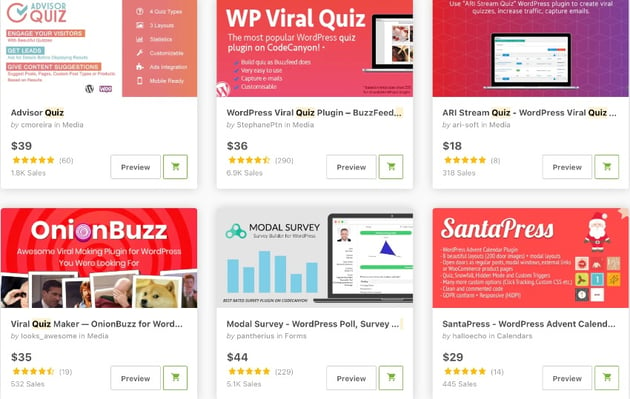  1. WordPress Viral Quiz PluginThis responsive plugin allows you to create BuzzFeed-type viral quizzes on your website. And hopefully generate lots of social traffic! It has two kinds of quizzes that can be easily shared: personality and trivia quizes. You can integrate these quizzes anywhere on your website and even monetize them. Features include:
The plugin is multilingual, works on every WordPress theme, is GDPR compliant, and supports email marketing platforms like MailChimp, AWeber, and ActiveCampaign. Check out the following article on how to create a trivial quiz with Viral Quiz for WordPress. 2. Modal Survey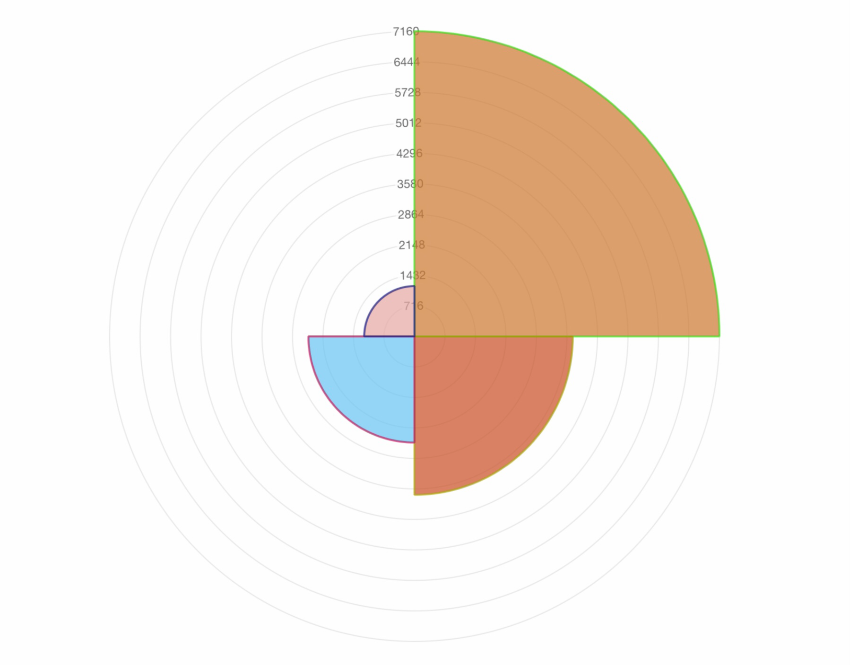 Modal Survey is a WordPress poll, survey, and quiz plugin that allows you to visualize any poll results as charts. Polls are displayed in one of six different kinds of poll charts: pie chart, doughnut chart, bar chart, radar chart, line chart, or polar chart. All charts are interactive and display the exact values of the WordPress poll with a mouse hover. You have the option to hide survey values and only show percentages. For this, you can use the progress bar or the line bar. You can also export the whole WordPress poll with the results to CSV, JSON, PDF, XML, and Excel. Modal Survey supports many newsletter providers, including Constant Contact, Freshmail, GetResponse, Mailchimp, MailPoet, and more. 3. Advisor Quiz   Advisor Quiz allows you to develop quizzes with results that include content or product suggestions based on user's answers. The plugin is fully responsive and has four types of quizzes: content filter, trivia, personality, and count. You can present the quizzes in three layouts: presentation, image grip and minimal. It is compatible with WooCommerce, Easy Digital Downloads and custom post types. 4. Online Exam Management—Education & Results Management   With Online Exam Management you can create and manage online exams for students and publish exam results. You can create exams, set exam centers, duration, date and start time. The plugin makes it easy to conduct multiple exams, view completed exams, recent exams, upcoming exams, and on-going exams. The exam questions can be: single-choice, multiple-choice, objective, or subjective. Student can pay for their exams using Stripe or Razorpay. 5. ARI Stream Quiz: WordPress Viral Quiz Creator   This plugin will help you create viral, BuzzFeed-style trivia and personality quizzes in WordPress. It has both standard and BuzzFeed-style themes and you can even add new themes. You can create unlimited quizzes with any number of questions and answers and even show questions in random order and shuffle answers. Notable features include:
You can integrate the plugin with ActiveCampaign, AWeber, ConstantContact, Drip, GetResponse, MailChimp, MailerLite and Zapier services. 6. SurvForm—Survey Form Builder Plugin For WordPress   SurvForm helps you build responsive surveys that you can use to collect user data and improve your products, service or content strategy. Simple and easy to use, the plugin supports eleven common field types. Some notable features include:
Free WordPress Quiz PluginsThese free plugins offer few features compared to the premium WordPress Quiz plugins on CodeCanyon, but if you're on a budget, they're a great way to create an interactive quiz on your website for free. You can learn more in our roundup of the best free WordPress quiz plugins. HD Quiz   HD Quiz is the easiest and fastest way to create fun quizzes on your website. You can create an unlimited number of quizzes and embed them onto any page or post. Quiz And Survey Master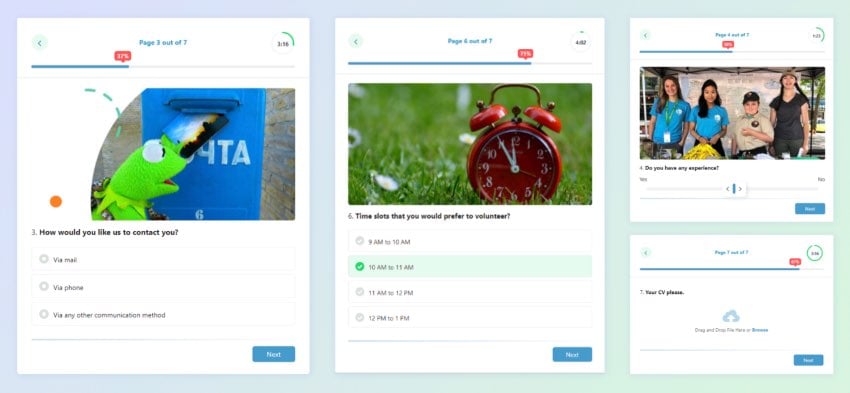   Quiz and Survey Master is the best plugin to create anything from viral quizes or trivia quizes, to customer satisfaction surveys and employee surveys. Quiz Maker   Quiz Maker plugin allows you to create advanced quizzes and exams easily and quickly. Tips For Creating High Quality Quizzes1. Be Clear About the Purpose of Your QuizDefine your goals. Why do you want a quiz on your website? What do you want to gain from the quiz? Is it to collect leads or understand customers needs or promote your ebook? 2. Make It Short and SweetA long quiz does not equal fun. It also eats up your visitors time. When you are clear about your goals, it is easier to come up with the right questions. Two minutes is considered the perfect duration for an online quiz. 3. Make It Challenging but Not DifficultYou can begin with easy questions and gradually increase the level of difficulty. But don't make it so difficult that your visitors stop enjoying their time on your website. 4. Use responsive designOver 80% of your users will access your website on their mobile phones. Make sure your quizzes can be accessed on mobile devices. 5. Offer EnticementRewarding participants will build an enthusiastic response. You will get higher participation rates, increase your leads, and even a lot of information about what customers are looking for. Add Quizzes To Your Website Now!On CodeCanyon you will find WordPress quiz plugins that will drive traffic to your website.    If you want to learn more on how to add quizzes to your website, check out some of our other posts:
If you're looking for other solutions for creating quizzes, you will also find form builder plugins on CodeCanyon. They come with a wide variety of forms including quiz builder forms.
   |
| How to Export Photos From Adobe Camera Raw to Photoshop Alternatives (Affinity Photo) Posted: 25 Aug 2021 04:28 PM PDT If you prefer the Adobe Camera Raw interface but want to use Affinity Photo or another imaging tool, then here's how you can get the best of both worlds for your photographs. How to Export Photos From Adobe Camera RawRAW Editing Versus Raster Editing, and Why You Need To ExportWhen you edit your raw-file photographs, you're re-interpreting the original recording and getting the most out of the information you've recorded. To share, print or edit the photo in a raster-editor like Photoshop or Affinity Photo it first needs to be made into a raster, or pixel-based format like JPEG or TIFF. While these formats are useful, you can't get as much out of your editing process with them, so it's important to do everything you wanted to do while in the RAW format before you rasterize your photo. Using ACR With Photoshop AlternativesIt's possible to use both Adobe Camera Raw and other image editing programs together, with ACR for your raw-file changes and the alternative raster editor in place of Photoshop for any final, pixel-based edits and exports. We're demonstrating with Affinity Photo, but you could use Photopea, Krita, or whatever your favourite imaging suite is. But why would you want to do this? Personally, I think the editor of ACR offers a lot more than Affinity Photo, plus I prefer the interface and I find it easier to use. There's also the fact ACR saves changes as sidecar data, so it's not only more flexible but it avoids the potential of corruption that can (though rarely) happen with directly applied changes. There are also presets or plugins that might only be available for AP or other programmes that you'd like to use on your image. ACR Vs Affinity Photo's Raw ProcessorBoth Adobe Camera Raw and Affinity Photo have proprietary file types associated with their RAW editing, but only ACR offers the option to store your changes in an open format. In ACR there are two ways to associate RAW changes you make to your photograph. One way is as a "sidecar" file, a small .xmp document, where the changes are separate to the RAW photo, but associated with it. In essence, an .xmp is an extra file that accompanies and describes your original, a text instruction detailing all of your changes. The second way is to embed the changes into the photograph as a DNG (Digital Negative). Neither of these options touch your original image and in the case of a DNG, Camera Raw will make a copy. DNG's are proprietary in that they're only designed to work in Adobe software, though just to confuse matters a little, a few camera brands have also adopted it. In Affinity you'll work with the Develop Persona to create your RAW changes. Unlike ACR, which will save those as an .xmp file (sidecar) if you choose, with Affinity you embed or flatten those adjustments in. If you were to save the changes before exporting as a raster file format then it would save as an .afphoto file. How to Export Photos From Adobe Camera Raw to Affinity Photo for Final ProcessingIn ACRLet's assume you've done your RAW editing in ACR and you're all ready to export to make some final raster changes or tuning up. Rather than hitting Open, which would take your image into your preferred Adobe software, click Convert and Save Image in the top right.    The default will likely be DNG, which we know isn't any good for our purposes as it's proprietary, so click the Format dropdown and instead choose TIFF.    You can choose to bring Metadata across here, with a number of options, so select the ones that are right for you. Make sure under Compression it says None. When you're done, hit Save. Open in Affinity PhotoYou'll now have a good quality TIFF copy of your photograph that you can open in Affinity Photo.    Now you're editing as you would in Photoshop once you'd exported your image from Camera Raw. Work on Adjustment Layers in the same way, so that you aren't editing directly on your image. Let's assume you're making a social media post so you want to resize, add a border and sharpen. Add a BorderYou can add a border at the end if you like, but I prefer to add the border first, save a large copy of that and then resize.    Go to Document > Resize Canvas. Make sure your anchor point on the grid is in the centre. You can choose the units you'd like to increase the canvas size in, depending on your preferences. You'll need to put in the new dimensions of the canvas. It's slightly annoying that unlike Photoshop, where you can put in the additional size you'd like adding (5cm for example), in Affinity you have to add the extra to the existing dimensions.    Remember that you're working on one 'side' of the image, so you'll need to put in double the amount for the border you want. For example if you wanted an additional 50px all the way around, you'd need to put 100px extra onto the dimensions. ResizeMy personal preference for easy social media posting – Facebook and Twitter – is to resize to 1700px wide. It's a size I've found that for the moment is small enough not to get compressed too much when it gets uploaded, but still looks good as a thumbnail and when opened to full size. Document > Resize Document Choose 1700px for the width and—if the padlock is locked in the centre—the height will adjust automatically.    SharpenThough you might have done a little sharpening or at the very start and end of your process in ACR, you can do some output sharpening now, tailored to the final size of your image. Make sure you zoom in to 100% while you're sharpening and then come back out to check the overall effect.    Sharpen isn't in Adjustments like you might expect, instead you'll need to navigate to the bottom of the Layers panel and choose Live Filters. There are three options to do sharpening: Clarity, Unsharp Mask and High Pass. I'm using Unsharp Mask, so here's a quick rundown of what the options on this filter are:
   Finish Up and SaveOnce you've finished, you can choose to add a watermark using an image or custom brush. Then go to File > Export and choose your desired settings.    While it can be a bit of a faff to work between two pieces of software, you can find you get the best of both worlds, and once you've done it a few times you'll soon start to speed up your workflow. More Affinity Photo ResourcesThanks for reading this tutorial, here are a few more Adobe Camera Raw learning resources to help you enjoy post-processing and get the most from your photography.
About This PageAbout the AuthorsMarie Gardiner is a writer and photographer from the North East of England. After gaining her degree in Film and Media, Marie worked in the media industry, before leaving to set up the business she runs with her partner: Lonely Tower Film & Media. As well as writing about visual practices like photography and video, Marie is also the author of Sunderland Industrial Giant (The History Press, 2017) and Secret Sunderland (Amberley Publishing 2019). Her photographic work focuses on landscapes and industrial ruins, particularly those of the North Pennines as she continues to work on her long-form documentary project Changing Landscapes. This page was edited and published by Jackson Couse.    |
| 10 Top YouTube Shorts Templates for After Effects (Make Vertical Video) Posted: 25 Aug 2021 07:51 AM PDT YouTube Shorts are videos of 15 seconds or less, designed to be uploaded from your phone. If you prefer to create Shorts videos in the comfort of your usual editing suite, then why not use a professionally made video template or two, too? On this page we take a look at top After Effects templates available from Envato: ten premium templates from Envato Elements and Envato Market to help you make YouTube Shorts. 10 Top YouTube Shorts Templates for After EffectsTypOpener—Modern TitlesFeatured Template Pack for YouTube Shorts From Envato ElementsA vertical (1080x1920) opener for After Effects that would work perfectly for YouTube Shorts. The style is bright, bold and colourful, with eye-catching text and interesting animations. Project DetailsThis project was created by Envato Elements author PixartStudios. Key FeaturesThere are 20 unique titles which are easy to modify and customize. A PDF is included to help you get to know this After Effect's templates features and how to adjust them to suit your requirements. Just move markers to adjust duration. Try This TemplateWith a subscription to Envato Elements you get unlimited After Effects templates, video, audio, images, graphics and more. More YouTube Shorts Templates From Envato ElementsUnlimited downloads from Envato Elements mean you can try as many After Effects templates as you like, so if the above template isn't quite your style, no worries! Here are some great alternatives.
YouTube Shorts After Effects Template Options on Envato MarketIf an Elements subscription doesn't fit your project or you don't find what you need, with After Effects templates from Envato Market you can keep your work on a budget without skimping on the design. Here are some great vertical video template picks for YouTube Shorts from Envato Market: Vertical Multimedia Screens Video Grid—$19In 4K Ultra HD this After Effects vertical template looks great and is perfect for your next YouTube Short. There are 12 options included, with an additional five transitions as a bonus. The template works with any font and also with either video or photos. Vertical Typo Titles—$16These self-resizing titles for After Effects are in vertical format, fully editable and let you adjust the duration, meaning they're super-flexible for your next YouTube Short. There are in-and-out animations and it includes a link to the fonts used in the demo. Sale Promo—Vertical—$18If you'd like to promote something in your YouTube Shorts then why not try this vertical sales promo template for After Effects. There are three presets that are customizable and the project boasts a fast rendering time.    More Resources for YouTube CreatorsTo help you get creative, here are more free resources from Envato Tuts+. Keep Studying with Envato Tuts+Popular After Effects Tutorials
Recommended TutorialsIf you'd like to improve or add to your filming and video knowledge, then Tuts+ has a number of free resources for you to help you out. If you're in the process of creating a film, or a YouTube Short in After Effects, then you'll love our A to Z of After Effects: Tips, Tricks & Hacks. Free Video Courses: Follow Envato Tuts+ on YouTubeIf you're interested in learning more about After Effects then you'll love our free mega course. David Bode will take you through everything from After Effects basics, through to nailing your compositions and layers, and then onto more complicated tools and techniques such as keyframes, masks, shapes and text. More Templates for After EffectsEnvato Elements has millions of stock items, including motion graphics projects for After Effects, with creative templates for slideshows, titles, and text effects. Find more top templates for After Effects in these articles:
More Resources From EnvatoEnvato has even more resources to try. PlaceIt lets you make high quality motion graphics in your browser, no software needed. Envato Studio connects you with creative talent for your projects. Reshot has free photos, icons, and graphics. Twenty20 has a diverse library of stock photography and thoughtfully curated collections. And you can give your brand's channel a boost with our comprehensive guide for video marketing content creators. About This PageHow We PickedWe looked at projects and considered all kinds of variables, including organization, complexity, experience required and overall difficulty, minimum hardware specifications, included versions and options, formats, resolution, file size, dependencies and required plug-ins (if any), language options, software versions supported, style, design, and cost. You can read more about how we select items at How We Pick Video Templates to Feature on Envato Tuts+. About the AuthorsMarie Gardiner is a writer and photographer from the North East of England. After gaining her degree in Film and Media, Marie worked in the media industry, before leaving to set up the business she runs with her partner: Lonely Tower Film & Media. As well as writing about visual practices like photography and video, Marie is also the author of Sunderland Industrial Giant (The History Press, 2017) and Secret Sunderland (Amberley Publishing 2019). Her photographic work focuses on landscapes and industrial ruins, particularly those of the North Pennines as she continues to work on her long-form documentary project Changing Landscapes. This page was edited and published by Jackson Couse. Share Your Craft on the Envato ForumsFinally, if you put one of these After Effects templates to use, please do let us know on the Envato forums. We love to see the projects you create!    |
| How to Quickly Make a Family Tree Presentation in PowerPoint Posted: 25 Aug 2021 06:55 AM PDT Here's a fun project for yourself or your child: create your family tree! And if you want a cool-looking family tree, a family tree template for PowerPoint is a great place to start.    Whether for your personal pleasure or for a school project, creating a family tree is a rewarding activity. In this tutorial, you will learn how to make a family tree presentation in PowerPoint. I will show you two ways to create your very own family tree:
I'll also share some family tree templates for PowerPoint that'll give you a head start on the project. Why Use PowerPoint to Make a Family Tree?Many graphic creation tools are available today, but PowerPoint is ideal for making a family tree. First, PowerPoint's robust features let you create any type of family tree. You can create a completely text-based family tree, or you can add photos and icons. You can even animate the family tree and share it with family members and friends online. Another reason to use PowerPoint for your family tree is its ease of use. Even if you're a beginner, you can quickly learn how to use its most basic features. And finally, PowerPoint has many templates for you to get started with. This means that even if you're not a graphic designer, you can come up with an impressive-looking family tree. Find a Great PowerPoint Template in ElementsA terrific source for family tree PowerPoint templates is Elements. For a flat subscription fee, Elements grants you unlimited downloads of PowerPoint templates. Not only that, but you also get unlimited downloads of other creative assets you need to make your family tree stand out:
You also get unlimited access to other assets you need to make other creative materials, such as web page templates and soundtracks for your videos.    For the one-off project GraphicRiver is an alternative source of PowerPoint templates. You pay only for each use of a template or other creative asset. It suits any budget. Now that you know where to source professionally-designed PowerPoint templates, let's go ahead and make a family tree! How to Make a Family Tree in PowerPoint, Step by StepYou may be wondering: how do you make a family tree on PowerPoint? If that's your question, keep reading for a step-by-step tutorial to guide you through the process. For this tutorial, I'm going to use the Bamboo PowerPoint template, because I was born in a tropical country.    Bamboo is one of the PowerPoint templates available from Envato Elements. It comes with five color variations and 30 unique slide layouts, for a grand total of 150 slide templates. It also includes hand-drawn infographics, which are resizable and editable. You can use any template you wish for your family tree—even a template that isn't specifically designed for creating family trees. If you follow the steps I show below, you'll be able to create your very own family tree. Let's get started: Prepare the TemplateThe first step is to prepare the template by downloading and copying it and deleting the slides you don't need. 1. Download the TemplateThe first step is to download the template of your choice and save it on your computer. From the template page on Elements, click Download. Follow the rest of the instructions to save the template files to your computer.    It's a good idea to duplicate the template, and work on the copy. That way, you'll always have the original template files if you want to revert to them later for any reason.    2. Select Your Slide LayoutSwitch to Slide Sorter view to see the slides at a glance.    Delete the slides you won't be using. Feel free to also delete any other slide elements you don't need, such as extraneous text boxes and images. This is what the original slide template looks like:    And here it is after I've deleted the items I won't be needing:    Now that we've got a prepared "canvas," we can create the family tree itself. Method One: SmartArtThe first method I'm going to show you uses PowerPoint SmartArt. 1. Launch SmartArtGo to Insert > SmartArt > Hierarchy.    By default, an Organization Chart is inserted on the slide. We can work on this chart to begin with and then switch to a different style later on.    2. Delete All but One of the SmartArt ShapesI find it easiest to delete all but the top shape of the SmartArt. To do this, select a shape, then click the Delete button.    The shape that's left is our starting point. In this case, it's the shape that stands for me. 3. Add Shapes and Text to Build Out Your Family TreeTo add text, double-check inside the shape and type a name.    Now, let's add two shapes below the first one, one for each parent. To add a shape, right-click on the first shape, then click Add Shape > Add Shape Below.    Type the names of a person inside each shape. If you can't double-click inside a shape, you'll have to click on the arrow to expand the SmartArt Text tab. Type the desired text there, and it'll appear inside the chart.    You can also use the arrows in the SmartArt Text tab to delete, add, and move shapes in the chart. Keep going until you've got all the shapes you need. Add the names to each shape.    4. Modify the Colors, Fonts, and Slide ObjectsWhen you've got all the shapes and text you need, go ahead and change the colors and fonts of the family tree. Select the shape you wish to modify, then click on the Home tab. From the ribbon, change the font and shape fill color.    At this point, we can also edit the other items on the slide, such as the title and the slide graphic background. Here's my family tree, all done!    By the way, when your family tree is all built out, you can change the SmartArt style. It'll retain all the content you've already added.    For example, I may want to switch to a style with images, like this:    You can learn more about using SmartArt here. If you want to have more granular control over how your family tree looks, there's another method you can use. Method Two. Shapes and LinesAnother way to make a family tree slide in PowerPoint is by inserting shapes, text, and lines. This is a little bit more work than SmartArt, but it also gives you more control over every single element of the family tree. Follow the same steps earlier for downloading and duplicating your PowerPoint template. And then, create your family tree by adding shapes, text, and lines. 1. Add a Shape and TextFrom the Home tab, click on the Shapes button, then select a shape you wish to use.    Double-click in the shape to type the name. Use the font setting buttons to format the text.    2. Build Out the Family TreeCopy and paste the first shape to build the rest of the elements of the family tree. You may wish to use PowerPoint's built-in guides. Go to View > Guides > Guides. You may also choose View > Guides > Snap to Grid.    Use the Shape Format tab to change the color and border of the shapes.    3. Link Shapes With LinesWhen the shapes and text are complete, it's time to link them with lines. Click on the Shapes button, then choose the line style you wish to use. For this example, I used the Elbow Connector line type.    Repeat for the rest of the family tree. Here's my family tree all done by using shapes, text, and lines in a PowerPoint template:    Some of the Best Family-Oriented PowerPoint TemplatesIn the tutorial above, I used the Bamboo PowerPoint template and created my family tree on the slide templates. By using either SmartArt or shapes and lines in PowerPoint, you can create a family tree on any template. But you may wish to use a family-themed PowerPoint template. Below are some of the best premium family PowerPoint templates at Envato Elements: 1. Families - PowerPoint Template   Families PowerPoint template offers five premade color variations, with 30 unique slide layouts for each. This template package also includes hand-crafted infographics, illustrations, and graphics. All of them are resizable and editable right in PowerPoint—no need for an image editing software. 2. Family Album PowerPoint Template   This PowerPoint template is best for a slide presentation that's heavy on images. It comes with 32 master slide layouts in two sizes, standard (4:3) and widescreen (16:9). Since the template uses master slides, it's possible to edit the master and apply the changes globally. 3. Family - PowerPoint Template   The Family PowerPoint template has the versatility to be the starting point for a variety of presentations. Each of its five color variations has 30 slide layouts, for a total of 150 slides. Also included are illustrations and graphics that can be edited in PowerPoint. Replacing the placeholder pictures is drag-and-drop easy. If budget is a consideration, we've also compiled some of the best free family tree PowerPoint templates for you. Top Tips for Making a Family TreeMaking a family tree is a rewarding activity. But it's also a lot of work. Just doing the research alone is bound to take a lot of time and energy. And so, we all want our family trees to not only look attractive, but to be meaningful as well. These three tips may help: 1. Pick a Meaningful Theme   When it comes to picking a PowerPoint template, the options are almost endless. It's easy to get overwhelmed. It would help to narrow your choices by picking a theme that holds a special meaning for you and your family. For example, in this tutorial, I chose the Bamboo template. That's because my family originates from Asia, and bamboo was ever-present in my environment during my childhood. 2. Use Family PhotosNothing brings a family tree to life better than photographs of the person on the tree. If you choose to go this route, you'll have your work cut out for you. And making the family tree presentation on PowerPoint will be the easiest part! But if you can pull this off, the end result will be well worth the effort.    Depending on the layout you're trying to achieve, it helps to learn how to work with images on PowerPoint. 3. Don't Keep It to YourselfCreating your family tree becomes even more rewarding when you share it with other members of your family. And because you're building it on PowerPoint, you've got many options to do so. You can:
...Really, the possibilities are endless! Learn More About PowerPointTo make the most of PowerPoint's robust features, check out our ultimate PowerPoint tutorial guide. The following tutorials are particularly pertinent to the workflows in this article:
Create a Family Tree PowerPoint TodayNow you know how to make a family tree in PowerPoint. You can create a family tree in one of two ways: by using SmartArt, or by using shapes and lines. SmartArt is easier and faster but starting from scratch with shapes and lines gives you more control. You've also seen how easy it is to create a family tree slide with a striking design by starting with a PowerPoint template. Pick a template from Elements to access premium, professionally-designed templates with unlimited downloads for one flat subscription fee. For one-off projects, source your PowerPoint template from GraphicRiver and pay for each use of a template. Either way, you now have the tools to bring to life your vision for your family tree.    |
| What Are the Problems With Groupthink? +How to Avoid Them Posted: 25 Aug 2021 06:35 AM PDT In business, teamwork and unity are good things, right? Yes and no. Of course it's good for employees to get along and to collaborate. But if that cooperation goes too far, it can lead to a serious problem: groupthink.    Teams suffering from groupthink tend to make worse decisions and overlook potential pitfalls, which can have disastrous consequences for a business. In this tutorial, you'll learn what groupthink is and why it's a problem in business. Then you'll learn how to identify groupthink and how to avoid it in your teams. We'll also discuss some real-life groupthink examples. 1. What Is Groupthink?To start off, let's define groupthink. The term originated in psychology. It was coined by psychologist Irving Janis in a seminal 1971 paper on the role of group decision-making in historic U.S. foreign policy blunders. He found that such decision-making wasn't always effective, largely because people prioritized conformity over rational thinking. They thought not as individuals, but as a group. Here's a simple definition of groupthink from Psychology Today: "Groupthink occurs when a group of well-intentioned people make irrational or non-optimal decisions that are spurred by the urge to conform or the discouragement of dissent." When a team is operating in groupthink mode, it'll shut down debate or alternative viewpoints. It'll be committed to a certain point of view and will dismiss warning signs or contradictory data. It may score highly for things like team spirit and group identity, which are usually positive things, but it'll not be a healthy decision-making environment. Groupthink can cause problems such as:
We'll look at these issues in more detail, especially in a business context, in the next section. 2. Why Is Groupthink a Problem in Business?If you want to be successful in business, you need to make good decisions. Groupthink can prevent that by stifling debate. For example, imagine that you're launching a new company website. As the head of the firm, you've designed the site yourself, and all your employees tell you that it looks fantastic and praise your creativity. One person who's new to the team raises some concerns, but they're quickly shut down by the others. So, excited about this new site, you go ahead and launch it, and guess what? Your customers hate it. There are obvious problems that nobody brought up, like a malfunctioning shopping cart and a lack of contact details. And the design looks so amateur that several popular sites feature it as an example of how not to design a website. The jokers on Twitter have a field day, and your company's reputation takes a beating. This scenario exemplifies many of the groupthink problems we looked at in the first section. Your employees showed excessive deference to you as the head of the company. They didn't want to offend you by telling you the website was terrible, or perhaps they were scared of what would happen if they were honest. They shut down the lone voice of dissent and were resistant to any new ideas that the person was trying to introduce. The result was that you were blind to a huge looming problem (the bad website) and lost both money and reputation. You can take steps to prevent groupthink if you understand the question: how does groupthink work? To illustrate these problems further, let's look at a real-life example of groupthink in action. A Groupthink Case Study: EnronWhen energy giant Enron collapsed in 2001, many people were shocked—including people on its own board of directors, who should have seen the warning signs and anticipated what was coming. Law professor Marleen A. O'Connor shows in a detailed study of the Enron debacle that groupthink was a key factor in the company's downfall. For years, the company had been skirting its own ethics code and using transactions with so-called "related-party partnerships" to inflate its earnings by billions of dollars. And the company's board of directors, a group of experienced businesspeople who should've seen the warning signs, somehow didn't realize what was happening until it was too late. In fact, they approved several waivers to the company's ethics code that allowed the crisis to escalate. Prof. O'Connor analyzes the board's deliberations in her paper and concludes that groupthink psychology took hold. For years, the company was incredibly successful, and nobody wanted to jeopardize that by creating conflict and asking difficult questions—the questions that could have averted catastrophe. It wasn't just the board that was at fault either. The paper also points to: "... lack of diligence by other corporate gatekeepers such as analysts, auditors, outside counsel, institutional investors, credit rating agencies, journalists, investment bankers, and regulators." In other words, there were many people who could or should've spotted the problems at Enron sooner, but nobody did. Groupthink was a powerful factor in that collective blindness. Similar phenomena have occurred in the buildup to various financial crises, with people conforming to the group narrative and creating speculative bubbles based on "irrational exuberance." There are also much older parallels, such as the folktale of the Emperor's New Clothes, in which only a small boy has the honesty and courage to break the groupthink psychology and point out that the emperor's clothes don't exist. 3. How to Identify GroupthinkSo how do you recognize the symptoms of groupthink in your team? What causes groupthink, and how do you identify it? Here are some warning signs to watch out for. We'll look at the original eight symptoms of groupthink identified by psychologist Irving Janis in his 1971 paper. But whereas his paper was to do with governmental decision-makers, we'll look at these groupthink symptoms in a business context. Illusion of InvulnerabilityWhen groupthink takes hold, you think the normal rules don't apply. Things that would be a bad idea for most companies (e.g. suspending ethics rules) will work for you because your company is special. Or maybe you think the rules have changed because of the cool new technology that you use, and the naysayers are old-economy dinosaurs who "just don't get it." Collective RationalizationBecause your group is invulnerable, any facts or data indicating that you've made a mistake must be wrong. If someone in the accounts department raises red flags about holes in the balance sheet, a team operating under groupthink will create collective rationalizations to explain it—that person made a mistake, or they've got an agenda to undermine the group, or they're maliciously spreading false information. Belief in the Morality of the In-GroupIn groupthink theory, morality is important. People generally don't make bad decisions and suppress opposition because they're evil or they've got bad intentions. On the contrary, in a groupthink scenario, they believe strongly that they're good people doing the right thing. That sense of rightness helps them to justify doing things like bending the rules or acting unethically. Essentially, they believe that the end justifies the means. Negative Stereotypes of the Out-GroupIn Janis's original paper, the "out-group" referred to the U.S.'s enemies at the time, like Cuba and the USSR. Viewing their enemies in simplistic, stereotypical ways helped to foster group identity and an "us vs. them" mentality, but it also led to ineffective decisions based on false assumptions. This can also apply in a business context—if you find people demonizing your competitors or even rival groups within your company, then groupthink may be taking hold. Direct Pressure on DissentersA key element of groupthink theory is the suppression of dissent. The group is so committed to its own rightness and goodness that people who raise threatening questions are put under intense pressure to stop. In a business context, this can be very powerful—employees depend on their job to pay their bills and support their families, so if they get told to stop causing trouble, they'll quickly learn to toe the line, and groupthink will take an even firmer hold. Self-CensorshipIn an environment in which alternative opinions are treated as "bad news" and the bringers of that news are punished, the next obvious stage is self-censorship. That's what happened in our website example above. People knew from prior experience that criticism of the website wouldn't be welcome, so they kept quiet. Illusion of UnanimityWhen people in the group are engaged in self-censorship, a false sense of unanimity develops. In the "Emperor's New Clothes" tale, everyone is secretly thinking the emperor has no clothes. But because nobody says it out loud, there seems to be a unanimous opinion that the emperor's clothes are fine and elegant. That puts even more pressure on people to stay quiet to avoid looking foolish. MindguardsJanis used the chilling term "mindguards" to describe people within the group who take it upon themselves to protect other members from threatening or contradictory information. For example, when presenting an update on company performance, a mindguard will remove any charts showing missed targets and leave in only the ones that surge impressively upwards. But the information on missed targets would probably have been more useful to the team to help them identify potential problems and find effective solutions. 4. How to Prevent Groupthink in Your TeamIf some of the symptoms above sound familiar, then you may have a groupthink problem in your team. In this section, we'll look at how to avoid groupthink, and how to counteract it if it's started to take hold. Assign a Devil's AdvocateOne of the simplest ways to avoid groupthink is to assign the role of "devil's advocate" to a team member in every meeting. That person's role is to question the group's consensus by coming up with as many objections and counter-arguments as they can think of. Because the person has been specifically told to play this role, they won't feel inhibited about voicing criticisms. Some of the points they raise may force the group to change its view or at least to think more carefully about it. Have the Leader Speak LastOften, in groupthink situations, team members rush to agree with the group's leader or its dominant members. If this is happening in your group, consider asking those dominant people to keep quiet until others have had their say. For example, if you're holding a meeting to decide between two new logo designs, the usual groupthink model may be that you express a liking for Logo A and then everyone else agrees with you. So if you want a more genuine discussion, don't express your opinion immediately. Introduce the two options without judgment, and ask some of the quieter or more junior members of the team to give their feedback first. Invite OutsidersHaving outside experts at your meetings can help to break up the group mentality and introduce other opinions and perspectives. If the outsiders are respected experts in the field, group members aren't so likely to challenge them, and they may even hold a more open debate than usual because they want to make a good impression on the outsiders. Reward "Critics"Once groupthink has taken hold, it can be difficult to get rid of it. One thing you can do is make public statements of appreciation for people who bring what may be considered "bad news." For example, if someone tells you that your team's new product has a major flaw that'll delay the launch, publicly thank them for bringing that news to light before the flawed product went public. By doing this, you're signaling to everyone in the team that you won't "shoot the messenger," and you're encouraging people to be honest about important issues even if they threaten the group consensus. Have Greater DiversityDiversity can be a powerful antidote to groupthink. When people are all from similar backgrounds and have similar experiences and expectations, it's more likely for groupthink to take hold. As we've discovered throughout our series on workplace diversity, bringing in people with different experiences and perspectives can shake things up and lead to better outcomes. For example, as we discovered in the article on the key advantages of promoting diversity in your business, research has found that diverse groups make better decisions: "The mere presence of diversity in a group creates awkwardness, and the need to diffuse this tension leads to better group problem solving." What this means is that you can help to avoid groupthink by creating more diverse teams. You can embed diversity considerations in your hiring practices, and you can also make a conscious effort to mix up the groups within the company so that each individual team has more diversity. To learn more, read the following tutorials:
ConclusionYou've just discovered the answer to the question: what is groupthink? We've also explored some real-life groupthink examples. As we've seen, groupthink can be disastrous for your business. It can lead to poor decision-making and a lack of honest debate and dialog. Even if your business doesn't collapse as spectacularly as Enron, groupthink can cause real, tangible problems such as lost revenue, alienated customers, and poorly designed products. And it can create a toxic working environment for your employees, which means lower productivity and higher staff turnover. But fortunately, there are things you can do. We also looked at how to avoid groupthink by using several strategies such as assigning someone in the group to play devil's advocate, having the leader speak last, and increasing the diversity in your teams. If you found this article useful, why not try reading some of our other management tutorials? Editorial Note: This content was originally published in 2018. We're sharing it again because our editors have determined that this information is still accurate and relevant.    |
| 30 Cool Retro Fonts to Download in 2021 Posted: 25 Aug 2021 06:00 AM PDT Get the best retro fonts for your projects! Retro design is one of the leading trends in the industry today. Inspired by the traditional mediums of the past, designers are now creating phenomenal print and typography work with a nostalgic twist.    Today we'll pay homage to our favorite styles with these 30 premium retro fonts, exclusively picked from Envato Elements and GraphicRiver. From the groovy retro fonts of the 60s to the awesome grunge styles of the 90s, we've got an amazing selection to inspire your next project. 20 Awesome Retro Fonts From Envato ElementsAre you a graphic or freelance designer? Do you use design software on a daily basis? Then Envato Elements is a great option for you. The subscription-based marketplace offers you unlimited retro fonts, graphic templates, add-ons, and more. All for a low monthly fee.    To show you what we're talking about, here are 20 awesome retro aesthetic fonts. You'll find retro fonts inspired by the 60s, 70s, 80s, and more. Discover the coolest retro fonts here! 1. Long Summer Retro Fonts 70s Style (OTF, TTF, WOFF)   Retro fonts with 70s styles are back in trend. And nothing looks more 70s than this groovy retro font, which includes alternate glyphs, numbers and punctuation. If you're looking for a font with a vintage look, this is it. 2. Eighties: Retro Script Font (OTF, TTF, WOFF)   This 80s retro font emulates the cool neon signs that were popular back then. The retro cursive font comes in a bold monoline, perfect for creative projects. It also includes numerals, symbols and multilingual support, which makes it a versatile retro font. 3. Summer Of 76: Multi-Line Retro Font (OTF, TTF)   Are you looking for classic retro fonts from the 70s? This unique multi-line retro font is for you. The retro font alphabet is perfect for big headers and text blocks. It comes in two styles: multi-line and solid. If you love retro aesthetic fonts, this is the one you need. 4. Groovy Retro Font (OTF)   Groovy retro fonts will make any design pop out. This retro 60s font is very comprehensive; you'll get 593 glyphs, alternates, ligatures, and more. 5. Gnome: 80s Retro Font (OTF, TTF, WOFF)   Do you like classic and bold retro aesthetic fonts? Check out this 80s retro font. Gnome is suitable for movie posters, branding, events, and more. The cool retro font alphabet is easy to install and includes numbers and punctuation. 6. Gruvilicious: Groovy Retro Font (OTF, TTF, WOFF)   Let the groove flow with this awesome groovy retro font. Funky retro aesthetic fonts like this one are a great addition to your collection. This retro font style is perfect for T-shirts, album covers, posters, branding, and more. This retro 60s font includes a regular and an outline version. 7. Outrunner 80s Retro Script Font (OTF, TTF)   If you think about 80s retro aesthetic fonts, I'm sure something like this comes to mind. This cool 80s retro font evokes vibrant colors and disco music. It comes with numerals, alternates, punctuation, and diacritic glyphs. 8. Fenway Retro Vintage Font (OTF, TTF, WOFF)   Looking for vintage retro aesthetic fonts? The Fenway retro vintage font is for you. This bold retro script font can make your headings stand out, enhance your logos, style up your business cards, elevate your websites, and more. 9. Last Dance: Movie Inspired 80s Retro Font (OTF, TTF, WOFF)   If you like 80s movies, you'll love retro aesthetic fonts like Last Dance. This retro script font is inspired by the 80s VHS covers and the nostalgic video rental store experience. It includes multi-language support, along with two alternative sets of characters. 10. Signature Retro Script Font (OTF, TTF)   Are you looking for a cool retro font style for your signature? Look no further than this. The retro cursive font is inspired by the 80s neon lights. This stylized retro font alphabet also works for branding, advertisements, and more. 11. System Glitch: Retro Computer Font (OTF)   Retro computer fonts are another classic aesthetic. The System Glitch font works great for titles, headlines, and large text in general. This retro computer font features different glitch lines in each character. Each letter, number, and symbol will feature a unique glitch look! 12. Video Game Retro Game Font (OTF, TTF, WOFF)   Fan of retro video games? You need this retro game font in your collection. This retro font style brings back the 80s nostalgia and even includes 17 pixel Martians! Use it everywhere from print design projects to website designs. 13. Moricandia Font (OTF)   Create a daring design with the Moricandia font. An all-caps typeface, this font has been hand-painted for realistic lines and texture. Add a few splashes of ink to take it to the next level and pair it with awesome designs for blogs or branding material. 14. Lovage Font (OTF)   Sometimes it's hard for designers to use bold fonts because they're not sure how to work with chunky letters. But the Lovage font works great with any header or logo package. A sans serif typeface with rough edges, this font, overall, is a powerful all-caps design. You'll love it! 15. Mecha Font (OTF, TTF)   Decorative typefaces are designed to be showstoppers. And you won't be disappointed with the bold Mecha font. A chunky typeface with unique slanted lines, this font has a cool 80s vibe that is also quite futuristic. Try it out for any modern or creative project. 16. Divine Razier Font (OTF, TTF)   Enter the futuristic vibes of the 80s with neon lights and epic font types. The Divine Razier font is a rough brush typeface with realistic texture and amazing style. It's great for event posters and more, so you'll find many uses for this eye-popping font. 17. Velociraptype Font (OTF)   Launching a new T-shirt line and in need of a new font? Check out the awesome Velociraptype typeface. A spiky brush font with an edgy script style, this font is inspired by cool street looks you would see in any major city. Use it to make your work stand out. 18. Composition Font (OTF, TTF, WOFF)   Composition notebooks are truly a blast from the past. And the Composition font pays homage to the special gatekeeper of our childhood with this fun typeface. Included in this download is access to over 200 glyphs, plus several seamless patterns inspired by the iconic cover. 19. Thunderstorm Font (OTF, TTF, WOFF)   Everything about this Thunderstorm typeface just screams the 90s. A wicked hand-painted typeface inspired by 90s show titles, this font can be added to any composition quickly. Just download it to get access to a full set of characters and numbers along epic swash lines. 20. Mushroom Font (OTF)   Craft the perfect logo for your cartoon or comic book with the unique Mushroom font. Featuring a bouncy baseline and chunky letters, this font has an ambience of fun and playfulness. Ideal for summery designs, this multipurpose font is easy to use. 10 Cool Retro Aesthetic Fonts From GraphicRiverWhat if you don't need a subscription? What if you only need a single retro font, or if you prefer buying retro font styles one at a time? GraphicRiver is for you.    This single-purchase marketplace offers you the same premium retro font styles from Elements. But you won't need to subscribe. Here are some of our favorite retro aesthetic fonts from GraphicRiver: 1. Shutter Speed: Comic Retro Font (OTF, TTF, WOFF)   Are you looking for the best retro vintage fonts? Check out Shutter Speed. This retro vintage font will look perfect in comic designs. This retro font alphabet includes symbols, punctuations, ligatures, alternates, and multilingual support. 2. Fontryl: Handwritten Retro Font (OTF, TTF)   Fontryl is one of the coolest retro script fonts you can find in GraphicRiver. This handwritten retro font is inspired by the 50s and 60s magazine ads. Create unique designs with this retro 60s font. Use it for branding, packaging, and more! 3. Callephane: Retro Script Font (OTF)   Callephane is another fantastic retro vintage font, perfect for any project you've got in mind. This retro cursive font is inspired by the 60s aesthetic. It works great on logos, posters, clothing and more projects. Callephane includes three styles: Light, Regular, and Rough. 4. Moonface Script: Retro Fonts (OTF, TTF)   Moonface Script from TypeFaith Fonts is a flowing script with lovely swashes. It is based on the 20th Century Packaging typo. Moonface Script is a characteristic font with a retro feel. It contains a full set of ligatures, alternatives, swashes and special characters. 5. Les Paul Font (OTF, TTF)   Featuring the charm of the early 50s and 60s, the Les Paul font is the perfect companion to any branding or children's book project. Choose from seven different styles you can combine together to help elevate your work. Give it a try! 6. Redoura Font (OTF, TTF)   One of the most interesting trends of the 70s was the use of script types similar to the one below. The letters always had fanned-out ends with beautifully drawn cursive letters to match. Making a huge appearance in sports-themed logos, this style remains a popular look in design today. So try the Redoura font to relive this retro vibe. 7. Oh Blazt Font (OTF, TTF)   Not everything in the 80s was about neon. Take the Oh Blazt font, for example. Featuring a laid-back style that is both edgy and daring, this font is ideal for apparel design and more. Your logos will look great with the bouncy baseline and casually drawn letters. 8. Fisherman: Retro Ocean Fonts (OTF)   Evoke the spirit of the ocean with Fisherman Fonts. The best part is that you get three styles! Regular, rough, and slant: just take your pick. 9. Game Over Retro Game Font (TTF)   Relive the glory days of retro video game design with the Game Over font. Designed after the popular 8-bit pixel designs of the 80s, this retro game font is great for any nostalgic work. Use it for illustrations and logos or any game-themed poster. 10. Minority Font (OTF, TTF)   Add a little grunge texture to your work with the Minority font. Inspired by a mixture of 90s grunge and graffiti styles, this font is a hand-painted condensed script. Ideal for large typographic posters or any logo design, this font is simple and easy to use. Start Designing With Awesome Retro Fonts Today!I hope you enjoyed our selection of top retro font styles from Envato Elements and GraphicRiver. Whether you prefer an unlimited subscription service or a single-purchase option, you'll find what you need here. This list is jam-packed with amazing resources for the avid designer familiar with type design. Be sure to browse Envato Elements and GraphicRiver for more retro fonts. New to typography? Let our designers help! Get reliable feedback and design from the talented folks at Envato Studio. Looking for more retro aesthetic fonts and inspiration? Before you leave, check out the resources we've got for you:
Editorial Note: This post has been updated with contributions from Maria Villanueva. Maria is a staff writer with Envato Tuts+.    |
| How to Pick the Best Infectious Diseases PowerPoint Template in 2021 Posted: 25 Aug 2021 05:55 AM PDT Do you need to create a communicable diseases or patient education PowerPoint (PPT)? The most effective way to share important public health topics is with a good infectious disease PowerPoint.    Patient education and community health are more important than ever in 2021. You can quickly and easily create a presentation to keep your community and patients current. Just use an infectious diseases PowerPoint template for a head start on an attractive and professional PPT. In this tutorial, you'll learn the top decision-making criteria for an infectious diseases PPT presentation. We'll also take an in-depth look at some Envato Elements templates that meet that criteria to find the best template choice for you. Where to Find the Top Microbes PPT TemplatesEnvato Elements is the best place to find microbes PPT templates and other medical related templates. It's a subscription that gives you unlimited access to design assets for a low monthly fee.    For a low monthly fee, get unlimited downloads of:
Now let's explore some of the decision-making criteria you can use to select a template for a public health presentation about communicable disease. Top 5 Key Decision-Making Factors for an Infectious Disease PowerPoint Presentation TemplatePresentations allow you to combine images and words in a way that's both engaging and memorable. Plus, if you can't give a presentation in person, you can share it online. (This is very important in today's world.) If you're looking for a communicable diseases PowerPoint template, then you've got vital info to communicate. But how can you find the right template to get your message across? Here are some of the decision-making factors you'll want to consider as you select an infectious diseases PowerPoint template: 1. Uncluttered DesignHow do you get your audience to pay attention to your message about communicable and infectious disease? An uncluttered design allows them to focus on the message and not the clutter.    With no distracting elements on the slide, your audience is more likely to focus on your message. Look for templates with minimal or simple slide designs. 2. Readable FontsReadable fonts are a key part of an effective communicable diseases PowerPoint. Your message is important. You don't want your audience to struggle to see your info because they can't read your slides. The fonts you use in your presentation need to be easy to read. This is true whether you're giving your presentation online or in person. Sans serif fonts work well in either instance. For more details on the best fonts for presentations, study this tutorial: 3. Infographic SlidesPatient education PPTs and communicable diseases PowerPoints often have lots of statistics and other data. Rather than present this data as text, engage your audience with informative charts and graphs.    We've discussed the criteria for selecting infectious diseases PowerPoint templates. Now let's look at three templates that meet the criteria. 4. Professional AppearanceLike it or not, how your presentation looks speaks volumes to your audience. If your presentation design is clumsy and looks cobbled together, your audience may dismiss your info as wrong. But if your slide designs are professionally-designed, your audience is more likely to accept your info as being valid. 5. Image Placeholders   The right picture is an effective way to get your message across. A picture may get your audience's attention in a way that words never will. As someone who works on public health topics for presentations you want your template to have plenty of image placeholders. They'll make it easy to drag and drop those images right into your presentation. How 3 Top Patient Education PPT Templates Measure Up (Benefits and Drawbacks)Here are three top microbiology PPT templates from Envato Elements. Any of these would work well for a patient education PPT. Let's take a closer look at the pros and cons of each template compared to the key decision-making factors listed above: 1. NVirus - Diseas PowerPoint Template (Infectious Diseases PowerPoint)   Here's an attractive communicable diseases or infectious diseases PowerPoint template. It's got your choice of 12 built-in color schemes. Each PPT or PPTX template file comes with 30 slide designs. This could be a good choice for a patient education PPT due to the large number illustrations. Let's compare this template with our criteria above:
2. Virus Disease Education - Patient Education PPT   This sleek and modern PowerPoint template has 34 slide designs. There are also plenty of places to add your own images. The yellow and blue color scheme offers a nice contract. Try using this if you've got public health topics for presentation. Let's see how the Virus Disease Education template compares with our decision-making criteria:
3. Covirus - Disease & Virus PowerPoint Template (Communicable Diseases PowerPoint)   This modern design comes with a green color scheme. There are 39 slide designs plus four slides of icons. Whether you're sharing disease prevention ideas or giving a community health PowerPoint presentation, this is a good choice. Let's see how the template stacks up to our criteria for infectious disease PowerPoint templates:
Explore Slide Examples for Public Health Topics for PresentationNow that we've examined our three templates, let's take a look at them in action so you can see for yourself how they perform. Here are five examples of how you might use these templates for health presentations: Surgical Tech Training TemplatesYou could adapt the communicable disease templates we've looked at to use as surgical tech training templates. Here are two examples: 1. Sterilize Surgical Equipment Example Slide   Here we used slide #4 of the Covirus Template to create a training slide example. All we had to do to create this example was add an image and replace the text. 2. Wear Personal Protective Equipment Example Slide   In this example, we used slide #12 from Virus Disease Education PowerPoint template. Once again, we simply added our image to the slide template and customized the text. Anatomy Templates for PowerPointAre you working on a human anatomy PowerPoint presentation? You could even use slides from the templates we're looking at as anatomy templates for PowerPoint. Here's a slide example from the NVirus - Diseas PowerPoint Template:    For this example, we used slide #28 as an anatomy template for PowerPoint. First, we added an anatomy image. Then we added information in the text areas. Infectious Disease (Microbes) PowerPoint TemplateOf course, these templates were designed as infectious diseases PowerPoint templates. That makes them ideal for an infectious disease PPT presentation or any slideshow with disease prevention ideas. Let's look at two examples: 1. Preventing Infectious Disease Chart Example   For this example, I used slide #12 of the Covirus Template. I made text changes to the chart that was already on the slide. You could add or delete elements as needed. 2. Microbes Slide Example   You can also use the templates we've discussed here as microbiology PPT templates. The microbiology PPT template example above is based on the Virus Disease Education template. We just added three images and changed the text. You've just seen how some infectious diseases PowerPoint templates could work in a presentation. Now let's explore other template options. More Medical Templates for 2021Are you working on public health topics for a presentation? Or are you creating a community health PowerPoint presentation? You want to use a template but need more choice. Here are some articles with specially curated medical PowerPoint templates that may work for you:
Learn More About Using Presentation TemplatesYou're an expert in your field. But your PowerPoint knowledge may not be quite as strong. Study our Ultimate PowerPoint tutorial Guide to learn what you need to know to quickly master the tool. Here are some example lessons:
Choose Your Infectious Disease, Microbes PPT, Patient Education PPT Template Today!In this tutorial, you've learned how to choose the best infectious disease PowerPoint template. You've also seen how the right template can work for a microbiology PPT, a human anatomy PowerPoint presentation, and more. Quickly create a powerful presentation by using the right tools. Why not download a professionally designed template right now? Get started on your next communicable diseases (or other medical) PowerPoint today.    |
| 15+ Best WordPress Landing Page Plugins and Templates (Free and Paid) Posted: 25 Aug 2021 01:51 AM PDT Landing pages are crucial to the success of your product. They are specifically built to market a particular product, to generate attention that will turn visitors into customers by guiding them to take particular actions. You can use landing pages to pre-sell products before they have launched, run a marketing campaign, build an email subscribers list, direct people to your event, give away free products, promote your ebook, announce when you're launching, and so on. You can build landing pages using WordPress landing page plugins and templates. They are fast and easy to use and you don't need coding knowledge to work them.    In this article I'll show you some WordPress landing page plugins, templates, and themes on ThemeForest that really stand out. BestSelling WordPress Landing Page Plugins and TemplatesOn ThemeForest, you will find affordable premium WordPress landing page plugins and templates to build an amazing landing page. You don't need any coding experience to use them.    Here are the best WordPress landing page plugins, templates, and themes on ThemeForest available for you to download right now. 1. Atomlab - Startup Landing Page WordPress Theme   Atomlab helps startups and business hit the ground running even before they launch. It boast "impressive design and supreme features" that include twenty four home pages, sixty one inner pages, fourteen portfolio layouts, eleven blog layouts, headers, and lots of shortcodes. It also comes integrated with WPBakery plugin and Revoution Slider which you can use for free. It supports WooCommerce. 2. Pergo - Multipurpose Landing Page WordPress Theme   Pergo comes with tons of features like landing pages for a wide range of sectors, over eighty reusable UI blocks, inner page templates, unlimited colors, mega menu, Google fonts, and a working PHP MailChimp form. It supports WPML and Google Analytics. And if you have no time for customization, Pergo comes with thirty ready to use demos that you can upload and adapt to your needs and launch quickly. 3. Urip - Professional WordPress Landing Page   Urip comes with home pages, layouts, contact form, registration form, MailChimp subscribe form, pricing table, image galleries, icons, content filters, and even a Revolution Slider plugin that you can use for free to make your landing pages engaging. Urip is also unique because you can build your whole landing site with shortcodes using WPBakery Page Builder or Elementor. The plugin is compatible with WooCommerce, Yoast SEO , WPML, Contact Form 7 and it is optimized for page speed. 4. Nostalgia - Responsive WordPress Landing Page   For amazing landing pages that immediately grab attention, choose Nostalgia. First, the plugin is based on fullscreen slideshow. Second, the style is minimalist and contrasting. The background images maintain a retro tone and the content minimalist. The WordPress landing page is divided into sections:
It comes with detailed documentation. There is fast and friendly support if you need it. 5. vApp | WordPress App Landing Page   vApp is the best way to announce that your app or digital product is on the way! It is equipped with Elementor and Elementor widgets so you can build your landing pages using the Elementor drag-and-drop feature in minutes. It is also RTL ready and supports WooCommerce, MailChimp, and Contact Form 7. 6. Smartic - Product Landing Page WooCommerce Theme   Smartic creates beautiful landing pages for your products. You can use Smartic as a showcase page for your product or a shopping page. The theme comes with over eighteen ready-made demos that you can customize using Elementor Page Builder. Whatever business you're Smartic is for you. 7. Proland - Single Product Landing Page WordPress Theme   Thanks to Proland, your landing page will be up and running in minutes. The theme provides unlimited custom page templates and post types, widgets, carousel, maps, and fonts. It is integrated with Paypal, MailChimp, WooCommerce. Using shortcodes, you can build your own custom pages with WP Bakery Page Builder. 8. Getleads High-Performance Landing Page WordPress Theme   Getleads gives you infinite page variations, nine ready-made landing page demos, visual drag-and-drop builder with Elementor add-ons like head and footer builder, and mega menu builder. 215 Unique content blocks and 900+ Icons ready to use. 9. Crypto-land - Crypto Currency Landing Page WordPress Theme    Crypto-land is for landing pages for cryptocurrency apps and products. In addition to all cool features you need to build eye-catching landing pages, the theme also comes with plenty of tabs, counters, tables, graphs, accordions, media embeds. You'll have unlimited number of shortcodes to use with WPBakery Page Builder. The plugin is translation ready, optimized for SEO and speed. 10. OneLander | Creative Landing Page WordPress Theme   OneLander gives you creative landing pages with plenty of cool features. It comes with cool menu effects, video and parallax background, bulk image upload, header variants, SVG logos, and Elementor Page Builder. You'll also have ready to use demos. 11. WebOn - Landing Page WordPress Theme   Web is packed with plenty of features to make stunning SEO optimized landing pages. It is compatible with Elementor Page Builder, WooCommerce, WPML, and Contact Form 7. It also includes a child theme. 12. XooApp - App Landing Page WordPress Theme   XooApp makes it easy to promote you app. It features twelve ready to use demos, responsive layouts, tons of vector icons, pages with video section, FAQs, sliders, and Elementor Page Builder. 13. Faded - Responsive App Landing Page WordPress Theme   Faded offers plenty opportunities to build stunning landing pages for your apps. It provides a drag-and-drop builder, plenty of layouts, fonts, and unlimited colors. It is compatible with other plugins like Yoast SEO, MailChimp, and Contact Form 7. Free WordPress Landing Page Plugins and TemplatesThe premium WordPress landing page plugins and templates on ThemeForest will give the best features and user experience. You will also have access to support whenever you need it. But if you are on a tight budget there are free alternatives to premiums plugins and templates that are available. Below are the 5 best free WordPress landing page templates that you can download in 2021. 1. Landing Page Builder   Landing page builder allows you to build your own responsive pages, layouts, and landing pages. It comes with easy to use drag-and-drop layout builder and built in widgets that make it easy to add content. It is compatible with WooCommerce and all modern WordPress themes. It also integrates with various email marketing services. 2. VW Landing Page   You can use this template to create landing pages for all kinds of business. It has sections like gallery, footer widgets, testimonial, successful projects stats, left sidebar, services, about us and more. The theme is easy to customize. 3. Book Landing Page   This is the perfect theme when you want to create a landing page for your book. The template is mobile friendly and is optimized to increase leads and purchases of the book. 4. Author Landing Page   This template helps writers and publishers to promote and publish their book online. It comes with attractive layouts to generate leads and create sales. It is SEO optimized and schema markup ready to help you with your search engine rankings. 5. Superb Landingpage   With this multipurpose WordPress theme you can create landing pages for business. The theme comes with a simple blog slash news layouts. It also has affiliate marketing features. More WordPress Landing Page ThemesI hope you like the landing pages in this article. If you're still looking for the right landing page template for you, the following collections will guide you to more resources.
Landing Page Tutorials on Envato Tuts+We have selected a few tutorials to help you learn more about landing pages. Find even more tutorials on landing pages on Envato Tuts+.
Find Best WordPress Landing Page Theme For Your LaunchDon't wait until your website is done or product is finished. You can start creating buzz around it and getting leads with the perfect WordPress landing page plugin and template right now, and you'll be far ahead of the race!    |
| How to Create a YouTube Banner in Adobe Photoshop Posted: 25 Aug 2021 12:00 AM PDT    If you're a YouTuber and you need a banner for your channel, in this tutorial I'll show you how to make a banner in Photoshop. I will show you one way of doing it, and then you can use this file as a YouTube banner template to adjust to your needs. And if you want to save time, Envato Elements offers plenty of fantastic templates for YouTubers—for banners, thumbnails, and end screens!  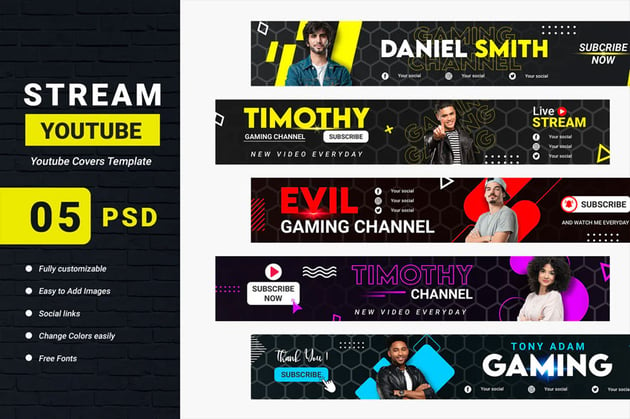 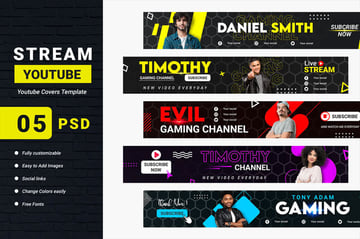 What You Will Learn in This YouTube Banner Photoshop Tutorial
Follow along with us over on our Envato Tuts+ YouTube channel: Tutorial AssetsThe following assets were used during the production of this tutorial:
How to Make a Banner in PhotoshopStep 1A YouTube banner has to have specific dimensions—to make sure it will work great on all devices, you should make it 2560 x 1440 px. So start by creating a 2560 x 1440 px document in Photoshop with the following configuration. Set the Background Fill Color to    Step 2Add the background and adjust its size. Then Rasterize the layer (right click > Rasterize layer) and subsequently desaturate the image (Shift-Command-U).    Step 3Now add a Layer Mask from the Layers panel and apply a Radial Gradient with the Gradient Tool (G) using the front black color. Then set the layer Opacity to 80%.    Step 4Let's create the boxes to place the stock images. Draw a rectangle with the Rectangle Tool (U) and set the Stroke thickness to 20 px; any fill color will do.    Step 5Apply a Drop Shadow to the rectangle using the Blending options, using the following values:    Step 6Import the first stock image and place it over the rectangle. Rasterize the image (Layer > Rasterize > Layer) and then desaturate the layer (Shift-Command-U).    Step 7Now create a Clipping Mask with the rectangle below (right click > Create Clipping Mask) to enter in the box.    Step 8Draw another rectangle around the frame with a 1 px Stroke thickness (    Step 9Make six copies of the portrait (Command-J) and place the rest of the stock images in each of the portraits. Then Rotate and place them as shown in the image below. Be sure to frame the images well in the box and to desaturate them.    Step 10Create a text title called "TRAVELCITY" with the Horizontal Type Tool (T) and apply Bold to the word "CITY".
Step 11Take the Pen Tool (P) and draw a 5 px thick frame around the text title, leaving the upper right corner open. Then draw a cross with a Stroke thickness of 10 px.
Step 12Now we are going to create a vignette. To do so, create a Gradient layer from the Layers panel using the black color as the front, and apply the following settings.    Congratulations! You're Finished!And that's it! Now you know how big a YouTube banner is, and how to create it on your own in Photoshop.
YouTube Banner Templates & MoreIf you prefer to use a template for your YouTube banner, you'll find plenty of great options on Envato Elements! Streaming Channel YouTube Banner Template (PSD)Streaming is very popular nowadays, so you have to make your banner stand out if you want to attract viewers to your channel. This set will be perfect for this purpose—the bright colors on black backgrounds make these banners pop! Modern YouTube Banner Template (AI, EPS, PSD)   This set contains five templates for YouTube banners. Their universal style makes them great for any type of channel, especially if you're going for a modern look. Minimalistic YouTube Banner Template (AI, EPS, PSD)   If you want to stand out, these banner templates are truly unique. They're minimalistic, but that's exactly their power—everything in them serves a function, and they're clean and to-the-point. Neon YouTube Thumbnails (PSD, PDF)   Enough about banners—if you have a YouTube channel, you also need engaging thumbnails. Envato Elements offers templates for them as well! For example, this set is bright and colorful, instantly dragging attention to your content. Multi Gradients: YouTube End Screens Vol.2 (AI, EPS, JPG, PNG, PSD)   After your video ends, you can make the viewer more interested in your content by making your end screen look captivating. This set of colorful end screens will help you achieve this goal! More YouTube TutorialsWant more YouTube banners and other YouTube-related stuff? Check out the following articles:
   |


| You are subscribed to email updates from Envato Tuts+ Tutorials. To stop receiving these emails, you may unsubscribe now. | Email delivery powered by Google |
| Google, 1600 Amphitheatre Parkway, Mountain View, CA 94043, United States | |



0 Comments